Compare commits
71 Commits
@portaljs/
...
markdownba
| Author | SHA1 | Date | |
|---|---|---|---|

|
a580c2dc0a | ||
|
|
a997a956b5 | ||
|
|
540a84d3f7 | ||
|
|
178659c6fe | ||
|
|
d8dfa8b682 | ||
|
|
907ef9cbd3 | ||
|
|
a8e399c59f | ||
|
|
e7b71ec5c4 | ||
|
|
eb987e139e | ||
|
|
845b98cca3 | ||
|
|
365bb3dfd3 | ||
|
|
59a01f0f6f | ||
|
|
a491fef5d0 | ||
|
|
af0bc9da58 | ||
|
|
0b123a04ca | ||
|
|
0e2e2221fd | ||

|
da226ef205 | ||
|
|
a37a31f89a | ||
|
|
06209877ea | ||
|
|
822a3ce5ec | ||

|
1f06c67d13 | ||
|
|
9dea140859 | ||
|
|
d5899b22ab | ||
|
|
dc895ed277 | ||

|
7315df8a86 | ||
|
|
349f5bea66 | ||
|
|
6aef860a81 | ||
|
|
e908cb9344 | ||

|
1a22e54d5b | ||
|
|
172b4b71d4 | ||
|
|
3873852567 | ||
|
|
5e349855a2 | ||
|
|
40bd9e0311 | ||
|
|
b437b58d06 | ||
|
|
c3137ba1cb | ||
|
|
2e13c1b738 | ||
|
|
122870a23e | ||
|
|
4e282e0d86 | ||
|
|
6020f76adb | ||
|
|
f3c2a2ffa7 | ||
|
|
11659a838b | ||

|
58b7b4e753 | ||
|
|
7cf8c31e53 | ||
|
|
df000b9e8f | ||
|
|
77e9f58899 | ||

|
0737aaafb2 | ||
|
|
d798f402f6 | ||
|
|
80c6221a05 | ||
|
|
f04b86dda4 | ||
|
|
0fd3ee9912 | ||
|
|
cb0b9b1f14 | ||
|
|
9ee4376abf | ||
|
|
5a0ddd91ce | ||
|
|
d097bc765b | ||
|
|
b283fc1e99 | ||
|
|
0511e00d83 | ||
|
|
c8afa775d4 | ||
|
|
7ba9b5157e | ||
|
|
6c2a1ea125 | ||
|
|
343faf72cf | ||
|
|
1eb3f7367b | ||
|
|
8cdf54397f | ||
|
|
fb94cb9ce9 | ||
|
|
4595cd2231 | ||
|
|
aa2c8aac04 | ||
|
|
f2e5459297 | ||
|
|
e111adfe73 | ||
|
|
492c21ca4e | ||
|
|
0581357df8 | ||
|
|
15ceeec035 | ||
|
|
1caabcf6b4 |
@@ -40,16 +40,25 @@ export default function Home({
|
||||
});
|
||||
|
||||
return (
|
||||
<main className="flex min-h-screen flex-col items-center p-24 bg-zinc-900">
|
||||
<DatasetSearchForm
|
||||
options={options}
|
||||
setOptions={setOptions}
|
||||
groups={groups}
|
||||
orgs={orgs}
|
||||
/>
|
||||
<div className="bg-white p-8 my-4 rounded-lg">
|
||||
<ListOfDatasets options={options} setOptions={setOptions} ckan={ckan} />{' '}
|
||||
</div>
|
||||
</main>
|
||||
<div>
|
||||
<main className="py-12 bg-zinc-900">
|
||||
<DatasetSearchForm
|
||||
options={options}
|
||||
setOptions={setOptions}
|
||||
groups={groups}
|
||||
orgs={orgs}
|
||||
/>
|
||||
<div
|
||||
className="bg-white p-8 mx-auto my-4 rounded-lg"
|
||||
style={{ width: 'min(1100px, 95vw)' }}
|
||||
>
|
||||
<ListOfDatasets
|
||||
options={options}
|
||||
setOptions={setOptions}
|
||||
ckan={ckan}
|
||||
/>{' '}
|
||||
</div>
|
||||
</main>
|
||||
</div>
|
||||
);
|
||||
}
|
||||
|
||||
5
examples/learn/next.config.js
Normal file
@@ -0,0 +1,5 @@
|
||||
const nextConfig = {
|
||||
swcMinify: false
|
||||
}
|
||||
|
||||
module.exports = nextConfig
|
||||
@@ -7,13 +7,21 @@ import { Mermaid } from '@portaljs/core';
|
||||
// to handle import statements. Instead, you must include components in scope
|
||||
// here.
|
||||
const components = {
|
||||
Table: dynamic(() => import('@portaljs/components').then(mod => mod.Table)),
|
||||
Catalog: dynamic(() => import('@portaljs/components').then(mod => mod.Catalog)),
|
||||
Table: dynamic(() => import('@portaljs/components').then((mod) => mod.Table)),
|
||||
Catalog: dynamic(() =>
|
||||
import('@portaljs/components').then((mod) => mod.Catalog)
|
||||
),
|
||||
mermaid: Mermaid,
|
||||
Vega: dynamic(() => import('@portaljs/components').then(mod => mod.Vega)),
|
||||
VegaLite: dynamic(() => import('@portaljs/components').then(mod => mod.VegaLite)),
|
||||
LineChart: dynamic(() => import('@portaljs/components').then(mod => mod.LineChart)),
|
||||
FlatUiTable: dynamic(() => import('@portaljs/components').then(mod => mod.FlatUiTable)),
|
||||
Vega: dynamic(() => import('@portaljs/components').then((mod) => mod.Vega)),
|
||||
VegaLite: dynamic(() =>
|
||||
import('@portaljs/components').then((mod) => mod.VegaLite)
|
||||
),
|
||||
LineChart: dynamic(() =>
|
||||
import('@portaljs/components').then((mod) => mod.LineChart)
|
||||
),
|
||||
FlatUiTable: dynamic(() =>
|
||||
import('@portaljs/components').then((mod) => mod.FlatUiTable)
|
||||
),
|
||||
} as any;
|
||||
|
||||
export default function DRD({ source }: { source: any }) {
|
||||
|
||||
@@ -156,8 +156,8 @@ the key to a prosperous future.
|
||||
title: '',
|
||||
field: 'label',
|
||||
scale: {
|
||||
domain: ["Education"],
|
||||
range: ['#64b5f6']
|
||||
domain: ['Education'],
|
||||
range: ['#64b5f6'],
|
||||
},
|
||||
},
|
||||
tooltip: [
|
||||
@@ -189,4 +189,3 @@ Frankfurt is a city that's recognized the power of education, and it's using tha
|
||||
One can only hope that more cities follow suit.
|
||||
|
||||
[^1]: https://worldpopulationreview.com/world-cities/frankfurt-population
|
||||
|
||||
|
||||
@@ -1,16 +1,16 @@
|
||||
---
|
||||
title: Where does Berlin spends its ERDF benefits?
|
||||
title: Where does Berlin spend its ERDF benefits?
|
||||
date: 2023-06-12
|
||||
authors: ['João Demenech']
|
||||
---
|
||||
|
||||
In this data-driven story, let's analyze how the city of Berlin has benefited from ERDF from 2008 to 2015.
|
||||
In this data-driven story, let's analyze how the city of Berlin benefited from ERDF from 2008 to 2015.
|
||||
|
||||
## What is ERDF?
|
||||
|
||||
If you're not familiar with ERDF, it's the European Regional Development Fund. According to its [official website](https://ec.europa.eu/regional_policy/funding/erdf_en):
|
||||
|
||||
> The European Regional Development Fund (ERDF) aims to strengthen economic, social and territorial cohesion in the European Union by correcting imbalances between its regions. In 2021-2027 it will enable investments in a smarter, greener, more connected and more social Europe that is closer to its citizens.
|
||||
> The European Regional Development Fund (ERDF) aims to strengthen economic, social, and territorial cohesion in the European Union by correcting imbalances between its regions. In 2021-2027 it will enable investments in a smarter, greener, more connected, and more social Europe that is closer to its citizens.
|
||||
|
||||
## A look into the data
|
||||
|
||||
|
||||
313
examples/openspending/package-lock.json
generated
@@ -14,7 +14,7 @@
|
||||
"@heroicons/react": "^2.0.18",
|
||||
"@octokit/plugin-throttling": "^5.2.2",
|
||||
"@portaljs/ckan": "^0.0.2",
|
||||
"@portaljs/components": "^0.1.8",
|
||||
"@portaljs/components": "0.1.12",
|
||||
"@portaljs/core": "^1.0.5",
|
||||
"@portaljs/remark-callouts": "^1.0.5",
|
||||
"@portaljs/remark-embed": "^1.0.4",
|
||||
@@ -1971,6 +1971,40 @@
|
||||
"@lit-labs/ssr-dom-shim": "^1.0.0"
|
||||
}
|
||||
},
|
||||
"node_modules/@mapbox/jsonlint-lines-primitives": {
|
||||
"version": "2.0.2",
|
||||
"resolved": "https://registry.npmjs.org/@mapbox/jsonlint-lines-primitives/-/jsonlint-lines-primitives-2.0.2.tgz",
|
||||
"integrity": "sha512-rY0o9A5ECsTQRVhv7tL/OyDpGAoUB4tTvLiW1DSzQGq4bvTPhNw1VpSNjDJc5GFZ2XuyOtSWSVN05qOtcD71qQ==",
|
||||
"engines": {
|
||||
"node": ">= 0.6"
|
||||
}
|
||||
},
|
||||
"node_modules/@mapbox/mapbox-gl-style-spec": {
|
||||
"version": "13.28.0",
|
||||
"resolved": "https://registry.npmjs.org/@mapbox/mapbox-gl-style-spec/-/mapbox-gl-style-spec-13.28.0.tgz",
|
||||
"integrity": "sha512-B8xM7Fp1nh5kejfIl4SWeY0gtIeewbuRencqO3cJDrCHZpaPg7uY+V8abuR+esMeuOjRl5cLhVTP40v+1ywxbg==",
|
||||
"dependencies": {
|
||||
"@mapbox/jsonlint-lines-primitives": "~2.0.2",
|
||||
"@mapbox/point-geometry": "^0.1.0",
|
||||
"@mapbox/unitbezier": "^0.0.0",
|
||||
"csscolorparser": "~1.0.2",
|
||||
"json-stringify-pretty-compact": "^2.0.0",
|
||||
"minimist": "^1.2.6",
|
||||
"rw": "^1.3.3",
|
||||
"sort-object": "^0.3.2"
|
||||
},
|
||||
"bin": {
|
||||
"gl-style-composite": "bin/gl-style-composite.js",
|
||||
"gl-style-format": "bin/gl-style-format.js",
|
||||
"gl-style-migrate": "bin/gl-style-migrate.js",
|
||||
"gl-style-validate": "bin/gl-style-validate.js"
|
||||
}
|
||||
},
|
||||
"node_modules/@mapbox/mapbox-gl-style-spec/node_modules/json-stringify-pretty-compact": {
|
||||
"version": "2.0.0",
|
||||
"resolved": "https://registry.npmjs.org/json-stringify-pretty-compact/-/json-stringify-pretty-compact-2.0.0.tgz",
|
||||
"integrity": "sha512-WRitRfs6BGq4q8gTgOy4ek7iPFXjbra0H3PmDLKm2xnZ+Gh1HUhiKGgCZkSPNULlP7mvfu6FV/mOLhCarspADQ=="
|
||||
},
|
||||
"node_modules/@mapbox/node-pre-gyp": {
|
||||
"version": "1.0.10",
|
||||
"resolved": "https://registry.npmjs.org/@mapbox/node-pre-gyp/-/node-pre-gyp-1.0.10.tgz",
|
||||
@@ -2020,6 +2054,16 @@
|
||||
"resolved": "https://registry.npmjs.org/yallist/-/yallist-4.0.0.tgz",
|
||||
"integrity": "sha512-3wdGidZyq5PB084XLES5TpOSRA3wjXAlIWMhum2kRcv/41Sn2emQ0dycQW4uZXLejwKvg6EsvbdlVL+FYEct7A=="
|
||||
},
|
||||
"node_modules/@mapbox/point-geometry": {
|
||||
"version": "0.1.0",
|
||||
"resolved": "https://registry.npmjs.org/@mapbox/point-geometry/-/point-geometry-0.1.0.tgz",
|
||||
"integrity": "sha512-6j56HdLTwWGO0fJPlrZtdU/B13q8Uwmo18Ck2GnGgN9PCFyKTZ3UbXeEdRFh18i9XQ92eH2VdtpJHpBD3aripQ=="
|
||||
},
|
||||
"node_modules/@mapbox/unitbezier": {
|
||||
"version": "0.0.0",
|
||||
"resolved": "https://registry.npmjs.org/@mapbox/unitbezier/-/unitbezier-0.0.0.tgz",
|
||||
"integrity": "sha512-HPnRdYO0WjFjRTSwO3frz1wKaU649OBFPX3Zo/2WZvuRi6zMiRGui8SnPQiQABgqCf8YikDe5t3HViTVw1WUzA=="
|
||||
},
|
||||
"node_modules/@mdx-js/mdx": {
|
||||
"version": "2.3.0",
|
||||
"resolved": "https://registry.npmjs.org/@mdx-js/mdx/-/mdx-2.3.0.tgz",
|
||||
@@ -2657,6 +2701,11 @@
|
||||
"resolved": "https://registry.npmjs.org/@octokit/webhooks-types/-/webhooks-types-6.11.0.tgz",
|
||||
"integrity": "sha512-AanzbulOHljrku1NGfafxdpTCfw2ENaWzH01N2vqQM+cUFbk868Cgh0xylz0JIM9BoKbfI++bdD6EYX0Q/UTEw=="
|
||||
},
|
||||
"node_modules/@petamoriken/float16": {
|
||||
"version": "3.8.1",
|
||||
"resolved": "https://registry.npmjs.org/@petamoriken/float16/-/float16-3.8.1.tgz",
|
||||
"integrity": "sha512-oj3dU9kuMy8AqrreIboVh3KCJGSQO5T+dJ8JQFl369961jTWvPLP1GIlLy0FVoWehXLoI9BXygu/yzuNiIHBlg=="
|
||||
},
|
||||
"node_modules/@pkgr/utils": {
|
||||
"version": "2.4.1",
|
||||
"resolved": "https://registry.npmjs.org/@pkgr/utils/-/utils-2.4.1.tgz",
|
||||
@@ -2676,6 +2725,14 @@
|
||||
"url": "https://opencollective.com/unts"
|
||||
}
|
||||
},
|
||||
"node_modules/@planet/maps": {
|
||||
"version": "8.1.0",
|
||||
"resolved": "https://registry.npmjs.org/@planet/maps/-/maps-8.1.0.tgz",
|
||||
"integrity": "sha512-THvbooWXFZYyjSdoqi6MFNqnjrfnO5Oev1tKh6ORjxFru0N69gZwUfEduRjg99VNklmaAk2BPaCatgKs5qr0XA==",
|
||||
"dependencies": {
|
||||
"react-reconciler": "^0.29.0"
|
||||
}
|
||||
},
|
||||
"node_modules/@portaljs/ckan": {
|
||||
"version": "0.0.2",
|
||||
"resolved": "https://registry.npmjs.org/@portaljs/ckan/-/ckan-0.0.2.tgz",
|
||||
@@ -2691,22 +2748,26 @@
|
||||
}
|
||||
},
|
||||
"node_modules/@portaljs/components": {
|
||||
"version": "0.1.11",
|
||||
"resolved": "https://registry.npmjs.org/@portaljs/components/-/components-0.1.11.tgz",
|
||||
"integrity": "sha512-ojiZ2dtnORAlo2YycpwK+mxrseqVxrD/Z/FMejHrZ9V6pAdlLLpjMU724WTvGBbjwO/RkoVFc4x6H6ykyvMOig==",
|
||||
"version": "0.1.12",
|
||||
"resolved": "file:../../packages/components/portaljs-components-0.1.12.tgz",
|
||||
"integrity": "sha512-Cr+RQ7tkbIqtBNq5D8zeZEB2dOejxD0V78l/I4AbdjYI8jvQ4Evx6APEfhPs3im6LDEGrT28LslVTZJ6luslnw==",
|
||||
"dependencies": {
|
||||
"@githubocto/flat-ui": "^0.14.1",
|
||||
"@heroicons/react": "^2.0.17",
|
||||
"@planet/maps": "^8.1.0",
|
||||
"@tanstack/react-table": "^8.8.5",
|
||||
"chroma-js": "^2.4.2",
|
||||
"flexsearch": "0.7.21",
|
||||
"leaflet": "^1.9.4",
|
||||
"next-mdx-remote": "^4.4.1",
|
||||
"ol": "^7.4.0",
|
||||
"papaparse": "^5.4.1",
|
||||
"react": "^18.2.0",
|
||||
"react-dom": "^18.2.0",
|
||||
"react-hook-form": "^7.43.9",
|
||||
"react-leaflet": "^4.2.1",
|
||||
"react-query": "^3.39.3",
|
||||
"react-vega": "^7.6.0",
|
||||
"rollup-plugin-re": "^1.0.7",
|
||||
"vega": "5.25.0",
|
||||
"vega-lite": "5.1.0",
|
||||
"vitest": "^0.31.4"
|
||||
@@ -2909,6 +2970,16 @@
|
||||
"resolved": "https://registry.npmjs.org/@reach/observe-rect/-/observe-rect-1.2.0.tgz",
|
||||
"integrity": "sha512-Ba7HmkFgfQxZqqaeIWWkNK0rEhpxVQHIoVyW1YDSkGsGIXzcaW4deC8B0pZrNSSyLTdIk7y+5olKt5+g0GmFIQ=="
|
||||
},
|
||||
"node_modules/@react-leaflet/core": {
|
||||
"version": "2.1.0",
|
||||
"resolved": "https://registry.npmjs.org/@react-leaflet/core/-/core-2.1.0.tgz",
|
||||
"integrity": "sha512-Qk7Pfu8BSarKGqILj4x7bCSZ1pjuAPZ+qmRwH5S7mDS91VSbVVsJSrW4qA+GPrro8t69gFYVMWb1Zc4yFmPiVg==",
|
||||
"peerDependencies": {
|
||||
"leaflet": "^1.9.0",
|
||||
"react": "^18.0.0",
|
||||
"react-dom": "^18.0.0"
|
||||
}
|
||||
},
|
||||
"node_modules/@rushstack/eslint-patch": {
|
||||
"version": "1.3.2",
|
||||
"resolved": "https://registry.npmjs.org/@rushstack/eslint-patch/-/eslint-patch-1.3.2.tgz",
|
||||
@@ -4424,6 +4495,11 @@
|
||||
"node": ">=10"
|
||||
}
|
||||
},
|
||||
"node_modules/chroma-js": {
|
||||
"version": "2.4.2",
|
||||
"resolved": "https://registry.npmjs.org/chroma-js/-/chroma-js-2.4.2.tgz",
|
||||
"integrity": "sha512-U9eDw6+wt7V8z5NncY2jJfZa+hUH8XEj8FQHgFJTrUFnJfXYf4Ml4adI2vXZOjqRDpFWtYVWypDfZwnJ+HIR4A=="
|
||||
},
|
||||
"node_modules/clean-set": {
|
||||
"version": "1.1.2",
|
||||
"resolved": "https://registry.npmjs.org/clean-set/-/clean-set-1.1.2.tgz",
|
||||
@@ -4735,6 +4811,11 @@
|
||||
"resolved": "https://registry.npmjs.org/css-unit-converter/-/css-unit-converter-1.1.2.tgz",
|
||||
"integrity": "sha512-IiJwMC8rdZE0+xiEZHeru6YoONC4rfPMqGm2W85jMIbkFvv5nFTwJVFHam2eFrN6txmoUYFAFXiv8ICVeTO0MA=="
|
||||
},
|
||||
"node_modules/csscolorparser": {
|
||||
"version": "1.0.3",
|
||||
"resolved": "https://registry.npmjs.org/csscolorparser/-/csscolorparser-1.0.3.tgz",
|
||||
"integrity": "sha512-umPSgYwZkdFoUrH5hIq5kf0wPSXiro51nPw0j2K/c83KflkPSTBGMz6NJvMB+07VlL0y7VPo6QJcDjcgKTTm3w=="
|
||||
},
|
||||
"node_modules/cssesc": {
|
||||
"version": "3.0.0",
|
||||
"resolved": "https://registry.npmjs.org/cssesc/-/cssesc-3.0.0.tgz",
|
||||
@@ -5858,6 +5939,11 @@
|
||||
"node": ">=4"
|
||||
}
|
||||
},
|
||||
"node_modules/earcut": {
|
||||
"version": "2.2.4",
|
||||
"resolved": "https://registry.npmjs.org/earcut/-/earcut-2.2.4.tgz",
|
||||
"integrity": "sha512-/pjZsA1b4RPHbeWZQn66SWS8nZZWLQQ23oE3Eam7aroEFGEvwKAsJfZ9ytiEMycfzXWpca4FA9QIOehf7PocBQ=="
|
||||
},
|
||||
"node_modules/ecdsa-sig-formatter": {
|
||||
"version": "1.0.11",
|
||||
"resolved": "https://registry.npmjs.org/ecdsa-sig-formatter/-/ecdsa-sig-formatter-1.0.11.tgz",
|
||||
@@ -7155,6 +7241,39 @@
|
||||
"node": ">=6.9.0"
|
||||
}
|
||||
},
|
||||
"node_modules/geotiff": {
|
||||
"version": "2.0.7",
|
||||
"resolved": "https://registry.npmjs.org/geotiff/-/geotiff-2.0.7.tgz",
|
||||
"integrity": "sha512-FKvFTNowMU5K6lHYY2f83d4lS2rsCNdpUC28AX61x9ZzzqPNaWFElWv93xj0eJFaNyOYA63ic5OzJ88dHpoA5Q==",
|
||||
"dependencies": {
|
||||
"@petamoriken/float16": "^3.4.7",
|
||||
"lerc": "^3.0.0",
|
||||
"pako": "^2.0.4",
|
||||
"parse-headers": "^2.0.2",
|
||||
"quick-lru": "^6.1.1",
|
||||
"web-worker": "^1.2.0",
|
||||
"xml-utils": "^1.0.2"
|
||||
},
|
||||
"engines": {
|
||||
"node": ">=10.19"
|
||||
}
|
||||
},
|
||||
"node_modules/geotiff/node_modules/pako": {
|
||||
"version": "2.1.0",
|
||||
"resolved": "https://registry.npmjs.org/pako/-/pako-2.1.0.tgz",
|
||||
"integrity": "sha512-w+eufiZ1WuJYgPXbV/PO3NCMEc3xqylkKHzp8bxp1uW4qaSNQUkwmLLEc3kKsfz8lpV1F8Ht3U1Cm+9Srog2ug=="
|
||||
},
|
||||
"node_modules/geotiff/node_modules/quick-lru": {
|
||||
"version": "6.1.1",
|
||||
"resolved": "https://registry.npmjs.org/quick-lru/-/quick-lru-6.1.1.tgz",
|
||||
"integrity": "sha512-S27GBT+F0NTRiehtbrgaSE1idUAJ5bX8dPAQTdylEyNlrdcH5X4Lz7Edz3DYzecbsCluD5zO8ZNEe04z3D3u6Q==",
|
||||
"engines": {
|
||||
"node": ">=12"
|
||||
},
|
||||
"funding": {
|
||||
"url": "https://github.com/sponsors/sindresorhus"
|
||||
}
|
||||
},
|
||||
"node_modules/get-caller-file": {
|
||||
"version": "2.0.5",
|
||||
"resolved": "https://registry.npmjs.org/get-caller-file/-/get-caller-file-2.0.5.tgz",
|
||||
@@ -7831,9 +7950,7 @@
|
||||
"type": "consulting",
|
||||
"url": "https://feross.org/support"
|
||||
}
|
||||
],
|
||||
"optional": true,
|
||||
"peer": true
|
||||
]
|
||||
},
|
||||
"node_modules/ignore": {
|
||||
"version": "5.2.4",
|
||||
@@ -8784,6 +8901,16 @@
|
||||
"resolved": "https://registry.npmjs.org/layout-base/-/layout-base-1.0.2.tgz",
|
||||
"integrity": "sha512-8h2oVEZNktL4BH2JCOI90iD1yXwL6iNW7KcCKT2QZgQJR2vbqDsldCTPRU9NifTCqHZci57XvQQ15YTu+sTYPg=="
|
||||
},
|
||||
"node_modules/leaflet": {
|
||||
"version": "1.9.4",
|
||||
"resolved": "https://registry.npmjs.org/leaflet/-/leaflet-1.9.4.tgz",
|
||||
"integrity": "sha512-nxS1ynzJOmOlHp+iL3FyWqK89GtNL8U8rvlMOsQdTTssxZwCXh8N2NB3GDQOL+YR3XnWyZAxwQixURb+FA74PA=="
|
||||
},
|
||||
"node_modules/lerc": {
|
||||
"version": "3.0.0",
|
||||
"resolved": "https://registry.npmjs.org/lerc/-/lerc-3.0.0.tgz",
|
||||
"integrity": "sha512-Rm4J/WaHhRa93nCN2mwWDZFoRVF18G1f47C+kvQWyHGEZxFpTUi73p7lMVSAndyxGt6lJ2/CFbOcf9ra5p8aww=="
|
||||
},
|
||||
"node_modules/levn": {
|
||||
"version": "0.4.1",
|
||||
"resolved": "https://registry.npmjs.org/levn/-/levn-0.4.1.tgz",
|
||||
@@ -8956,14 +9083,6 @@
|
||||
"yallist": "^3.0.2"
|
||||
}
|
||||
},
|
||||
"node_modules/magic-string": {
|
||||
"version": "0.16.0",
|
||||
"resolved": "https://registry.npmjs.org/magic-string/-/magic-string-0.16.0.tgz",
|
||||
"integrity": "sha512-c4BEos3y6G2qO0B9X7K0FVLOPT9uGrjYwYRLFmDqyl5YMboUviyecnXWp94fJTSMwPw2/sf+CEYt5AGpmklkkQ==",
|
||||
"dependencies": {
|
||||
"vlq": "^0.2.1"
|
||||
}
|
||||
},
|
||||
"node_modules/make-dir": {
|
||||
"version": "3.1.0",
|
||||
"resolved": "https://registry.npmjs.org/make-dir/-/make-dir-3.1.0.tgz",
|
||||
@@ -9023,6 +9142,11 @@
|
||||
"integrity": "sha512-3wdGidZyq5PB084XLES5TpOSRA3wjXAlIWMhum2kRcv/41Sn2emQ0dycQW4uZXLejwKvg6EsvbdlVL+FYEct7A==",
|
||||
"optional": true
|
||||
},
|
||||
"node_modules/mapbox-to-css-font": {
|
||||
"version": "2.4.2",
|
||||
"resolved": "https://registry.npmjs.org/mapbox-to-css-font/-/mapbox-to-css-font-2.4.2.tgz",
|
||||
"integrity": "sha512-f+NBjJJY4T3dHtlEz1wCG7YFlkODEjFIYlxDdLIDMNpkSksqTt+l/d4rjuwItxuzkuMFvPyrjzV2lxRM4ePcIA=="
|
||||
},
|
||||
"node_modules/markdown-extensions": {
|
||||
"version": "1.1.1",
|
||||
"resolved": "https://registry.npmjs.org/markdown-extensions/-/markdown-extensions-1.1.1.tgz",
|
||||
@@ -11492,6 +11616,32 @@
|
||||
"node": ">= 14"
|
||||
}
|
||||
},
|
||||
"node_modules/ol": {
|
||||
"version": "7.4.0",
|
||||
"resolved": "https://registry.npmjs.org/ol/-/ol-7.4.0.tgz",
|
||||
"integrity": "sha512-bgBbiah694HhC0jt8ptEFNRXwgO8d6xWH3G97PCg4bmn9Li5nLLbi59oSrvqUI6VPVwonPQF1YcqJymxxyMC6A==",
|
||||
"dependencies": {
|
||||
"earcut": "^2.2.3",
|
||||
"geotiff": "^2.0.7",
|
||||
"ol-mapbox-style": "^10.1.0",
|
||||
"pbf": "3.2.1",
|
||||
"rbush": "^3.0.1"
|
||||
},
|
||||
"funding": {
|
||||
"type": "opencollective",
|
||||
"url": "https://opencollective.com/openlayers"
|
||||
}
|
||||
},
|
||||
"node_modules/ol-mapbox-style": {
|
||||
"version": "10.6.0",
|
||||
"resolved": "https://registry.npmjs.org/ol-mapbox-style/-/ol-mapbox-style-10.6.0.tgz",
|
||||
"integrity": "sha512-s86QhCoyyKVRsYkvPzzdWd///bhYh3onWrBq4lNXnCd9G/hS6AoK023kn4zlDESVlTBDTWLz8vhOistp0M3TXA==",
|
||||
"dependencies": {
|
||||
"@mapbox/mapbox-gl-style-spec": "^13.23.1",
|
||||
"mapbox-to-css-font": "^2.4.1",
|
||||
"ol": "^7.3.0"
|
||||
}
|
||||
},
|
||||
"node_modules/once": {
|
||||
"version": "1.4.0",
|
||||
"resolved": "https://registry.npmjs.org/once/-/once-1.4.0.tgz",
|
||||
@@ -11638,6 +11788,11 @@
|
||||
"url": "https://github.com/sponsors/wooorm"
|
||||
}
|
||||
},
|
||||
"node_modules/parse-headers": {
|
||||
"version": "2.0.5",
|
||||
"resolved": "https://registry.npmjs.org/parse-headers/-/parse-headers-2.0.5.tgz",
|
||||
"integrity": "sha512-ft3iAoLOB/MlwbNXgzy43SWGP6sQki2jQvAyBg/zDFAgr9bfNWZIUj42Kw2eJIl8kEi4PbgE6U1Zau/HwI75HA=="
|
||||
},
|
||||
"node_modules/parse-json": {
|
||||
"version": "5.2.0",
|
||||
"resolved": "https://registry.npmjs.org/parse-json/-/parse-json-5.2.0.tgz",
|
||||
@@ -11735,6 +11890,18 @@
|
||||
"node": "*"
|
||||
}
|
||||
},
|
||||
"node_modules/pbf": {
|
||||
"version": "3.2.1",
|
||||
"resolved": "https://registry.npmjs.org/pbf/-/pbf-3.2.1.tgz",
|
||||
"integrity": "sha512-ClrV7pNOn7rtmoQVF4TS1vyU0WhYRnP92fzbfF75jAIwpnzdJXf8iTd4CMEqO4yUenH6NDqLiwjqlh6QgZzgLQ==",
|
||||
"dependencies": {
|
||||
"ieee754": "^1.1.12",
|
||||
"resolve-protobuf-schema": "^2.1.0"
|
||||
},
|
||||
"bin": {
|
||||
"pbf": "bin/pbf"
|
||||
}
|
||||
},
|
||||
"node_modules/pend": {
|
||||
"version": "1.2.0",
|
||||
"resolved": "https://registry.npmjs.org/pend/-/pend-1.2.0.tgz",
|
||||
@@ -12055,6 +12222,11 @@
|
||||
"url": "https://github.com/sponsors/wooorm"
|
||||
}
|
||||
},
|
||||
"node_modules/protocol-buffers-schema": {
|
||||
"version": "3.6.0",
|
||||
"resolved": "https://registry.npmjs.org/protocol-buffers-schema/-/protocol-buffers-schema-3.6.0.tgz",
|
||||
"integrity": "sha512-TdDRD+/QNdrCGCE7v8340QyuXd4kIWIgapsE2+n/SaGiSSbomYl4TjHlvIoCWRpE7wFt02EpB35VVA2ImcBVqw=="
|
||||
},
|
||||
"node_modules/proxy-from-env": {
|
||||
"version": "1.1.0",
|
||||
"resolved": "https://registry.npmjs.org/proxy-from-env/-/proxy-from-env-1.1.0.tgz",
|
||||
@@ -12173,6 +12345,19 @@
|
||||
"url": "https://github.com/sponsors/sindresorhus"
|
||||
}
|
||||
},
|
||||
"node_modules/quickselect": {
|
||||
"version": "2.0.0",
|
||||
"resolved": "https://registry.npmjs.org/quickselect/-/quickselect-2.0.0.tgz",
|
||||
"integrity": "sha512-RKJ22hX8mHe3Y6wH/N3wCM6BWtjaxIyyUIkpHOvfFnxdI4yD4tBXEBKSbriGujF6jnSVkJrffuo6vxACiSSxIw=="
|
||||
},
|
||||
"node_modules/rbush": {
|
||||
"version": "3.0.1",
|
||||
"resolved": "https://registry.npmjs.org/rbush/-/rbush-3.0.1.tgz",
|
||||
"integrity": "sha512-XRaVO0YecOpEuIvbhbpTrZgoiI6xBlz6hnlr6EHhd+0x9ase6EmeN+hdwwUaJvLcsFFQ8iWVF1GAK1yB0BWi0w==",
|
||||
"dependencies": {
|
||||
"quickselect": "^2.0.0"
|
||||
}
|
||||
},
|
||||
"node_modules/react": {
|
||||
"version": "18.2.0",
|
||||
"resolved": "https://registry.npmjs.org/react/-/react-18.2.0.tgz",
|
||||
@@ -12221,6 +12406,19 @@
|
||||
"resolved": "https://registry.npmjs.org/react-is/-/react-is-17.0.2.tgz",
|
||||
"integrity": "sha512-w2GsyukL62IJnlaff/nRegPQR94C/XXamvMWmSHRJ4y7Ts/4ocGRmTHvOs8PSE6pB3dWOrD/nueuU5sduBsQ4w=="
|
||||
},
|
||||
"node_modules/react-leaflet": {
|
||||
"version": "4.2.1",
|
||||
"resolved": "https://registry.npmjs.org/react-leaflet/-/react-leaflet-4.2.1.tgz",
|
||||
"integrity": "sha512-p9chkvhcKrWn/H/1FFeVSqLdReGwn2qmiobOQGO3BifX+/vV/39qhY8dGqbdcPh1e6jxh/QHriLXr7a4eLFK4Q==",
|
||||
"dependencies": {
|
||||
"@react-leaflet/core": "^2.1.0"
|
||||
},
|
||||
"peerDependencies": {
|
||||
"leaflet": "^1.9.0",
|
||||
"react": "^18.0.0",
|
||||
"react-dom": "^18.0.0"
|
||||
}
|
||||
},
|
||||
"node_modules/react-markdown": {
|
||||
"version": "8.0.7",
|
||||
"resolved": "https://registry.npmjs.org/react-markdown/-/react-markdown-8.0.7.tgz",
|
||||
@@ -12290,6 +12488,21 @@
|
||||
"react-dom": "^16.8.0-0 || ^17.0.0-0 || ^18.0.0-0"
|
||||
}
|
||||
},
|
||||
"node_modules/react-reconciler": {
|
||||
"version": "0.29.0",
|
||||
"resolved": "https://registry.npmjs.org/react-reconciler/-/react-reconciler-0.29.0.tgz",
|
||||
"integrity": "sha512-wa0fGj7Zht1EYMRhKWwoo1H9GApxYLBuhoAuXN0TlltESAjDssB+Apf0T/DngVqaMyPypDmabL37vw/2aRM98Q==",
|
||||
"dependencies": {
|
||||
"loose-envify": "^1.1.0",
|
||||
"scheduler": "^0.23.0"
|
||||
},
|
||||
"engines": {
|
||||
"node": ">=0.10.0"
|
||||
},
|
||||
"peerDependencies": {
|
||||
"react": "^18.2.0"
|
||||
}
|
||||
},
|
||||
"node_modules/react-refresh": {
|
||||
"version": "0.14.0",
|
||||
"resolved": "https://registry.npmjs.org/react-refresh/-/react-refresh-0.14.0.tgz",
|
||||
@@ -12828,6 +13041,14 @@
|
||||
"url": "https://github.com/privatenumber/resolve-pkg-maps?sponsor=1"
|
||||
}
|
||||
},
|
||||
"node_modules/resolve-protobuf-schema": {
|
||||
"version": "2.1.0",
|
||||
"resolved": "https://registry.npmjs.org/resolve-protobuf-schema/-/resolve-protobuf-schema-2.1.0.tgz",
|
||||
"integrity": "sha512-kI5ffTiZWmJaS/huM8wZfEMer1eRd7oJQhDuxeCLe3t7N7mX3z94CN0xPxBQxFYQTSNz9T0i+v6inKqSdK8xrQ==",
|
||||
"dependencies": {
|
||||
"protocol-buffers-schema": "^3.3.1"
|
||||
}
|
||||
},
|
||||
"node_modules/retext": {
|
||||
"version": "8.1.0",
|
||||
"resolved": "https://registry.npmjs.org/retext/-/retext-8.1.0.tgz",
|
||||
@@ -12949,28 +13170,6 @@
|
||||
"fsevents": "~2.3.2"
|
||||
}
|
||||
},
|
||||
"node_modules/rollup-plugin-re": {
|
||||
"version": "1.0.7",
|
||||
"resolved": "https://registry.npmjs.org/rollup-plugin-re/-/rollup-plugin-re-1.0.7.tgz",
|
||||
"integrity": "sha512-TyFf3QaV/eJ/50k4wp5BM0SodGy0Idq0uOgvA1q3gHRwgXLPVX5y3CRKkBuHzKTZPC9CTZX7igKw5UvgjDls8w==",
|
||||
"dependencies": {
|
||||
"magic-string": "^0.16.0",
|
||||
"rollup-pluginutils": "^2.0.1"
|
||||
}
|
||||
},
|
||||
"node_modules/rollup-pluginutils": {
|
||||
"version": "2.8.2",
|
||||
"resolved": "https://registry.npmjs.org/rollup-pluginutils/-/rollup-pluginutils-2.8.2.tgz",
|
||||
"integrity": "sha512-EEp9NhnUkwY8aif6bxgovPHMoMoNr2FulJziTndpt5H9RdwC47GSGuII9XxpSdzVGM0GWrNPHV6ie1LTNJPaLQ==",
|
||||
"dependencies": {
|
||||
"estree-walker": "^0.6.1"
|
||||
}
|
||||
},
|
||||
"node_modules/rollup-pluginutils/node_modules/estree-walker": {
|
||||
"version": "0.6.1",
|
||||
"resolved": "https://registry.npmjs.org/estree-walker/-/estree-walker-0.6.1.tgz",
|
||||
"integrity": "sha512-SqmZANLWS0mnatqbSfRP5g8OXZC12Fgg1IwNtLsyHDzJizORW4khDfjPqJZsemPWBB2uqykUah5YpQ6epsqC/w=="
|
||||
},
|
||||
"node_modules/rtl-css-js": {
|
||||
"version": "1.16.1",
|
||||
"resolved": "https://registry.npmjs.org/rtl-css-js/-/rtl-css-js-1.16.1.tgz",
|
||||
@@ -13314,6 +13513,34 @@
|
||||
"node": ">= 10"
|
||||
}
|
||||
},
|
||||
"node_modules/sort-asc": {
|
||||
"version": "0.1.0",
|
||||
"resolved": "https://registry.npmjs.org/sort-asc/-/sort-asc-0.1.0.tgz",
|
||||
"integrity": "sha512-jBgdDd+rQ+HkZF2/OHCmace5dvpos/aWQpcxuyRs9QUbPRnkEJmYVo81PIGpjIdpOcsnJ4rGjStfDHsbn+UVyw==",
|
||||
"engines": {
|
||||
"node": ">=0.10.0"
|
||||
}
|
||||
},
|
||||
"node_modules/sort-desc": {
|
||||
"version": "0.1.1",
|
||||
"resolved": "https://registry.npmjs.org/sort-desc/-/sort-desc-0.1.1.tgz",
|
||||
"integrity": "sha512-jfZacW5SKOP97BF5rX5kQfJmRVZP5/adDUTY8fCSPvNcXDVpUEe2pr/iKGlcyZzchRJZrswnp68fgk3qBXgkJw==",
|
||||
"engines": {
|
||||
"node": ">=0.10.0"
|
||||
}
|
||||
},
|
||||
"node_modules/sort-object": {
|
||||
"version": "0.3.2",
|
||||
"resolved": "https://registry.npmjs.org/sort-object/-/sort-object-0.3.2.tgz",
|
||||
"integrity": "sha512-aAQiEdqFTTdsvUFxXm3umdo04J7MRljoVGbBlkH7BgNsMvVNAJyGj7C/wV1A8wHWAJj/YikeZbfuCKqhggNWGA==",
|
||||
"dependencies": {
|
||||
"sort-asc": "^0.1.0",
|
||||
"sort-desc": "^0.1.1"
|
||||
},
|
||||
"engines": {
|
||||
"node": ">=0.10.0"
|
||||
}
|
||||
},
|
||||
"node_modules/source-map": {
|
||||
"version": "0.5.7",
|
||||
"resolved": "https://registry.npmjs.org/source-map/-/source-map-0.5.7.tgz",
|
||||
@@ -15964,11 +16191,6 @@
|
||||
"node": ">=12"
|
||||
}
|
||||
},
|
||||
"node_modules/vlq": {
|
||||
"version": "0.2.3",
|
||||
"resolved": "https://registry.npmjs.org/vlq/-/vlq-0.2.3.tgz",
|
||||
"integrity": "sha512-DRibZL6DsNhIgYQ+wNdWDL2SL3bKPlVrRiBqV5yuMm++op8W4kGFtaQfCs4KEJn0wBZcHVHJ3eoywX8983k1ow=="
|
||||
},
|
||||
"node_modules/warning": {
|
||||
"version": "4.0.3",
|
||||
"resolved": "https://registry.npmjs.org/warning/-/warning-4.0.3.tgz",
|
||||
@@ -16173,6 +16395,11 @@
|
||||
}
|
||||
}
|
||||
},
|
||||
"node_modules/xml-utils": {
|
||||
"version": "1.7.0",
|
||||
"resolved": "https://registry.npmjs.org/xml-utils/-/xml-utils-1.7.0.tgz",
|
||||
"integrity": "sha512-bWB489+RQQclC7A9OW8e5BzbT8Tu//jtAOvkYwewFr+Q9T9KDGvfzC1lp0pYPEQPEoPQLDkmxkepSC/2gIAZGw=="
|
||||
},
|
||||
"node_modules/xtend": {
|
||||
"version": "4.0.2",
|
||||
"resolved": "https://registry.npmjs.org/xtend/-/xtend-4.0.2.tgz",
|
||||
|
||||
@@ -18,7 +18,7 @@
|
||||
"@heroicons/react": "^2.0.18",
|
||||
"@octokit/plugin-throttling": "^5.2.2",
|
||||
"@portaljs/ckan": "^0.0.2",
|
||||
"@portaljs/components": "^0.1.8",
|
||||
"@portaljs/components": "0.1.12",
|
||||
"@portaljs/core": "^1.0.5",
|
||||
"@portaljs/remark-callouts": "^1.0.5",
|
||||
"@portaljs/remark-embed": "^1.0.4",
|
||||
|
||||
@@ -1,4 +1,5 @@
|
||||
import { AppProps } from 'next/app';
|
||||
import '@portaljs/components/styles.css';
|
||||
import './styles.css';
|
||||
import { NextSeo } from 'next-seo';
|
||||
|
||||
|
||||
@@ -4,7 +4,12 @@ import { GetStaticProps } from 'next';
|
||||
import Layout from '../../components/_shared/Layout';
|
||||
import { formatDate } from '@/utils/formatDate';
|
||||
import parse from '../../lib/markdown';
|
||||
import DataRichDocument from '../../components/DataRichDocument';
|
||||
import dynamic from 'next/dynamic';
|
||||
|
||||
const DataRichDocument = dynamic(
|
||||
() => import('../../components/DataRichDocument'),
|
||||
{ ssr: false }
|
||||
);
|
||||
|
||||
export default function Page({ source, meta }) {
|
||||
return (
|
||||
@@ -46,7 +51,10 @@ export const getStaticProps: GetStaticProps = async ({ params }) => {
|
||||
|
||||
export async function getStaticPaths() {
|
||||
const mddb = await clientPromise;
|
||||
let allDocuments = await mddb.getFiles({ extensions: ['mdx'], folder: 'stories' });
|
||||
let allDocuments = await mddb.getFiles({
|
||||
extensions: ['mdx'],
|
||||
folder: 'stories',
|
||||
});
|
||||
|
||||
const paths = allDocuments
|
||||
.filter((page) => page.metadata?.isDraft !== true)
|
||||
|
||||
1720
package-lock.json
generated
@@ -1,6 +1,8 @@
|
||||
{
|
||||
"name": "portaljs",
|
||||
"workspaces": ["./packages/*"],
|
||||
"workspaces": [
|
||||
"./packages/*"
|
||||
],
|
||||
"version": "0.0.0",
|
||||
"license": "MIT",
|
||||
"scripts": {
|
||||
|
||||
@@ -1,6 +1,7 @@
|
||||
import 'tailwindcss/tailwind.css'
|
||||
import '../src/index.css'
|
||||
|
||||
|
||||
import type { Preview } from '@storybook/react';
|
||||
|
||||
const preview: Preview = {
|
||||
|
||||
@@ -1,5 +1,25 @@
|
||||
# @portaljs/components
|
||||
|
||||
## 0.3.1
|
||||
|
||||
### Patch Changes
|
||||
|
||||
- [#980](https://github.com/datopian/portaljs/pull/980) [`38738525`](https://github.com/datopian/portaljs/commit/3873852567b1aab4827a716bd588bd5de3223e2b) Thanks [@demenech](https://github.com/demenech)! - Fix missing CSS styles for PDF component
|
||||
|
||||
## 0.3.0
|
||||
|
||||
### Minor Changes
|
||||
|
||||
- [`2e13c1b7`](https://github.com/datopian/portaljs/commit/2e13c1b738ddac91a9419f5c0484406328bd1cd3) Thanks [@demenech](https://github.com/demenech)! - PDF and Excel components
|
||||
|
||||
- [#973](https://github.com/datopian/portaljs/pull/973) [`f3c2a2ff`](https://github.com/datopian/portaljs/commit/f3c2a2ffa7dcf9693bd25318c719ce58d27070b8) Thanks [@demenech](https://github.com/demenech)! - Implement <Excel /> component
|
||||
|
||||
## 0.2.0
|
||||
|
||||
### Minor Changes
|
||||
|
||||
- [`80c6221a`](https://github.com/datopian/portaljs/commit/80c6221a05733f8c1dd0431bed4d72b1f9d7d636) Thanks [@luccasmmg](https://github.com/luccasmmg)! - Added the OpenLayers and the Map(Leaflet based) component
|
||||
|
||||
## 0.1.12
|
||||
|
||||
### Patch Changes
|
||||
|
||||
@@ -1,6 +1,6 @@
|
||||
{
|
||||
"name": "@portaljs/components",
|
||||
"version": "0.1.12",
|
||||
"version": "0.3.1",
|
||||
"type": "module",
|
||||
"description": "https://portaljs.org",
|
||||
"keywords": [
|
||||
@@ -12,12 +12,14 @@
|
||||
],
|
||||
"scripts": {
|
||||
"dev": "npm run storybook",
|
||||
"build": "tsc && vite build && npm run build-tailwind",
|
||||
"example": "vite",
|
||||
"build": "tsc && vite build && npm run build-tailwind && npm run fix-leaflet",
|
||||
"lint": "eslint src --ext ts,tsx --report-unused-disable-directives --max-warnings 0",
|
||||
"storybook": "storybook dev -p 6006",
|
||||
"build-storybook": "storybook build",
|
||||
"build-tailwind": "NODE_ENV=production npx tailwindcss -o ./dist/styles.css --minify",
|
||||
"prepare": "npm run build"
|
||||
"build-tailwind": "NODE_ENV=production npx tailwindcss --postcss -c tailwind.config.js -i src/index.css -o ./dist/style.css --minify",
|
||||
"prepare": "npm run build",
|
||||
"fix-leaflet": "node ./scripts/fix-leaflet.cjs"
|
||||
},
|
||||
"peerDependencies": {
|
||||
"react": "^18.2.0",
|
||||
@@ -26,19 +28,29 @@
|
||||
"dependencies": {
|
||||
"@githubocto/flat-ui": "^0.14.1",
|
||||
"@heroicons/react": "^2.0.17",
|
||||
"@planet/maps": "^8.1.0",
|
||||
"@tanstack/react-table": "^8.8.5",
|
||||
"ag-grid-react": "^30.0.4",
|
||||
"chroma-js": "^2.4.2",
|
||||
"flexsearch": "0.7.21",
|
||||
"leaflet": "^1.9.4",
|
||||
"next-mdx-remote": "^4.4.1",
|
||||
"ol": "^7.4.0",
|
||||
"papaparse": "^5.4.1",
|
||||
"postcss-url": "^10.1.3",
|
||||
"react": "^18.2.0",
|
||||
"react-dom": "^18.2.0",
|
||||
"react-hook-form": "^7.43.9",
|
||||
"react-leaflet": "^4.2.1",
|
||||
"react-query": "^3.39.3",
|
||||
"react-vega": "^7.6.0",
|
||||
"rollup-plugin-re": "^1.0.7",
|
||||
"vega": "5.25.0",
|
||||
"vega-lite": "5.1.0",
|
||||
"vitest": "^0.31.4"
|
||||
"vitest": "^0.31.4",
|
||||
"@react-pdf-viewer/core": "3.6.0",
|
||||
"@react-pdf-viewer/default-layout": "3.6.0",
|
||||
"pdfjs-dist": "2.15.349",
|
||||
"xlsx": "^0.18.5"
|
||||
},
|
||||
"devDependencies": {
|
||||
"@storybook/addon-essentials": "^7.0.7",
|
||||
@@ -48,13 +60,16 @@
|
||||
"@storybook/react": "^7.0.7",
|
||||
"@storybook/react-vite": "^7.0.7",
|
||||
"@storybook/testing-library": "^0.0.14-next.2",
|
||||
"@swc/core": "^1.3.68",
|
||||
"@types/flexsearch": "^0.7.3",
|
||||
"@types/leaflet": "^1.9.3",
|
||||
"@types/papaparse": "^5.3.7",
|
||||
"@types/react": "^18.0.28",
|
||||
"@types/react-dom": "^18.0.11",
|
||||
"@typescript-eslint/eslint-plugin": "^5.57.1",
|
||||
"@typescript-eslint/parser": "^5.57.1",
|
||||
"@vitejs/plugin-react": "^4.0.0",
|
||||
"@vitejs/plugin-react-swc": "^3.3.2",
|
||||
"autoprefixer": "^10.4.14",
|
||||
"eslint": "^8.38.0",
|
||||
"eslint-plugin-react-hooks": "^4.6.0",
|
||||
@@ -62,12 +77,15 @@
|
||||
"eslint-plugin-storybook": "^0.6.11",
|
||||
"json": "^11.0.0",
|
||||
"postcss": "^8.4.23",
|
||||
"postcss-import": "^15.1.0",
|
||||
"postcss-import-url": "^7.2.0",
|
||||
"prop-types": "^15.8.1",
|
||||
"storybook": "^7.0.7",
|
||||
"tailwindcss": "^3.3.2",
|
||||
"typescript": "^5.0.2",
|
||||
"vite": "^4.3.2",
|
||||
"vite-plugin-dts": "^2.3.0"
|
||||
"vite-plugin-dts": "^2.3.0",
|
||||
"vite-plugin-swc-only": "^0.1.18"
|
||||
},
|
||||
"files": [
|
||||
"dist"
|
||||
@@ -81,7 +99,7 @@
|
||||
"require": "./dist/components.umd.js"
|
||||
},
|
||||
"./styles.css": {
|
||||
"import": "./dist/styles.css"
|
||||
"import": "./dist/style.css"
|
||||
}
|
||||
},
|
||||
"publishConfig": {
|
||||
|
||||
BIN
packages/components/portaljs-components-0.1.12.tgz
Normal file
@@ -1,6 +1,10 @@
|
||||
console.log('PostCSS');
|
||||
|
||||
export default {
|
||||
plugins: {
|
||||
'postcss-import': {},
|
||||
'postcss-url': { url: 'inline' },
|
||||
tailwindcss: {},
|
||||
autoprefixer: {},
|
||||
},
|
||||
}
|
||||
};
|
||||
|
||||
6
packages/components/scripts/fix-leaflet.cjs
Normal file
@@ -0,0 +1,6 @@
|
||||
const fs = require('fs');
|
||||
const path = require('path');
|
||||
|
||||
const leafletPath = path.join(require.resolve('leaflet'), '../')
|
||||
|
||||
fs.cpSync(`${leafletPath}images`,'./dist/images', { recursive: true });
|
||||
99
packages/components/src/components/Excel.tsx
Normal file
@@ -0,0 +1,99 @@
|
||||
import { useEffect, useState } from 'react';
|
||||
import LoadingSpinner from './LoadingSpinner';
|
||||
import { read, utils } from 'xlsx';
|
||||
import { AgGridReact } from 'ag-grid-react';
|
||||
import 'ag-grid-community/styles/ag-grid.css';
|
||||
import 'ag-grid-community/styles/ag-theme-alpine.css';
|
||||
|
||||
export type ExcelProps = {
|
||||
url: string;
|
||||
};
|
||||
|
||||
export function Excel({ url }: ExcelProps) {
|
||||
const [isLoading, setIsLoading] = useState<boolean>(false);
|
||||
const [activeSheetName, setActiveSheetName] = useState<string>();
|
||||
const [workbook, setWorkbook] = useState<any>();
|
||||
const [rows, setRows] = useState<any>();
|
||||
const [cols, setCols] = useState<any>();
|
||||
|
||||
const loadSpreadsheet = (wb: any, name: string) => {
|
||||
setActiveSheetName(name);
|
||||
const ws = wb.Sheets[name];
|
||||
|
||||
const range = utils.decode_range(ws['!ref'] || 'A1');
|
||||
const columns = Array.from({ length: range.e.c + 1 }, (_, i) => ({
|
||||
field: utils.encode_col(i),
|
||||
}));
|
||||
|
||||
const rowsAr = utils.sheet_to_json(ws, { header: 1 });
|
||||
const rows = rowsAr.map((row) => {
|
||||
const obj = {};
|
||||
columns.forEach((col, i) => {
|
||||
obj[col.field] = row[i];
|
||||
});
|
||||
return obj;
|
||||
});
|
||||
|
||||
setRows(rows);
|
||||
setCols(columns);
|
||||
};
|
||||
|
||||
useEffect(() => {
|
||||
setIsLoading(true);
|
||||
|
||||
fetch(url)
|
||||
.then((res) => res.arrayBuffer())
|
||||
.then((f) => {
|
||||
const wb = read(f);
|
||||
setWorkbook(wb);
|
||||
loadSpreadsheet(wb, wb.SheetNames[0]);
|
||||
setIsLoading(false);
|
||||
});
|
||||
}, [url]);
|
||||
|
||||
return isLoading ? (
|
||||
<div className="w-full flex items-center justify-center w-[600px] h-[300px]">
|
||||
<LoadingSpinner />
|
||||
</div>
|
||||
) : (
|
||||
<>
|
||||
{cols && rows && (
|
||||
<div>
|
||||
<div
|
||||
className="ag-theme-alpine"
|
||||
style={{ height: 400, width: '100%' }}
|
||||
>
|
||||
<AgGridReact
|
||||
rowData={rows}
|
||||
columnDefs={cols}
|
||||
defaultColDef={{
|
||||
resizable: true,
|
||||
minWidth: 200,
|
||||
flex: 1,
|
||||
sortable: true,
|
||||
filter: true,
|
||||
}}
|
||||
></AgGridReact>
|
||||
</div>
|
||||
<div className="border-t">
|
||||
{workbook.SheetNames.map((name: string, idx: number) => {
|
||||
return (
|
||||
<>
|
||||
<button
|
||||
key={idx}
|
||||
className={`text-sm px-3 pb-2 pt-4 border-b border-l border-r ${
|
||||
name == activeSheetName ? 'font-semibold' : ''
|
||||
}`}
|
||||
onClick={() => loadSpreadsheet(workbook, name)}
|
||||
>
|
||||
{name}
|
||||
</button>
|
||||
</>
|
||||
);
|
||||
})}
|
||||
</div>
|
||||
</div>
|
||||
)}
|
||||
</>
|
||||
);
|
||||
}
|
||||
233
packages/components/src/components/Map.tsx
Normal file
@@ -0,0 +1,233 @@
|
||||
import { useEffect, useState } from 'react';
|
||||
import LoadingSpinner from './LoadingSpinner';
|
||||
import loadData from '../lib/loadData';
|
||||
import chroma from 'chroma-js';
|
||||
import {
|
||||
MapContainer,
|
||||
TileLayer,
|
||||
GeoJSON as GeoJSONLayer,
|
||||
LayersControl,
|
||||
} from 'react-leaflet';
|
||||
|
||||
import 'leaflet/dist/leaflet.css';
|
||||
import * as L from 'leaflet';
|
||||
|
||||
export type MapProps = {
|
||||
layers: {
|
||||
data: string | GeoJSON.GeoJSON;
|
||||
name: string;
|
||||
colorScale?: {
|
||||
starting: string;
|
||||
ending: string;
|
||||
};
|
||||
tooltip?:
|
||||
| {
|
||||
propNames: string[];
|
||||
}
|
||||
| boolean;
|
||||
_id?: number;
|
||||
}[];
|
||||
title?: string;
|
||||
center?: { latitude: number | undefined; longitude: number | undefined };
|
||||
zoom?: number;
|
||||
};
|
||||
|
||||
export function Map({
|
||||
layers = [
|
||||
{
|
||||
data: null,
|
||||
name: null,
|
||||
colorScale: { starting: 'blue', ending: 'red' },
|
||||
tooltip: true,
|
||||
},
|
||||
],
|
||||
center = { latitude: 45, longitude: 45 },
|
||||
zoom = 2,
|
||||
title = '',
|
||||
}: MapProps) {
|
||||
const [isLoading, setIsLoading] = useState<boolean>(false);
|
||||
const [layersData, setLayersData] = useState<any>([]);
|
||||
|
||||
useEffect(() => {
|
||||
const loadDataPromises = layers.map(async (layer) => {
|
||||
let layerData: any;
|
||||
|
||||
if (typeof layer.data === 'string') {
|
||||
// If "data" is string, assume it's a URL
|
||||
setIsLoading(true);
|
||||
layerData = await loadData(layer.data).then((res: any) => {
|
||||
return JSON.parse(res);
|
||||
});
|
||||
} else {
|
||||
// Else, expect raw GeoJSON
|
||||
layerData = layer.data;
|
||||
}
|
||||
|
||||
if (layer.colorScale) {
|
||||
const colorScaleAr = chroma
|
||||
.scale([layer.colorScale.starting, layer.colorScale.ending])
|
||||
.mode('lch')
|
||||
.colors(layerData.features.length);
|
||||
|
||||
layerData.features.forEach((feature, i) => {
|
||||
// Only style if the feature doesn't have a color prop
|
||||
if (feature.color === undefined) {
|
||||
feature.color = colorScaleAr[i];
|
||||
}
|
||||
});
|
||||
}
|
||||
|
||||
return { name: layer.name, data: layerData };
|
||||
});
|
||||
|
||||
Promise.all(loadDataPromises).then((values) => {
|
||||
setLayersData(values);
|
||||
setIsLoading(false);
|
||||
});
|
||||
}, []);
|
||||
|
||||
return isLoading ? (
|
||||
<div className="w-full flex items-center justify-center w-[600px] h-[300px]">
|
||||
<LoadingSpinner />
|
||||
</div>
|
||||
) : (
|
||||
<MapContainer
|
||||
center={[center.latitude, center.longitude]}
|
||||
zoom={zoom}
|
||||
scrollWheelZoom={false}
|
||||
className="h-80 w-full"
|
||||
// @ts-ignore
|
||||
whenReady={(map: any) => {
|
||||
// Enable zoom using scroll wheel
|
||||
map.target.scrollWheelZoom.enable();
|
||||
|
||||
// Create the title box
|
||||
var info = new L.Control() as any;
|
||||
|
||||
info.onAdd = function () {
|
||||
this._div = L.DomUtil.create('div', 'info');
|
||||
this.update();
|
||||
return this._div;
|
||||
};
|
||||
|
||||
info.update = function () {
|
||||
this._div.innerHTML = `<h4 style="font-weight: 600; background: #f9f9f9; padding: 5px; border-radius: 5px; color: #464646;">${title}</h4>`;
|
||||
};
|
||||
|
||||
if (title) info.addTo(map.target);
|
||||
}}
|
||||
>
|
||||
<TileLayer
|
||||
attribution='© <a href="https://www.openstreetmap.org/copyright">OpenStreetMap</a> contributors'
|
||||
url="https://{s}.tile.openstreetmap.org/{z}/{x}/{y}.png"
|
||||
/>
|
||||
<LayersControl position="bottomright">
|
||||
{layers.map((layer) => {
|
||||
const data = layersData.find(
|
||||
(layerData) => layerData.name === layer.name
|
||||
)?.data;
|
||||
|
||||
return (
|
||||
data && (
|
||||
<LayersControl.Overlay key={layer.name} checked name={layer.name}>
|
||||
<GeoJSONLayer
|
||||
data={data}
|
||||
// @ts-ignore
|
||||
pointToLayer={(feature, latlng) => {
|
||||
// This resolver an issue in which the bundled map was
|
||||
// not finding the images
|
||||
const leafletBase =
|
||||
'https://unpkg.com/leaflet@1.9.4/dist/images/';
|
||||
|
||||
const icon = new L.Icon({
|
||||
iconUrl: leafletBase + 'marker-icon.png',
|
||||
iconRetinaUrl: leafletBase + 'marker-icon-2x.png',
|
||||
shadowUrl: leafletBase + 'marker-shadow.png',
|
||||
iconSize: [25, 41],
|
||||
iconAnchor: [12, 41],
|
||||
popupAnchor: [1, -34],
|
||||
tooltipAnchor: [16, -28],
|
||||
shadowSize: [41, 41],
|
||||
});
|
||||
|
||||
const iconMarker = L.marker(latlng, { icon });
|
||||
return iconMarker;
|
||||
}}
|
||||
style={(geoJsonFeature: any) => {
|
||||
// Set the fill color of each feature when appliable
|
||||
if (
|
||||
!['Point', 'MultiPoint'].includes(geoJsonFeature.type)
|
||||
) {
|
||||
return { color: geoJsonFeature?.color };
|
||||
}
|
||||
}}
|
||||
eventHandlers={{
|
||||
add: (e) => {
|
||||
const featureGroup = e.target;
|
||||
const tooltip = layer.tooltip;
|
||||
|
||||
featureGroup.eachLayer((featureLayer) => {
|
||||
const feature = featureLayer.feature;
|
||||
const geometryType = feature.geometry.type;
|
||||
|
||||
if (tooltip) {
|
||||
const featurePropNames = Object.keys(
|
||||
feature.properties
|
||||
);
|
||||
let includedFeaturePropNames;
|
||||
|
||||
if (tooltip === true) {
|
||||
includedFeaturePropNames = featurePropNames;
|
||||
} else {
|
||||
includedFeaturePropNames = tooltip.propNames.filter(
|
||||
(name) => featurePropNames.includes(name)
|
||||
);
|
||||
}
|
||||
|
||||
if (includedFeaturePropNames) {
|
||||
const tooltipContent = includedFeaturePropNames
|
||||
.map(
|
||||
(name) =>
|
||||
`<b>${name}:</b> ${feature.properties[name]}`
|
||||
)
|
||||
.join('<br />');
|
||||
|
||||
featureLayer.bindTooltip(tooltipContent, {
|
||||
direction: 'center',
|
||||
});
|
||||
}
|
||||
}
|
||||
|
||||
featureLayer.on({
|
||||
mouseover: (event) => {
|
||||
if (
|
||||
['Polygon', 'MultiPolygon'].includes(geometryType)
|
||||
) {
|
||||
event.target.setStyle({
|
||||
fillOpacity: 0.5,
|
||||
});
|
||||
}
|
||||
},
|
||||
mouseout: (event) => {
|
||||
if (
|
||||
['Polygon', 'MultiPolygon'].includes(geometryType)
|
||||
) {
|
||||
event.target.setStyle({
|
||||
fillOpacity: 0.2,
|
||||
});
|
||||
}
|
||||
},
|
||||
});
|
||||
});
|
||||
},
|
||||
}}
|
||||
/>
|
||||
;
|
||||
</LayersControl.Overlay>
|
||||
)
|
||||
);
|
||||
})}
|
||||
</LayersControl>
|
||||
</MapContainer>
|
||||
);
|
||||
}
|
||||
84
packages/components/src/components/OpenLayers/Controls.jsx
Normal file
@@ -0,0 +1,84 @@
|
||||
import React, { useContext, useEffect, useState } from 'react';
|
||||
export const Controls = ({ children }) => {
|
||||
return <div>{children}</div>;
|
||||
};
|
||||
|
||||
import { FullScreen, Zoom } from 'ol/control';
|
||||
import { MapContext } from './Map';
|
||||
|
||||
export const FullScreenControl = () => {
|
||||
const { map } = useContext(MapContext);
|
||||
useEffect(() => {
|
||||
if (!map) return;
|
||||
let fullScreenControl = new FullScreen({
|
||||
className: 'ml-1 flex flex-col w-8 items-center mt-2',
|
||||
activeClassName:
|
||||
'w-full inline-flex justify-center items-center rounded-t-md bg-white px-2 py-2 text-gray-400 ring-1 ring-inset ring-gray-300 hover:bg-gray-50 focus:z-10 text-sm',
|
||||
inactiveClassName:
|
||||
'inline-flex w-full justify-center items-center rounded-t-md bg-white px-2 py-2 text-gray-400 ring-1 ring-inset ring-gray-300 hover:bg-gray-50 focus:z-10 text-sm',
|
||||
});
|
||||
let zoomControl = new Zoom({
|
||||
className: 'ml-1 flex flex-col w-8 items-center',
|
||||
zoomInClassName:
|
||||
'inline-flex w-full justify-center items-center bg-white px-2 py-2 text-gray-400 ring-1 ring-inset ring-gray-300 hover:bg-gray-50 focus:z-10 text-sm',
|
||||
zoomOutClassName:
|
||||
'inline-flex w-full justify-center items-center rounded-b-md bg-white px-2 py-2 text-gray-400 ring-1 ring-inset ring-gray-300 hover:bg-gray-50 focus:z-10 text-sm',
|
||||
});
|
||||
map.controls.push(fullScreenControl);
|
||||
map.controls.push(zoomControl);
|
||||
|
||||
return () => {
|
||||
map.controls.remove(zoomControl);
|
||||
map.controls.remove(fullScreenControl);
|
||||
};
|
||||
}, [map]);
|
||||
return null;
|
||||
};
|
||||
|
||||
//build a list of checkboxes in react
|
||||
|
||||
export const ListOfCheckboxes = ({ layers, shownLayers, setShownLayers }) => {
|
||||
//layers is an array of url and name
|
||||
function addLayer(layer) {
|
||||
setShownLayers([...shownLayers, layer.url]);
|
||||
}
|
||||
|
||||
function removeLayer(layer) {
|
||||
setShownLayers(shownLayers.filter((l) => l !== layer.url));
|
||||
}
|
||||
|
||||
return (
|
||||
<div>
|
||||
<h3 className="mb-4 font-semibold text-gray-900 ">Layers</h3>
|
||||
<ul className="w-48 text-sm font-medium text-gray-900 bg-white border border-gray-200 rounded-lg ">
|
||||
{layers.map((layer, index) => (
|
||||
<li
|
||||
key={index}
|
||||
className="w-full border-b border-gray-200 rounded-t-lg "
|
||||
>
|
||||
<div className="flex items-center pl-3">
|
||||
<input
|
||||
id={layer.name}
|
||||
type="checkbox"
|
||||
defaultChecked={shownLayers.includes(layer.url)}
|
||||
onClick={() =>
|
||||
shownLayers.includes(layer.url)
|
||||
? removeLayer(layer)
|
||||
: addLayer(layer)
|
||||
}
|
||||
value={true}
|
||||
className="w-4 h-4 text-blue-600 bg-gray-100 border-gray-300 rounded focus:ring-blue-500 focus:ring-2 "
|
||||
></input>
|
||||
<label
|
||||
htmlFor={layer.name}
|
||||
className="w-full py-3 ml-2 text-sm font-medium text-gray-90"
|
||||
>
|
||||
{layer.name}
|
||||
</label>
|
||||
</div>
|
||||
</li>
|
||||
))}
|
||||
</ul>
|
||||
</div>
|
||||
);
|
||||
};
|
||||
@@ -0,0 +1,29 @@
|
||||
import { useContext, useEffect, useState } from 'react';
|
||||
import HeatMap from 'ol/layer/Heatmap';
|
||||
import { MapContext } from './Map';
|
||||
const HeatMapLayer = ({ source, style, zIndex = 0 }) => {
|
||||
const { map } = useContext(MapContext);
|
||||
const [heatMapLayer, setHeatMapLayer] = useState(null);
|
||||
useEffect(() => {
|
||||
if (!map) return;
|
||||
let heatMapLayer = new HeatMap({
|
||||
source,
|
||||
style,
|
||||
blur: parseInt(5, 10),
|
||||
radius: parseInt(5, 10),
|
||||
});
|
||||
map.addLayer(heatMapLayer);
|
||||
setHeatMapLayer(heatMapLayer);
|
||||
heatMapLayer.setZIndex(zIndex);
|
||||
return () => {
|
||||
if (map) {
|
||||
map.removeLayer(heatMapLayer);
|
||||
}
|
||||
};
|
||||
}, [map]);
|
||||
useEffect(() => {
|
||||
heatMapLayer && heatMapLayer.setZIndex(zIndex);
|
||||
}, [zIndex]);
|
||||
return null;
|
||||
};
|
||||
export default HeatMapLayer;
|
||||
4
packages/components/src/components/OpenLayers/Layers.jsx
Normal file
@@ -0,0 +1,4 @@
|
||||
import React from 'react';
|
||||
export const Layers = ({ children }) => {
|
||||
return <div>{children}</div>;
|
||||
};
|
||||
50
packages/components/src/components/OpenLayers/Map.jsx
Normal file
@@ -0,0 +1,50 @@
|
||||
import React, { useRef, useState, useEffect } from 'react';
|
||||
import * as ol from 'ol';
|
||||
|
||||
export const MapContext = new React.createContext();
|
||||
|
||||
const Map = ({ children, zoom, center, setSelected }) => {
|
||||
const mapRef = useRef();
|
||||
const [map, setMap] = useState(null);
|
||||
// on component mount
|
||||
useEffect(() => {
|
||||
let options = {
|
||||
view: new ol.View({ zoom, center }),
|
||||
layers: [],
|
||||
controls: [],
|
||||
overlays: [],
|
||||
};
|
||||
let mapObject = new ol.Map(options);
|
||||
mapObject.setTarget(mapRef.current);
|
||||
setMap(mapObject);
|
||||
return () => mapObject.setTarget(undefined);
|
||||
}, []);
|
||||
|
||||
useEffect(() => {
|
||||
if (map) {
|
||||
if (setSelected !== null) {
|
||||
let selected = null;
|
||||
map.on('pointermove', function (e) {
|
||||
map.forEachFeatureAtPixel(e.pixel, function (f) {
|
||||
selected = f;
|
||||
return true;
|
||||
});
|
||||
if (selected) {
|
||||
setSelected(selected);
|
||||
} else {
|
||||
setSelected(null);
|
||||
}
|
||||
});
|
||||
}
|
||||
}
|
||||
}, [map]);
|
||||
return (
|
||||
<MapContext.Provider value={{ map }}>
|
||||
<div ref={mapRef} className="w-full" style={{height: '500px'}}>
|
||||
{children}
|
||||
</div>
|
||||
</MapContext.Provider>
|
||||
);
|
||||
};
|
||||
|
||||
export default Map;
|
||||
136
packages/components/src/components/OpenLayers/OpenLayers.tsx
Normal file
@@ -0,0 +1,136 @@
|
||||
import { useEffect, useState } from 'react';
|
||||
import Map from './Map';
|
||||
import { Layers } from './Layers';
|
||||
import { Fill, Icon, Style } from 'ol/style';
|
||||
import * as olSource from 'ol/source';
|
||||
import TileLayer from './TileLayer';
|
||||
import { fromLonLat } from 'ol/proj';
|
||||
import VectorLayer from './VectorLayer';
|
||||
import { Vector as VectorSource } from 'ol/source';
|
||||
import GeoJSON from 'ol/format/GeoJSON';
|
||||
import KML from 'ol/format/KML';
|
||||
import { colors } from './colors';
|
||||
import { FullScreenControl, Controls, ListOfCheckboxes } from './Controls';
|
||||
import HeatMapLayer from './HeatMapLayer';
|
||||
|
||||
function osm() {
|
||||
return new olSource.OSM();
|
||||
}
|
||||
|
||||
const formats = {
|
||||
geojson: new GeoJSON(),
|
||||
kml: new KML(),
|
||||
};
|
||||
|
||||
interface OpenLayersProps {
|
||||
layers: {
|
||||
url: string;
|
||||
name?: string;
|
||||
format?: string;
|
||||
heatmap?: boolean;
|
||||
}[];
|
||||
center?: [number, number];
|
||||
zoom?: number;
|
||||
popup?: (selected: any) => JSX.Element;
|
||||
}
|
||||
|
||||
export default function OpenLayers({
|
||||
layers,
|
||||
center = [0, 0],
|
||||
zoom = 1,
|
||||
popup,
|
||||
}: OpenLayersProps) {
|
||||
const [shownLayers, setShownLayers] = useState(
|
||||
layers.map((layer) => layer.url)
|
||||
);
|
||||
const [selected, setSelected] = useState(null);
|
||||
const [style, setStyle] = useState(null);
|
||||
|
||||
useEffect(() => {
|
||||
const style = new Style({
|
||||
fill: new Fill({
|
||||
color: '#eeeeee',
|
||||
}),
|
||||
image: new Icon({
|
||||
anchor: [0.5, 46],
|
||||
anchorXUnits: 'fraction',
|
||||
anchorYUnits: 'pixels',
|
||||
width: 18,
|
||||
height: 28,
|
||||
src: 'https://upload.wikimedia.org/wikipedia/commons/thumb/a/aa/Google_Maps_icon_%282020%29.svg/418px-Google_Maps_icon_%282020%29.svg.png?20200218211225',
|
||||
}),
|
||||
});
|
||||
setStyle(style);
|
||||
}, []);
|
||||
|
||||
return (
|
||||
<div className="relative">
|
||||
<Map
|
||||
center={fromLonLat(center)}
|
||||
zoom={zoom}
|
||||
setSelected={popup ? setSelected : null}
|
||||
>
|
||||
<Layers>
|
||||
<TileLayer source={osm()} zIndex={0} />
|
||||
{layers.map((layer, index) =>
|
||||
!layer.heatmap ? (
|
||||
<VectorLayer
|
||||
key={index}
|
||||
zIndex={shownLayers.includes(layer.url) ? 1 : -1}
|
||||
source={
|
||||
new VectorSource({
|
||||
url: layer.url,
|
||||
format: layer.format
|
||||
? formats[layer.format]
|
||||
: new GeoJSON(),
|
||||
})
|
||||
}
|
||||
style={function (feature) {
|
||||
const id = feature.getId();
|
||||
const color = feature.get('COLOR') || colors[id % 1302].hex;
|
||||
style.getFill().setColor(color);
|
||||
return style;
|
||||
}}
|
||||
/>
|
||||
) : (
|
||||
<HeatMapLayer
|
||||
key={index}
|
||||
zIndex={shownLayers.includes(layer.url) ? 1 : -1}
|
||||
source={
|
||||
new VectorSource({
|
||||
url: layer.url,
|
||||
format: layer.format
|
||||
? formats[layer.format]
|
||||
: new GeoJSON(),
|
||||
})
|
||||
}
|
||||
style={function (feature) {
|
||||
const color =
|
||||
feature.get('COLOR') || colors[feature.ol_uid % 1302].hex;
|
||||
style.getFill().setColor(color);
|
||||
return style;
|
||||
}}
|
||||
/>
|
||||
)
|
||||
)}
|
||||
</Layers>
|
||||
{/* add a floating pane that will output the ListOfCheckboxes component using tailwind*/}
|
||||
<div className="absolute bottom-0 right-0 m-4 p-4 z-50 bg-white rounded-lg shadow-xl">
|
||||
<ListOfCheckboxes
|
||||
layers={layers}
|
||||
shownLayers={shownLayers}
|
||||
setShownLayers={setShownLayers}
|
||||
/>
|
||||
</div>
|
||||
{popup && selected && (
|
||||
<div className="absolute bottom-0 left-0 m-4 p-4 z-50 bg-white rounded-lg shadow-xl">
|
||||
{popup(selected)}
|
||||
</div>
|
||||
)}
|
||||
<Controls>
|
||||
<FullScreenControl />
|
||||
</Controls>
|
||||
</Map>
|
||||
</div>
|
||||
);
|
||||
}
|
||||
23
packages/components/src/components/OpenLayers/TileLayer.jsx
Normal file
@@ -0,0 +1,23 @@
|
||||
import { useContext, useEffect } from 'react';
|
||||
import OLTileLayer from 'ol/layer/Tile';
|
||||
import { MapContext } from './Map';
|
||||
const TileLayer = ({ source, zIndex = 0 }) => {
|
||||
const { map } = useContext(MapContext);
|
||||
useEffect(() => {
|
||||
if (!map) return;
|
||||
|
||||
let tileLayer = new OLTileLayer({
|
||||
source,
|
||||
zIndex,
|
||||
});
|
||||
map.addLayer(tileLayer);
|
||||
tileLayer.setZIndex(zIndex);
|
||||
return () => {
|
||||
if (map) {
|
||||
map.removeLayer(tileLayer);
|
||||
}
|
||||
};
|
||||
}, [map]);
|
||||
return null;
|
||||
};
|
||||
export default TileLayer;
|
||||
@@ -0,0 +1,33 @@
|
||||
import { useContext, useEffect, useState } from 'react';
|
||||
import OLVectorLayer from 'ol/layer/Vector';
|
||||
import { MapContext } from './Map';
|
||||
const VectorLayer = ({ source, style, zIndex = 0 }) => {
|
||||
const { map } = useContext(MapContext);
|
||||
const [vectorLayer, setVectorLayer] = useState(null);
|
||||
useEffect(() => {
|
||||
if (!map) return;
|
||||
let vectorLayer = new OLVectorLayer({
|
||||
source,
|
||||
style,
|
||||
});
|
||||
const vectorSource = vectorLayer.getSource();
|
||||
vectorSource.on('featuresloadend', function () {
|
||||
vectorSource.getFeatures().forEach((feature, index) => {
|
||||
feature.setId(index);
|
||||
});
|
||||
});
|
||||
map.addLayer(vectorLayer);
|
||||
setVectorLayer(vectorLayer);
|
||||
vectorLayer.setZIndex(zIndex);
|
||||
return () => {
|
||||
if (map) {
|
||||
map.removeLayer(vectorLayer);
|
||||
}
|
||||
};
|
||||
}, [map]);
|
||||
useEffect(() => {
|
||||
vectorLayer && vectorLayer.setZIndex(zIndex);
|
||||
}, [zIndex]);
|
||||
return null;
|
||||
};
|
||||
export default VectorLayer;
|
||||
5210
packages/components/src/components/OpenLayers/colors.js
Normal file
32
packages/components/src/components/PdfViewer.tsx
Normal file
@@ -0,0 +1,32 @@
|
||||
// Core viewer
|
||||
import { Viewer, Worker, SpecialZoomLevel } from '@react-pdf-viewer/core';
|
||||
import { defaultLayoutPlugin } from '@react-pdf-viewer/default-layout';
|
||||
|
||||
// Import styles
|
||||
import '@react-pdf-viewer/core/lib/styles/index.css';
|
||||
import '@react-pdf-viewer/default-layout/lib/styles/index.css';
|
||||
|
||||
export interface PdfViewerProps {
|
||||
url: string;
|
||||
layout: boolean;
|
||||
parentClassName?: string;
|
||||
}
|
||||
|
||||
export function PdfViewer({
|
||||
url,
|
||||
layout = false,
|
||||
parentClassName,
|
||||
}: PdfViewerProps) {
|
||||
const defaultLayoutPluginInstance = defaultLayoutPlugin();
|
||||
return (
|
||||
<Worker workerUrl="https://unpkg.com/pdfjs-dist@2.15.349/build/pdf.worker.js">
|
||||
<div className={parentClassName}>
|
||||
<Viewer
|
||||
defaultScale={SpecialZoomLevel.PageWidth}
|
||||
fileUrl={url}
|
||||
plugins={layout ? [defaultLayoutPluginInstance] : []}
|
||||
/>
|
||||
</div>
|
||||
</Worker>
|
||||
);
|
||||
}
|
||||
6
packages/components/src/include.css
Normal file
@@ -0,0 +1,6 @@
|
||||
/* Temporary fix for a size issue with FlatUiTable loading indicator on Firefox */
|
||||
@layer base {
|
||||
svg[tw^='animate-pulse w-12'] {
|
||||
max-width: 100px;
|
||||
}
|
||||
}
|
||||
@@ -1,10 +1,11 @@
|
||||
@tailwind base;
|
||||
@tailwind components;
|
||||
@tailwind utilities;
|
||||
|
||||
/* Temporary fix for a size issue with FlatUiTable loading indicator on Firefox */
|
||||
@layer base {
|
||||
svg[tw^='animate-pulse w-12'] {
|
||||
max-width: 100px;
|
||||
}
|
||||
}
|
||||
@import "tailwindcss/base";
|
||||
@import "tailwindcss/components";
|
||||
@import "include";
|
||||
@import "leaflet";
|
||||
@import '@react-pdf-viewer/core/lib/styles/index.css';
|
||||
@import '@react-pdf-viewer/default-layout/lib/styles/index.css';
|
||||
@import 'ag-grid-community/styles/ag-grid.css';
|
||||
@import 'ag-grid-community/styles/ag-theme-alpine.css';
|
||||
@import "tailwindcss/utilities";
|
||||
|
||||
|
||||
@@ -1,6 +1,10 @@
|
||||
export * from "./components/Table";
|
||||
export * from "./components/Catalog";
|
||||
export * from "./components/LineChart";
|
||||
export * from "./components/Vega";
|
||||
export * from "./components/VegaLite";
|
||||
export * from "./components/FlatUiTable";
|
||||
export * from './components/Table';
|
||||
export * from './components/Catalog';
|
||||
export * from './components/LineChart';
|
||||
export * from './components/Vega';
|
||||
export * from './components/VegaLite';
|
||||
export * from './components/FlatUiTable';
|
||||
export * from './components/OpenLayers/OpenLayers';
|
||||
export * from './components/Map';
|
||||
export * from './components/PdfViewer';
|
||||
export * from "./components/Excel";
|
||||
|
||||
171
packages/components/src/types/GeoJSON.tsx
Normal file
@@ -0,0 +1,171 @@
|
||||
/**
|
||||
* Typescript types for the GeoJSON RFC7946 specification. This is not fully RFC-compliant due to lack of support for
|
||||
* ranged number data types.
|
||||
*
|
||||
* See https://tools.ietf.org/html/rfc7946
|
||||
*/
|
||||
export declare namespace GeoJSON {
|
||||
/**
|
||||
* Inside this document, the term "geometry type" refers to seven case-sensitive strings: "Point", "MultiPoint",
|
||||
* "LineString", "MultiLineString", "Polygon", "MultiPolygon", and "GeometryCollection".
|
||||
*/
|
||||
export type Geometry = Point | MultiPoint | LineString | MultiLineString | Polygon | MultiPolygon
|
||||
| GeometryCollection;
|
||||
export type GeometryType = Geometry["type"];
|
||||
|
||||
/**
|
||||
* ...the term "GeoJSON types" refers to nine case-sensitive strings: "Feature", "FeatureCollection", and the
|
||||
* geometry types listed above.
|
||||
*/
|
||||
export type GeoJson = Geometry | Feature | FeatureCollection;
|
||||
export type GeoJsonType = GeoJson["type"];
|
||||
|
||||
// types
|
||||
|
||||
/**
|
||||
* A position is an array of numbers. There MUST be two or more elements. The first two elements are longitude and
|
||||
* latitude, or easting and northing, precisely in that order and using decimal numbers. Altitude or elevation MAY
|
||||
* be included as an optional third element.
|
||||
*
|
||||
* Implementations SHOULD NOT extend positions beyond three elements because the semantics of extra elements are
|
||||
* unspecified and ambiguous.
|
||||
*/
|
||||
export type Position = [longitude: number, latitude: number, elevation?: number]
|
||||
|
||||
export type Record = { [key in string | number]: unknown };
|
||||
|
||||
/**
|
||||
* Properties inherit to all GeoJSON types
|
||||
*/
|
||||
export interface GeometryBase extends Record {
|
||||
/**
|
||||
* A GeoJSON object MAY have a member named "bbox" to include information on the coordinate range for its
|
||||
* Geometries, Features, or FeatureCollections. The value of the bbox member MUST be an array of length 2*n
|
||||
* where n is the number of dimensions represented in the contained geometries, with all axes of the most
|
||||
* southwesterly point followed by all axes of the more northeasterly point. The axes order of a bbox follows
|
||||
* the axes order of geometries.
|
||||
*/
|
||||
bbox?: number[];
|
||||
|
||||
/**
|
||||
* A GeoJSON object MAY have other members.
|
||||
*
|
||||
* Members not described in this specification ("foreign members") MAY be used in a GeoJSON document. Note that
|
||||
* support for foreign members can vary across implementations, and no normative processing model for foreign
|
||||
* members is defined.
|
||||
*/
|
||||
}
|
||||
|
||||
// geometry types
|
||||
|
||||
export interface Point extends GeometryBase {
|
||||
type: "Point";
|
||||
/**
|
||||
* For type "Point", the "coordinates" member is a single position.
|
||||
*/
|
||||
coordinates: Position;
|
||||
}
|
||||
|
||||
export interface MultiPoint extends GeometryBase {
|
||||
type: "MultiPoint";
|
||||
/**
|
||||
* For type "MultiPoint", the "coordinates" member is an array of positions.
|
||||
*/
|
||||
coordinates: Position[];
|
||||
}
|
||||
|
||||
export interface LineString extends GeometryBase {
|
||||
type: "LineString";
|
||||
/**
|
||||
* For type "LineString", the "coordinates" member is an array of two or more positions.
|
||||
*/
|
||||
coordinates: { 0: Position, 1: Position } & Position[]
|
||||
}
|
||||
|
||||
export interface MultiLineString extends GeometryBase {
|
||||
type: "MultiLineString";
|
||||
/**
|
||||
* For type "MultiLineString", the "coordinates" member is an array of LineString coordinate arrays.
|
||||
*/
|
||||
coordinates: LineString["coordinates"][];
|
||||
}
|
||||
|
||||
/**
|
||||
* To specify a constraint specific to Polygons, it is useful to introduce the concept of a linear ring:
|
||||
* - A linear ring is a closed LineString with four or more positions.
|
||||
* - The first and last positions are equivalent, and they MUST contain identical values; their representation
|
||||
* SHOULD also be identical.
|
||||
* - A linear ring is the boundary of a surface or the boundary of a hole in a surface.
|
||||
* - A linear ring MUST follow the right-hand rule with respect to the area it bounds, i.e., exterior rings are
|
||||
* counterclockwise, and holes are clockwise.
|
||||
*/
|
||||
export type LinearRing = { 0: Position, 1: Position, 2: Position, 3: Position } & Position[];
|
||||
|
||||
export interface Polygon extends GeometryBase {
|
||||
type: "Polygon";
|
||||
/**
|
||||
* For type "Polygon", the "coordinates" member MUST be an array of linear ring coordinate arrays.
|
||||
*
|
||||
* For Polygons with more than one of these rings, the first MUST be the exterior ring, and any others MUST be
|
||||
* interior rings. The exterior ring bounds the surface, and the interior rings (if present) bound holes within
|
||||
* the surface.
|
||||
*/
|
||||
coordinates: LinearRing[];
|
||||
}
|
||||
|
||||
export interface MultiPolygon extends GeometryBase {
|
||||
type: "MultiPolygon";
|
||||
/**
|
||||
* For type "MultiPolygon", the "coordinates" member is an array of Polygon coordinate arrays.
|
||||
*/
|
||||
coordinates: Polygon["coordinates"][];
|
||||
}
|
||||
|
||||
export interface GeometryCollection {
|
||||
/**
|
||||
* A GeoJSON object with type "GeometryCollection" is a Geometry object.
|
||||
*/
|
||||
type: "GeometryCollection";
|
||||
/**
|
||||
* A GeometryCollection has a member with the name "geometries". The value of "geometries" is an array. Each
|
||||
* element of this array is a GeoJSON Geometry object. It is possible for this array to be empty.
|
||||
*/
|
||||
geometries: Geometry[];
|
||||
}
|
||||
|
||||
// GeoJSON types
|
||||
|
||||
export interface Feature {
|
||||
/**
|
||||
* A Feature object has a "type" member with the value "Feature".
|
||||
*/
|
||||
type: "Feature";
|
||||
/**
|
||||
* If a Feature has a commonly used identifier, that identifier SHOULD be included as a member of the Feature object
|
||||
* with the name "id", and the value of this member is either a JSON string or number.
|
||||
*/
|
||||
id?: string | number;
|
||||
/**
|
||||
* A Feature object has a member with the name "geometry". The value of the geometry member SHALL be either a
|
||||
* Geometry object as defined above or, in the case that the Feature is unlocated, a JSON null value.
|
||||
*/
|
||||
geometry: Geometry | null;
|
||||
/**
|
||||
* A Feature object has a member with the name "properties". The value of the properties member is an object
|
||||
* (any JSON object or a JSON null value).
|
||||
*/
|
||||
properties: Record | null;
|
||||
}
|
||||
|
||||
export interface FeatureCollection {
|
||||
/**
|
||||
* A GeoJSON object with the type "FeatureCollection" is a FeatureCollection object.
|
||||
*/
|
||||
type: "FeatureCollection";
|
||||
/**
|
||||
* A FeatureCollection object has a member with the name "features". The value of "features" is a JSON array. Each
|
||||
* element of the array is a Feature object as defined above. It is possible for this array to be empty.
|
||||
*/
|
||||
features: Feature[];
|
||||
}
|
||||
}
|
||||
34
packages/components/stories/Excel.stories.ts
Normal file
@@ -0,0 +1,34 @@
|
||||
import type { Meta, StoryObj } from '@storybook/react';
|
||||
|
||||
import { Excel, ExcelProps } from '../src/components/Excel';
|
||||
|
||||
// More on how to set up stories at: https://storybook.js.org/docs/react/writing-stories/introduction
|
||||
const meta: Meta = {
|
||||
title: 'Components/Excel',
|
||||
component: Excel,
|
||||
tags: ['autodocs'],
|
||||
argTypes: {
|
||||
url: {
|
||||
description:
|
||||
'Url of the file to be displayed e.g.: "https://url.to/data.csv"',
|
||||
},
|
||||
},
|
||||
};
|
||||
|
||||
export default meta;
|
||||
|
||||
type Story = StoryObj<ExcelProps>;
|
||||
|
||||
export const SingleSheet: Story = {
|
||||
name: 'Excel file with just one sheet',
|
||||
args: {
|
||||
url: 'https://sheetjs.com/pres.xlsx',
|
||||
},
|
||||
};
|
||||
|
||||
export const MultipleSheet: Story = {
|
||||
name: 'Excel file with multiple sheets',
|
||||
args: {
|
||||
url: 'https://storage.portaljs.org/IC-Gantt-Chart-Project-Template-8857.xlsx',
|
||||
},
|
||||
};
|
||||
91
packages/components/stories/Map.stories.ts
Normal file
@@ -0,0 +1,91 @@
|
||||
import type { Meta, StoryObj } from '@storybook/react';
|
||||
|
||||
import { Map, MapProps } from '../src/components/Map';
|
||||
|
||||
// More on how to set up stories at: https://storybook.js.org/docs/react/writing-stories/introduction
|
||||
const meta: Meta = {
|
||||
title: 'Components/Map',
|
||||
component: Map,
|
||||
tags: ['autodocs'],
|
||||
argTypes: {
|
||||
layers: {
|
||||
description:
|
||||
'Data to be displayed.\n\n GeoJSON Object \n\nOR\n\n URL to GeoJSON Object',
|
||||
},
|
||||
title: {
|
||||
description: 'Title to display on the map. Optional.',
|
||||
},
|
||||
center: {
|
||||
description: 'Initial coordinates of the center of the map',
|
||||
},
|
||||
zoom: {
|
||||
description: 'Zoom level',
|
||||
},
|
||||
},
|
||||
};
|
||||
|
||||
export default meta;
|
||||
|
||||
type Story = StoryObj<MapProps>;
|
||||
|
||||
// More on writing stories with args: https://storybook.js.org/docs/react/writing-stories/args
|
||||
export const GeoJSONPolygons: Story = {
|
||||
name: 'GeoJSON polygons map',
|
||||
args: {
|
||||
layers: [
|
||||
{
|
||||
data: 'https://d2ad6b4ur7yvpq.cloudfront.net/naturalearth-3.3.0/ne_10m_geography_marine_polys.geojson',
|
||||
name: 'Polygons',
|
||||
tooltip: { propNames: ['name'] },
|
||||
colorScale: {
|
||||
starting: '#ff0000',
|
||||
ending: '#00ff00',
|
||||
},
|
||||
},
|
||||
],
|
||||
title: 'Seas and Oceans Map',
|
||||
center: { latitude: 45, longitude: 0 },
|
||||
zoom: 2,
|
||||
},
|
||||
};
|
||||
|
||||
export const GeoJSONPoints: Story = {
|
||||
name: 'GeoJSON points map',
|
||||
args: {
|
||||
layers: [
|
||||
{
|
||||
data: 'https://opendata.arcgis.com/datasets/9c58741995174fbcb017cf46c8a42f4b_25.geojson',
|
||||
name: 'Points',
|
||||
tooltip: { propNames: ['Location'] },
|
||||
},
|
||||
],
|
||||
title: 'Roads in York',
|
||||
center: { latitude: 53.9614, longitude: -1.0739 },
|
||||
zoom: 12,
|
||||
},
|
||||
};
|
||||
|
||||
export const GeoJSONMultipleLayers: Story = {
|
||||
name: 'GeoJSON polygons and points map',
|
||||
args: {
|
||||
layers: [
|
||||
{
|
||||
data: 'https://opendata.arcgis.com/datasets/9c58741995174fbcb017cf46c8a42f4b_25.geojson',
|
||||
name: 'Points',
|
||||
tooltip: true,
|
||||
},
|
||||
{
|
||||
data: 'https://d2ad6b4ur7yvpq.cloudfront.net/naturalearth-3.3.0/ne_10m_geography_marine_polys.geojson',
|
||||
name: 'Polygons',
|
||||
tooltip: true,
|
||||
colorScale: {
|
||||
starting: '#ff0000',
|
||||
ending: '#00ff00',
|
||||
},
|
||||
},
|
||||
],
|
||||
title: 'Polygons and points',
|
||||
center: { latitude: 45, longitude: 0 },
|
||||
zoom: 2,
|
||||
},
|
||||
};
|
||||
136
packages/components/stories/OpenLayers.stories.tsx
Normal file
@@ -0,0 +1,136 @@
|
||||
import type { Meta, StoryObj } from '@storybook/react';
|
||||
import React from 'react';
|
||||
import OpenLayers from '../src/components/OpenLayers/OpenLayers';
|
||||
|
||||
const meta: Meta = {
|
||||
title: 'Components/OpenLayers',
|
||||
component: OpenLayers,
|
||||
argTypes: {
|
||||
layers: {
|
||||
description: 'Layers to be added to the map',
|
||||
control: {
|
||||
type: 'array',
|
||||
},
|
||||
},
|
||||
center: {
|
||||
description: 'Center of the map',
|
||||
defaultValue: [0, 0],
|
||||
control: {
|
||||
type: 'array',
|
||||
},
|
||||
},
|
||||
zoom: {
|
||||
description: 'Zoom level of the map',
|
||||
defaultValue: 1,
|
||||
control: {
|
||||
type: 'number',
|
||||
},
|
||||
},
|
||||
},
|
||||
};
|
||||
|
||||
export default meta;
|
||||
|
||||
type Story = StoryObj<any>;
|
||||
|
||||
export const Secondary: Story = {
|
||||
name: 'Map with OpenLayers',
|
||||
args: {
|
||||
layers: [
|
||||
{
|
||||
url: 'https://openlayers.org/data/vector/ecoregions.json',
|
||||
name: 'Ecoregions',
|
||||
},
|
||||
],
|
||||
},
|
||||
};
|
||||
|
||||
export const Primary: Story = {
|
||||
name: 'Map with OpenLayers 2',
|
||||
args: {
|
||||
layers: [
|
||||
{
|
||||
url: 'https://d2ad6b4ur7yvpq.cloudfront.net/naturalearth-3.3.0/ne_10m_geography_marine_polys.geojson',
|
||||
name: 'Marine regions',
|
||||
},
|
||||
],
|
||||
},
|
||||
};
|
||||
|
||||
export const MapWithPopover: Story = {
|
||||
name: 'Map with popup',
|
||||
args: {
|
||||
layers: [
|
||||
{
|
||||
url: 'https://openlayers.org/data/vector/ecoregions.json',
|
||||
name: 'Ecoregions',
|
||||
},
|
||||
],
|
||||
popup: (feature: any) => {
|
||||
return (
|
||||
<div className="flex flex-col gap-y-1" style={{ color: 'red' }}>
|
||||
<span className="font-bold">Biome name</span>
|
||||
<span className="text-sm">{feature.values_.BIOME_NAME}</span>
|
||||
</div>
|
||||
);
|
||||
},
|
||||
},
|
||||
};
|
||||
|
||||
export const Third: Story = {
|
||||
name: 'Map with two layers',
|
||||
args: {
|
||||
layers: [
|
||||
{
|
||||
url: 'https://d2ad6b4ur7yvpq.cloudfront.net/naturalearth-3.3.0/ne_10m_geography_marine_polys.geojson',
|
||||
name: 'Marine regions',
|
||||
},
|
||||
{
|
||||
url: 'https://openlayers.org/data/vector/ecoregions.json',
|
||||
name: 'Ecoregions',
|
||||
},
|
||||
],
|
||||
},
|
||||
};
|
||||
|
||||
export const CustomCenter: Story = {
|
||||
name: 'Map with custom center and zoom',
|
||||
args: {
|
||||
layers: [
|
||||
{
|
||||
url: 'https://openlayers.org/data/vector/ecoregions.json',
|
||||
name: 'Ecoregions',
|
||||
},
|
||||
],
|
||||
center: [-15, 20],
|
||||
zoom: 4,
|
||||
},
|
||||
};
|
||||
|
||||
export const PointsOnMap: Story = {
|
||||
name: 'Map with points on',
|
||||
args: {
|
||||
layers: [
|
||||
{
|
||||
url: 'https://opendata.arcgis.com/datasets/9c58741995174fbcb017cf46c8a42f4b_25.geojson',
|
||||
name: 'E-Scooter Parking Bays',
|
||||
},
|
||||
],
|
||||
center: [-1.055429957881787, 53.963900188025301],
|
||||
zoom: 12,
|
||||
},
|
||||
};
|
||||
|
||||
export const KMLFile: Story = {
|
||||
name: 'Map with KML File',
|
||||
args: {
|
||||
layers: [
|
||||
{
|
||||
url: 'https://openlayers.org/en/latest/examples/data/kml/2012_Earthquakes_Mag5.kml',
|
||||
name: '2012 Earthquakes M5+',
|
||||
format: 'kml',
|
||||
heatmap: true,
|
||||
},
|
||||
],
|
||||
},
|
||||
};
|
||||
50
packages/components/stories/PdfViewer.stories.ts
Normal file
@@ -0,0 +1,50 @@
|
||||
import type { Meta, StoryObj } from '@storybook/react';
|
||||
|
||||
import { PdfViewer, PdfViewerProps } from '../src/components/PdfViewer';
|
||||
|
||||
const meta: Meta = {
|
||||
title: 'Components/PdfViewer',
|
||||
component: PdfViewer,
|
||||
tags: ['autodocs'],
|
||||
argTypes: {
|
||||
url: {
|
||||
description: 'URL to PDF file',
|
||||
},
|
||||
parentClassName: {
|
||||
description: 'Classname for the parent div of the pdf viewer',
|
||||
},
|
||||
layour: {
|
||||
description:
|
||||
'Set to true if you want to have a layout with zoom level, page count, printing button etc',
|
||||
defaultValue: false,
|
||||
},
|
||||
},
|
||||
};
|
||||
|
||||
export default meta;
|
||||
|
||||
type Story = StoryObj<PdfViewerProps>;
|
||||
|
||||
export const PdfViewerStory: Story = {
|
||||
name: 'PdfViewer',
|
||||
args: {
|
||||
url: 'https://cdn.filestackcontent.com/wcrjf9qPTCKXV3hMXDwK',
|
||||
},
|
||||
};
|
||||
|
||||
export const PdfViewerStoryWithLayout: Story = {
|
||||
name: 'PdfViewer with the default layout',
|
||||
args: {
|
||||
url: 'https://cdn.filestackcontent.com/wcrjf9qPTCKXV3hMXDwK',
|
||||
layout: true,
|
||||
},
|
||||
};
|
||||
|
||||
export const PdfViewerStoryWithHeight: Story = {
|
||||
name: 'PdfViewer with a custom height',
|
||||
args: {
|
||||
url: 'https://cdn.filestackcontent.com/wcrjf9qPTCKXV3hMXDwK',
|
||||
parentClassName: 'h-96',
|
||||
layout: true,
|
||||
},
|
||||
};
|
||||
@@ -1,8 +1,10 @@
|
||||
/** @type {import('tailwindcss').Config} */
|
||||
export default {
|
||||
content: ['./index.html', './src/**/*.{js,ts,jsx,tsx}'],
|
||||
theme: {
|
||||
extend: {},
|
||||
},
|
||||
content: [
|
||||
'./index.html',
|
||||
'./src/**/*.{js,ts,jsx,tsx}',
|
||||
'./stories/*.{js,ts,jsx,tsx}',
|
||||
],
|
||||
theme: {},
|
||||
plugins: [],
|
||||
};
|
||||
|
||||
@@ -1,29 +1,14 @@
|
||||
import react from '@vitejs/plugin-react'
|
||||
import path from 'node:path'
|
||||
import { defineConfig } from 'vitest/config'
|
||||
import dts from 'vite-plugin-dts'
|
||||
import tailwindcss from 'tailwindcss'
|
||||
import { UserConfigExport } from 'vite'
|
||||
import replace from "rollup-plugin-re"
|
||||
import react from '@vitejs/plugin-react';
|
||||
import path from 'node:path';
|
||||
import { defineConfig } from 'vitest/config';
|
||||
import dts from 'vite-plugin-dts';
|
||||
import tailwindcss from 'tailwindcss';
|
||||
import { UserConfigExport } from 'vite';
|
||||
|
||||
const app = async (): Promise<UserConfigExport> => {
|
||||
return defineConfig({
|
||||
plugins: [
|
||||
react(),
|
||||
replace({
|
||||
patterns: [
|
||||
{
|
||||
match: /js-sha256/,
|
||||
test: `eval("require('crypto')")`,
|
||||
replace: `require('crypto')`,
|
||||
},
|
||||
{
|
||||
match: /js-sha256/,
|
||||
test: `eval("require('buffer').Buffer")`,
|
||||
replace: `require('buffer').Buffer`,
|
||||
},
|
||||
],
|
||||
}),
|
||||
dts({
|
||||
insertTypesEntry: true,
|
||||
}),
|
||||
@@ -34,6 +19,7 @@ const app = async (): Promise<UserConfigExport> => {
|
||||
},
|
||||
},
|
||||
build: {
|
||||
target: 'es2020',
|
||||
lib: {
|
||||
entry: path.resolve(__dirname, 'src/index.ts'),
|
||||
name: 'components',
|
||||
@@ -41,12 +27,27 @@ const app = async (): Promise<UserConfigExport> => {
|
||||
fileName: (format) => `components.${format}.js`,
|
||||
},
|
||||
rollupOptions: {
|
||||
external: ['react', 'react-dom', 'tailwindcss', 'vega-lite', 'vega', 'react-vega'],
|
||||
external: [
|
||||
'react',
|
||||
'ol-mapbox-style',
|
||||
'react-dom',
|
||||
'tailwindcss',
|
||||
'vega-lite',
|
||||
'vega',
|
||||
'react-vega',
|
||||
'ol',
|
||||
'leaflet',
|
||||
],
|
||||
output: {
|
||||
manualChunks: undefined,
|
||||
globals: {
|
||||
react: 'React',
|
||||
ol: 'ol',
|
||||
'ol-mapbox-style': 'ol-mapbox-style',
|
||||
'react-vega': 'react-vega',
|
||||
'react-dom': 'ReactDOM',
|
||||
tailwindcss: 'tailwindcss',
|
||||
leaflet: 'leaflet',
|
||||
},
|
||||
},
|
||||
},
|
||||
@@ -55,7 +56,7 @@ const app = async (): Promise<UserConfigExport> => {
|
||||
globals: true,
|
||||
environment: 'jsdom',
|
||||
},
|
||||
})
|
||||
}
|
||||
});
|
||||
};
|
||||
// https://vitejs.dev/config/
|
||||
export default app
|
||||
export default app;
|
||||
|
||||
@@ -0,0 +1,64 @@
|
||||
// vite.config.ts
|
||||
import react from "file:///home/urutu-branco/Projetos/portaljs/node_modules/@vitejs/plugin-react-swc/index.mjs";
|
||||
import path from "node:path";
|
||||
import { defineConfig } from "file:///home/urutu-branco/Projetos/portaljs/node_modules/vitest/dist/config.js";
|
||||
import dts from "file:///home/urutu-branco/Projetos/portaljs/node_modules/vite-plugin-dts/dist/index.mjs";
|
||||
import tailwindcss from "file:///home/urutu-branco/Projetos/portaljs/node_modules/tailwindcss/lib/index.js";
|
||||
var __vite_injected_original_dirname = "/home/urutu-branco/Projetos/portaljs/packages/components";
|
||||
var app = async () => {
|
||||
return defineConfig({
|
||||
plugins: [
|
||||
react(),
|
||||
dts({
|
||||
insertTypesEntry: true
|
||||
})
|
||||
],
|
||||
css: {
|
||||
postcss: {
|
||||
plugins: [tailwindcss]
|
||||
}
|
||||
},
|
||||
build: {
|
||||
target: "es2020",
|
||||
lib: {
|
||||
entry: path.resolve(__vite_injected_original_dirname, "src/index.ts"),
|
||||
name: "components",
|
||||
formats: ["es", "umd"],
|
||||
fileName: (format) => `components.${format}.js`
|
||||
},
|
||||
rollupOptions: {
|
||||
external: [
|
||||
"react",
|
||||
"ol-mapbox-style",
|
||||
"react-dom",
|
||||
"tailwindcss",
|
||||
"vega-lite",
|
||||
"vega",
|
||||
"react-vega",
|
||||
"ol",
|
||||
"ol/dom.js"
|
||||
],
|
||||
output: {
|
||||
manualChunks: void 0,
|
||||
globals: {
|
||||
react: "React",
|
||||
ol: "ol",
|
||||
"ol/dom.js": "ol/dom.js",
|
||||
"react-vega": "react-vega",
|
||||
"react-dom": "ReactDOM",
|
||||
tailwindcss: "tailwindcss"
|
||||
}
|
||||
}
|
||||
}
|
||||
},
|
||||
test: {
|
||||
globals: true,
|
||||
environment: "jsdom"
|
||||
}
|
||||
});
|
||||
};
|
||||
var vite_config_default = app;
|
||||
export {
|
||||
vite_config_default as default
|
||||
};
|
||||
//# sourceMappingURL=data:application/json;base64,ewogICJ2ZXJzaW9uIjogMywKICAic291cmNlcyI6IFsidml0ZS5jb25maWcudHMiXSwKICAic291cmNlc0NvbnRlbnQiOiBbImNvbnN0IF9fdml0ZV9pbmplY3RlZF9vcmlnaW5hbF9kaXJuYW1lID0gXCIvaG9tZS91cnV0dS1icmFuY28vUHJvamV0b3MvcG9ydGFsanMvcGFja2FnZXMvY29tcG9uZW50c1wiO2NvbnN0IF9fdml0ZV9pbmplY3RlZF9vcmlnaW5hbF9maWxlbmFtZSA9IFwiL2hvbWUvdXJ1dHUtYnJhbmNvL1Byb2pldG9zL3BvcnRhbGpzL3BhY2thZ2VzL2NvbXBvbmVudHMvdml0ZS5jb25maWcudHNcIjtjb25zdCBfX3ZpdGVfaW5qZWN0ZWRfb3JpZ2luYWxfaW1wb3J0X21ldGFfdXJsID0gXCJmaWxlOi8vL2hvbWUvdXJ1dHUtYnJhbmNvL1Byb2pldG9zL3BvcnRhbGpzL3BhY2thZ2VzL2NvbXBvbmVudHMvdml0ZS5jb25maWcudHNcIjtpbXBvcnQgcmVhY3QgZnJvbSAnQHZpdGVqcy9wbHVnaW4tcmVhY3Qtc3djJztcbmltcG9ydCBwYXRoIGZyb20gJ25vZGU6cGF0aCc7XG5pbXBvcnQgeyBkZWZpbmVDb25maWcgfSBmcm9tICd2aXRlc3QvY29uZmlnJztcbmltcG9ydCBkdHMgZnJvbSAndml0ZS1wbHVnaW4tZHRzJztcbmltcG9ydCB0YWlsd2luZGNzcyBmcm9tICd0YWlsd2luZGNzcyc7XG5pbXBvcnQgeyBVc2VyQ29uZmlnRXhwb3J0IH0gZnJvbSAndml0ZSc7XG5pbXBvcnQgcmVwbGFjZSBmcm9tICdyb2xsdXAtcGx1Z2luLXJlJztcblxuY29uc3QgYXBwID0gYXN5bmMgKCk6IFByb21pc2U8VXNlckNvbmZpZ0V4cG9ydD4gPT4ge1xuICByZXR1cm4gZGVmaW5lQ29uZmlnKHtcbiAgICBwbHVnaW5zOiBbXG4gICAgICByZWFjdCgpLFxuICAgICAgZHRzKHtcbiAgICAgICAgaW5zZXJ0VHlwZXNFbnRyeTogdHJ1ZSxcbiAgICAgIH0pLFxuICAgIF0sXG4gICAgY3NzOiB7XG4gICAgICBwb3N0Y3NzOiB7XG4gICAgICAgIHBsdWdpbnM6IFt0YWlsd2luZGNzc10sXG4gICAgICB9LFxuICAgIH0sXG4gICAgYnVpbGQ6IHtcbiAgICAgIHRhcmdldDogJ2VzMjAyMCcsXG4gICAgICBsaWI6IHtcbiAgICAgICAgZW50cnk6IHBhdGgucmVzb2x2ZShfX2Rpcm5hbWUsICdzcmMvaW5kZXgudHMnKSxcbiAgICAgICAgbmFtZTogJ2NvbXBvbmVudHMnLFxuICAgICAgICBmb3JtYXRzOiBbJ2VzJywgJ3VtZCddLFxuICAgICAgICBmaWxlTmFtZTogKGZvcm1hdCkgPT4gYGNvbXBvbmVudHMuJHtmb3JtYXR9LmpzYCxcbiAgICAgIH0sXG4gICAgICByb2xsdXBPcHRpb25zOiB7XG4gICAgICAgIGV4dGVybmFsOiBbXG4gICAgICAgICAgJ3JlYWN0JyxcbiAgICAgICAgICAnb2wtbWFwYm94LXN0eWxlJyxcbiAgICAgICAgICAncmVhY3QtZG9tJyxcbiAgICAgICAgICAndGFpbHdpbmRjc3MnLFxuICAgICAgICAgICd2ZWdhLWxpdGUnLFxuICAgICAgICAgICd2ZWdhJyxcbiAgICAgICAgICAncmVhY3QtdmVnYScsXG4gICAgICAgICAgJ29sJyxcbiAgICAgICAgICAnb2wvZG9tLmpzJyxcbiAgICAgICAgXSxcbiAgICAgICAgb3V0cHV0OiB7XG4gICAgICAgICAgbWFudWFsQ2h1bmtzOiB1bmRlZmluZWQsXG4gICAgICAgICAgZ2xvYmFsczoge1xuICAgICAgICAgICAgcmVhY3Q6ICdSZWFjdCcsXG4gICAgICAgICAgICBvbDogJ29sJyxcbiAgICAgICAgICAgICdvbC9kb20uanMnOiAnb2wvZG9tLmpzJyxcbiAgICAgICAgICAgICdyZWFjdC12ZWdhJzogJ3JlYWN0LXZlZ2EnLFxuICAgICAgICAgICAgJ3JlYWN0LWRvbSc6ICdSZWFjdERPTScsXG4gICAgICAgICAgICB0YWlsd2luZGNzczogJ3RhaWx3aW5kY3NzJyxcbiAgICAgICAgICB9LFxuICAgICAgICB9LFxuICAgICAgfSxcbiAgICB9LFxuICAgIHRlc3Q6IHtcbiAgICAgIGdsb2JhbHM6IHRydWUsXG4gICAgICBlbnZpcm9ubWVudDogJ2pzZG9tJyxcbiAgICB9LFxuICB9KTtcbn07XG4vLyBodHRwczovL3ZpdGVqcy5kZXYvY29uZmlnL1xuZXhwb3J0IGRlZmF1bHQgYXBwO1xuIl0sCiAgIm1hcHBpbmdzIjogIjtBQUEwVixPQUFPLFdBQVc7QUFDNVcsT0FBTyxVQUFVO0FBQ2pCLFNBQVMsb0JBQW9CO0FBQzdCLE9BQU8sU0FBUztBQUNoQixPQUFPLGlCQUFpQjtBQUp4QixJQUFNLG1DQUFtQztBQVF6QyxJQUFNLE1BQU0sWUFBdUM7QUFDakQsU0FBTyxhQUFhO0FBQUEsSUFDbEIsU0FBUztBQUFBLE1BQ1AsTUFBTTtBQUFBLE1BQ04sSUFBSTtBQUFBLFFBQ0Ysa0JBQWtCO0FBQUEsTUFDcEIsQ0FBQztBQUFBLElBQ0g7QUFBQSxJQUNBLEtBQUs7QUFBQSxNQUNILFNBQVM7QUFBQSxRQUNQLFNBQVMsQ0FBQyxXQUFXO0FBQUEsTUFDdkI7QUFBQSxJQUNGO0FBQUEsSUFDQSxPQUFPO0FBQUEsTUFDTCxRQUFRO0FBQUEsTUFDUixLQUFLO0FBQUEsUUFDSCxPQUFPLEtBQUssUUFBUSxrQ0FBVyxjQUFjO0FBQUEsUUFDN0MsTUFBTTtBQUFBLFFBQ04sU0FBUyxDQUFDLE1BQU0sS0FBSztBQUFBLFFBQ3JCLFVBQVUsQ0FBQyxXQUFXLGNBQWM7QUFBQSxNQUN0QztBQUFBLE1BQ0EsZUFBZTtBQUFBLFFBQ2IsVUFBVTtBQUFBLFVBQ1I7QUFBQSxVQUNBO0FBQUEsVUFDQTtBQUFBLFVBQ0E7QUFBQSxVQUNBO0FBQUEsVUFDQTtBQUFBLFVBQ0E7QUFBQSxVQUNBO0FBQUEsVUFDQTtBQUFBLFFBQ0Y7QUFBQSxRQUNBLFFBQVE7QUFBQSxVQUNOLGNBQWM7QUFBQSxVQUNkLFNBQVM7QUFBQSxZQUNQLE9BQU87QUFBQSxZQUNQLElBQUk7QUFBQSxZQUNKLGFBQWE7QUFBQSxZQUNiLGNBQWM7QUFBQSxZQUNkLGFBQWE7QUFBQSxZQUNiLGFBQWE7QUFBQSxVQUNmO0FBQUEsUUFDRjtBQUFBLE1BQ0Y7QUFBQSxJQUNGO0FBQUEsSUFDQSxNQUFNO0FBQUEsTUFDSixTQUFTO0FBQUEsTUFDVCxhQUFhO0FBQUEsSUFDZjtBQUFBLEVBQ0YsQ0FBQztBQUNIO0FBRUEsSUFBTyxzQkFBUTsiLAogICJuYW1lcyI6IFtdCn0K
|
||||
5
site/.gitignore
vendored
@@ -35,3 +35,8 @@ yarn-error.log*
|
||||
|
||||
# markdowndb
|
||||
markdown.db
|
||||
|
||||
# seo
|
||||
robots.txt
|
||||
sitemap-0.xml
|
||||
sitemap.xml
|
||||
|
||||
@@ -58,7 +58,7 @@ export default function Features() {
|
||||
>
|
||||
<div className="absolute -inset-px rounded-xl border-2 border-transparent opacity-0 [background:linear-gradient(var(--quick-links-hover-bg,theme(colors.sky.50)),var(--quick-links-hover-bg,theme(colors.sky.50)))_padding-box,linear-gradient(to_top,theme(colors.blue.300),theme(colors.blue.400),theme(colors.blue.500))_border-box] group-hover:opacity-100 dark:[--quick-links-hover-bg:theme(colors.slate.800)]" />
|
||||
<div className="relative overflow-hidden rounded-xl p-6">
|
||||
<img src={feature.icon} alt="" className="h-24 w-auto" />
|
||||
<img src={feature.icon} alt={feature.title} className="h-24 w-auto" />
|
||||
<h2 className="mt-4 font-display text-base text-primary dark:text-primary-dark">
|
||||
<span className="absolute -inset-px rounded-xl" />
|
||||
{feature.title}
|
||||
|
||||
@@ -2,7 +2,7 @@ import { useRef } from 'react';
|
||||
import ButtonLink from './ButtonLink';
|
||||
import NewsletterForm from './NewsletterForm';
|
||||
import Image from 'next/image';
|
||||
import DatahubExampleImg from "@/public/images/showcases/datahub.png"
|
||||
import DatahubExampleImg from '@/public/images/showcases/datahub.webp';
|
||||
|
||||
const codeLanguage = 'javascript';
|
||||
const code = `export default {
|
||||
@@ -41,7 +41,7 @@ export function Hero() {
|
||||
{/* Commented code on line 37, 39 and 113 will reenable the two columns hero */}
|
||||
<div className="mx-auto grid max-w-2xl grid-cols-1 gap-y-16 gap-x-8 px-4 lg:max-w-8xl lg:grid-cols-2 lg:px-8 xl:gap-x-16 xl:px-12">
|
||||
<div className="relative mb-10 lg:mb-0 md:text-center lg:text-left">
|
||||
<div role="heading">
|
||||
<div>
|
||||
<h1 className="inline bg-gradient-to-r from-blue-500 via-blue-300 to-blue-500 bg-clip-text text-5xl tracking-tight text-transparent">
|
||||
The JavaScript framework for data portals
|
||||
</h1>
|
||||
@@ -72,9 +72,11 @@ export function Hero() {
|
||||
target="_blank"
|
||||
rel="noopener noreferrer"
|
||||
>
|
||||
<img
|
||||
<Image
|
||||
src="/images/datopian_logo.png"
|
||||
alt="Datopian"
|
||||
width={24}
|
||||
height={20}
|
||||
className="mx-2 mb-1 h-6 inline bg-black rounded-full"
|
||||
/>
|
||||
<span>Datopian</span>
|
||||
@@ -85,7 +87,12 @@ export function Hero() {
|
||||
<div className="relative rounded-2xl bg-[#0A101F]/80 ring-1 ring-white/10 backdrop-blur">
|
||||
<div className="absolute -top-px left-20 right-11 h-px bg-gradient-to-r from-sky-300/0 via-sky-300/70 to-sky-300/0" />
|
||||
<div className="absolute -bottom-px left-11 right-20 h-px bg-gradient-to-r from-blue-400/0 via-blue-400 to-blue-400/0" />
|
||||
<Image src={DatahubExampleImg} alt="opendata.datahub.io" />
|
||||
<Image
|
||||
height={400}
|
||||
width={600}
|
||||
src={DatahubExampleImg}
|
||||
alt="opendata.datahub.io"
|
||||
/>
|
||||
</div>
|
||||
</div>
|
||||
</div>
|
||||
|
||||
@@ -1,20 +1,20 @@
|
||||
import { MDXRemote } from 'next-mdx-remote';
|
||||
import { NextSeo } from 'next-seo';
|
||||
import layouts from 'layouts';
|
||||
import DocsPagination from './DocsPagination';
|
||||
import { NextSeo } from 'next-seo';
|
||||
import { Hero } from "@portaljs/core";
|
||||
|
||||
export default function MDXPage({ source, frontMatter }) {
|
||||
const Layout = ({ children }) => {
|
||||
const layoutName = frontMatter?.layout || 'default';
|
||||
const LayoutComponent = layouts[layoutName];
|
||||
const Layout = ({ children }) => {
|
||||
const layoutName = frontMatter?.layout || 'default';
|
||||
const LayoutComponent = layouts[layoutName];
|
||||
|
||||
return <LayoutComponent {...frontMatter}>{children}</LayoutComponent>;
|
||||
};
|
||||
return <LayoutComponent {...frontMatter}>{children}</LayoutComponent>;
|
||||
};
|
||||
|
||||
|
||||
return (
|
||||
<Layout>
|
||||
<MDXRemote {...source} components={{ DocsPagination, NextSeo }} />
|
||||
</Layout>
|
||||
);
|
||||
return (
|
||||
<Layout>
|
||||
<MDXRemote {...source} components={{ DocsPagination, NextSeo, Hero }} />
|
||||
</Layout>
|
||||
);
|
||||
}
|
||||
|
||||
@@ -20,7 +20,7 @@ export default function NavItem({ item }) {
|
||||
};
|
||||
|
||||
return (
|
||||
<Menu as="div" className="relative">
|
||||
<Menu as="div" role="menu" className="relative">
|
||||
<Menu.Item>
|
||||
{Object.prototype.hasOwnProperty.call(item, 'href') ? (
|
||||
<Link
|
||||
|
||||
@@ -3,10 +3,6 @@ import Script from 'next/script';
|
||||
export default function NewsletterForm() {
|
||||
return (
|
||||
<div>
|
||||
<link
|
||||
rel="stylesheet"
|
||||
href="https://sibforms.com/forms/end-form/build/sib-styles.css"
|
||||
/>
|
||||
<div
|
||||
id="sib-form-container"
|
||||
className="mt-8 sm:mx-auto sm:text-center lg:text-left lg:mx-0"
|
||||
@@ -119,6 +115,7 @@ export default function NewsletterForm() {
|
||||
}}
|
||||
/>
|
||||
<Script
|
||||
strategy="worker"
|
||||
id="newsletter-submit-form"
|
||||
src="https://sibforms.com/forms/end-form/build/main.js"
|
||||
/>
|
||||
|
||||
@@ -5,26 +5,26 @@ const items = [
|
||||
{
|
||||
title: 'Open Data Northern Ireland',
|
||||
href: 'https://www.opendatani.gov.uk/',
|
||||
image: '/images/showcases/odni.png',
|
||||
image: '/images/showcases/odni.webp',
|
||||
description: 'Government Open Data Portal',
|
||||
},
|
||||
{
|
||||
title: 'Birmingham City Observatory',
|
||||
href: 'https://www.cityobservatory.birmingham.gov.uk/',
|
||||
image: '/images/showcases/birmingham.png',
|
||||
image: '/images/showcases/birmingham.webp',
|
||||
description: 'Government Open Data Portal',
|
||||
},
|
||||
{
|
||||
title: 'UAE Open Data',
|
||||
href: 'https://opendata.fcsc.gov.ae/',
|
||||
image: '/images/showcases/uae.png',
|
||||
image: '/images/showcases/uae.webp',
|
||||
description: 'Government Open Data Portal',
|
||||
sourceUrl: 'https://github.com/FCSCOpendata/frontend',
|
||||
},
|
||||
{
|
||||
title: 'Datahub Open Data',
|
||||
href: 'https://opendata.datahub.io/',
|
||||
image: '/images/showcases/datahub.png',
|
||||
image: '/images/showcases/datahub.webp',
|
||||
description: 'Demo Data Portal by DataHub',
|
||||
},
|
||||
];
|
||||
|
||||
BIN
site/content/assets/blog/2023-07-18-map-polygons-and-points.png
Normal file

|
After Width: | Height: | Size: 416 KiB |
BIN
site/content/assets/blog/2023-07-18-map-polygons-on-region.png
Normal file

|
After Width: | Height: | Size: 187 KiB |
BIN
site/content/assets/blog/2023-07-18-map-tooltips.png
Normal file

|
After Width: | Height: | Size: 467 KiB |
BIN
site/content/assets/blog/dataview.gif
Normal file

|
After Width: | Height: | Size: 2.0 MiB |
BIN
site/content/assets/blog/gh-authorize.png
Normal file

|
After Width: | Height: | Size: 792 KiB |
BIN
site/content/assets/blog/gh-desktop-clone-path-select.png
Normal file

|
After Width: | Height: | Size: 218 KiB |
BIN
site/content/assets/blog/gh-desktop-clone-signin.png
Normal file

|
After Width: | Height: | Size: 192 KiB |
BIN
site/content/assets/blog/gh-desktop-clone.png
Normal file

|
After Width: | Height: | Size: 212 KiB |
BIN
site/content/assets/blog/gh-desktop-no-local-changes.png
Normal file

|
After Width: | Height: | Size: 237 KiB |
BIN
site/content/assets/blog/gh-desktop-signin-using-browser.png
Normal file

|
After Width: | Height: | Size: 233 KiB |
BIN
site/content/assets/blog/gh-desktop-starting-screen.png
Normal file

|
After Width: | Height: | Size: 168 KiB |
BIN
site/content/assets/blog/github-desktop-add-commit-message.png
Normal file

|
After Width: | Height: | Size: 227 KiB |
BIN
site/content/assets/blog/github-desktop-all-changed-files.png
Normal file

|
After Width: | Height: | Size: 223 KiB |
BIN
site/content/assets/blog/github-desktop-commit-message.png
Normal file

|
After Width: | Height: | Size: 23 KiB |
BIN
site/content/assets/blog/github-desktop-history-after-push.png
Normal file

|
After Width: | Height: | Size: 276 KiB |
BIN
site/content/assets/blog/github-desktop-history.png
Normal file

|
After Width: | Height: | Size: 277 KiB |
BIN
site/content/assets/blog/harry.png
Normal file

|
After Width: | Height: | Size: 2.2 MiB |
BIN
site/content/assets/blog/harry_original.png
Normal file

|
After Width: | Height: | Size: 1.4 MiB |
BIN
site/content/assets/blog/link-preview.png
Normal file

|
After Width: | Height: | Size: 296 KiB |
BIN
site/content/assets/blog/live-book-home-page.png
Normal file

|
After Width: | Height: | Size: 213 KiB |
BIN
site/content/assets/blog/live-book.png
Normal file

|
After Width: | Height: | Size: 276 KiB |
BIN
site/content/assets/blog/obsidian-content-add-folder-2.png
Normal file

|
After Width: | Height: | Size: 210 KiB |
BIN
site/content/assets/blog/obsidian-content-add-folder.png
Normal file

|
After Width: | Height: | Size: 212 KiB |
BIN
site/content/assets/blog/obsidian-content-book-index-2.png
Normal file

|
After Width: | Height: | Size: 260 KiB |
BIN
site/content/assets/blog/obsidian-content-book-index-3.png
Normal file

|
After Width: | Height: | Size: 208 KiB |
BIN
site/content/assets/blog/obsidian-content-book-index.png
Normal file

|
After Width: | Height: | Size: 183 KiB |
BIN
site/content/assets/blog/obsidian-content-book.png
Normal file

|
After Width: | Height: | Size: 271 KiB |
BIN
site/content/assets/blog/obsidian-content-index-add-link-2.png
Normal file

|
After Width: | Height: | Size: 208 KiB |
BIN
site/content/assets/blog/obsidian-content-index-add-link.png
Normal file

|
After Width: | Height: | Size: 236 KiB |

|
After Width: | Height: | Size: 254 KiB |
BIN
site/content/assets/blog/obsidian-content-index-callout.png
Normal file

|
After Width: | Height: | Size: 280 KiB |
BIN
site/content/assets/blog/obsidian-content-index-edit.png
Normal file

|
After Width: | Height: | Size: 205 KiB |
BIN
site/content/assets/blog/obsidian-content-index-link-aliases.png
Normal file

|
After Width: | Height: | Size: 255 KiB |
BIN
site/content/assets/blog/obsidian-content-start.png
Normal file

|
After Width: | Height: | Size: 195 KiB |
BIN
site/content/assets/blog/obsidian-starting.png
Normal file

|
After Width: | Height: | Size: 105 KiB |
BIN
site/content/assets/blog/table1.png
Normal file

|
After Width: | Height: | Size: 57 KiB |
BIN
site/content/assets/blog/table2.png
Normal file

|
After Width: | Height: | Size: 64 KiB |
BIN
site/content/assets/blog/tutorial-1-result.png
Normal file

|
After Width: | Height: | Size: 578 KiB |
BIN
site/content/assets/blog/tutorial-2-result.png
Normal file

|
After Width: | Height: | Size: 305 KiB |
BIN
site/content/assets/blog/vercel-dashboard.png
Normal file

|
After Width: | Height: | Size: 277 KiB |
BIN
site/content/assets/blog/vercel-project-dashboard.png
Normal file

|
After Width: | Height: | Size: 444 KiB |
190
site/content/blog/create-a-website-from-scratch.md
Normal file
@@ -0,0 +1,190 @@
|
||||
---
|
||||
title: 'Tutorial 1: Create a website from scratch using Markdown and Flowershow'
|
||||
date: 2023-06-20
|
||||
authors: ['Ola Rubaj']
|
||||
filetype: 'blog'
|
||||
---
|
||||
|
||||
In this tutorial we will walk you through creating an elegant, fully functional website written in simple markdown and published with Flowershow.
|
||||
|
||||
By the end of this tutorial you will:
|
||||
|
||||
- have a working markdown-based website powered by Flowershow.
|
||||
- be able to edit the text and add pages, all from an online interface without installing anything.
|
||||
|
||||
Below is a screenshot of how the final website will look like:
|
||||
![[tutorial-1-result.png]]
|
||||
|
||||
## Prerequisites
|
||||
|
||||
- A [GitHub](https://github.com/) account.
|
||||
- A [Vercel](https://vercel.com/) account. You can set it up using your GitHub account.
|
||||
|
||||
## Setting up a sandbox website
|
||||
|
||||
### 1. Navigate to the [datopian/flowershow repository](https://github.com/datopian/flowershow).
|
||||
|
||||
### 2. Scroll down and click on the "Deploy" button
|
||||
|
||||
After clicking on it, you'll be redirected to Vercel's "Create Git Repository" page.
|
||||
|
||||
|
||||
|
||||
### 3. Select your GitHub account in "Git Scope"
|
||||
|
||||
Click on "Select Git Scope" dropdown and select your GitHub account name from the list if it's there.
|
||||
|
||||
|
||||
|
||||
If your GitHub account is not available in the dropdown list, click on "Add GitHub Account"...
|
||||
|
||||
|
||||
|
||||
...and authorize Vercel to access your GitHub repositories by clicking "Install".
|
||||
|
||||
|
||||
|
||||
Now you can select your GitHub account.
|
||||
|
||||

|
||||
|
||||
### 4. Give your repository a name
|
||||
|
||||
A good practice is to use lowercase and dashes.
|
||||
|
||||
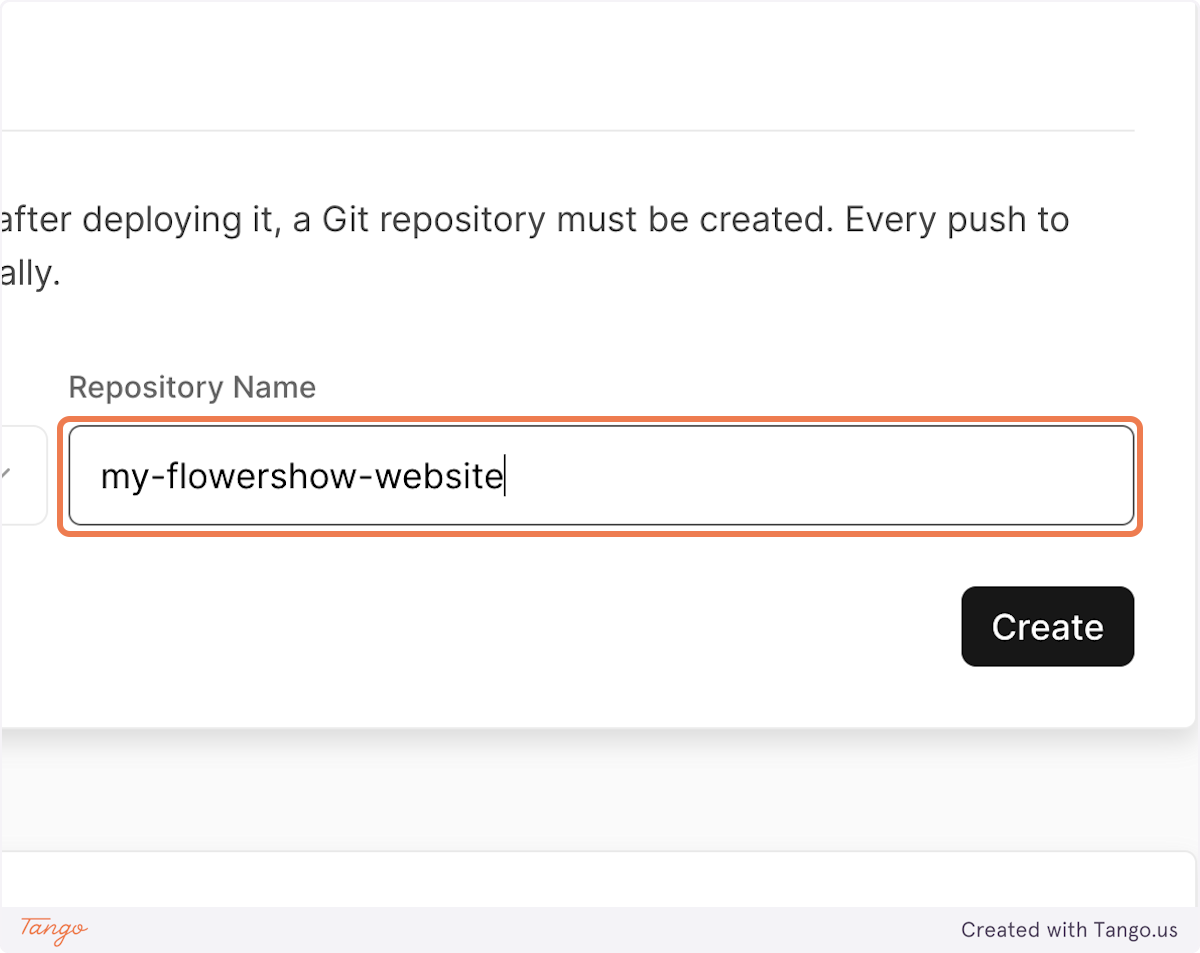
|
||||
|
||||
### 5. Click on "Create" and wait until the site deploys
|
||||
|
||||
After you click "Create", Vercel will create a new repository on your GitHub account, using the `datopian/flowershow` repository as a template. Then, it will immediately start buidling the initial version of your website. This may take about 1-2 minutes.
|
||||
|
||||
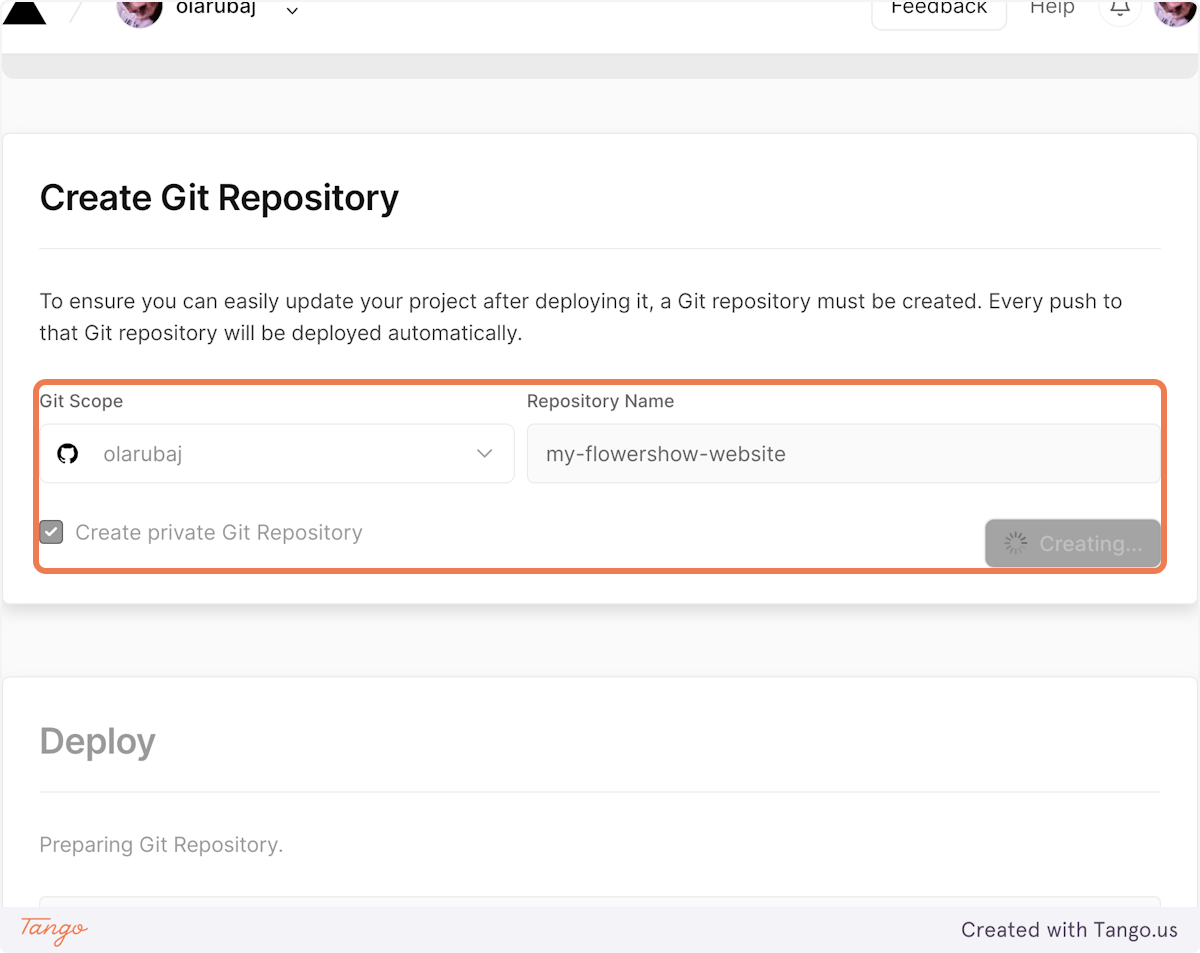
|
||||
|
||||
### 6. See your published website!
|
||||
|
||||
And voila! Your site is up and running. Once on the "Congratulations" screen, navigate to the project dashboard...
|
||||
|
||||

|
||||
|
||||
... and click on "Visit" to see your published website!
|
||||
|
||||
|
||||
|
||||
## Editing a page on your website
|
||||
|
||||
Once your site is up and running, the next step is to customize it to your liking. Let's start by editing our home page.
|
||||
|
||||
### 1. Navigate to the repository of your website on GitHub
|
||||
|
||||
You can get there by going to GitHub, clicking on your profile icon, and going to "Your repositories".
|
||||
|
||||
|
||||
|
||||
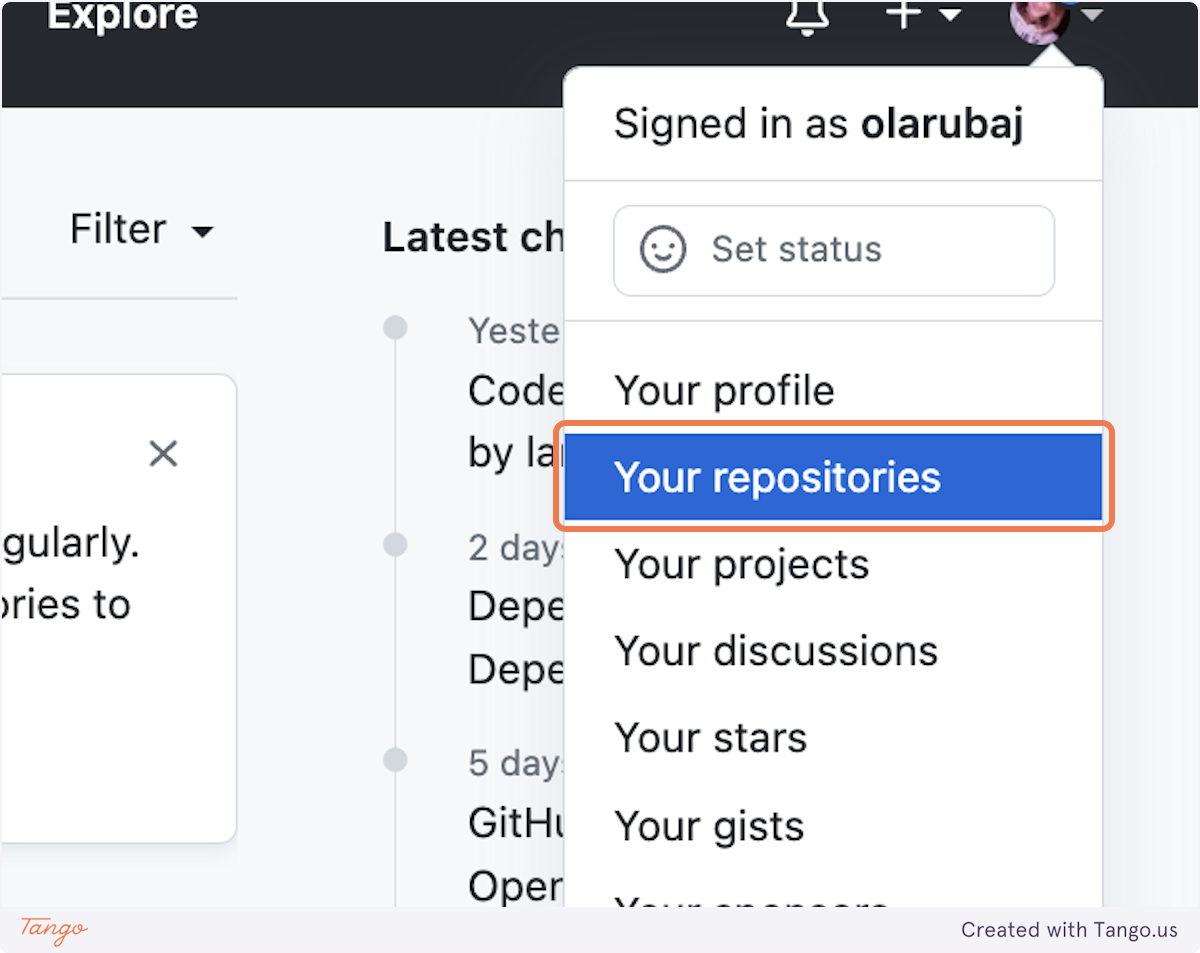
|
||||
|
||||
Or, you can navigate to [your Vercel dashboard](https://vercel.com/dashboard), select your project in the "Overview" tab...
|
||||
|
||||
|
||||
|
||||
...and click on "Git Repository". You'll be redirected to the repository of your website on GitHub.
|
||||
|
||||
|
||||
|
||||
### 2. Navigate to the "content" folder
|
||||
|
||||
This is where all the Markdown-based pages live in a Flowershow-based project.
|
||||
|
||||
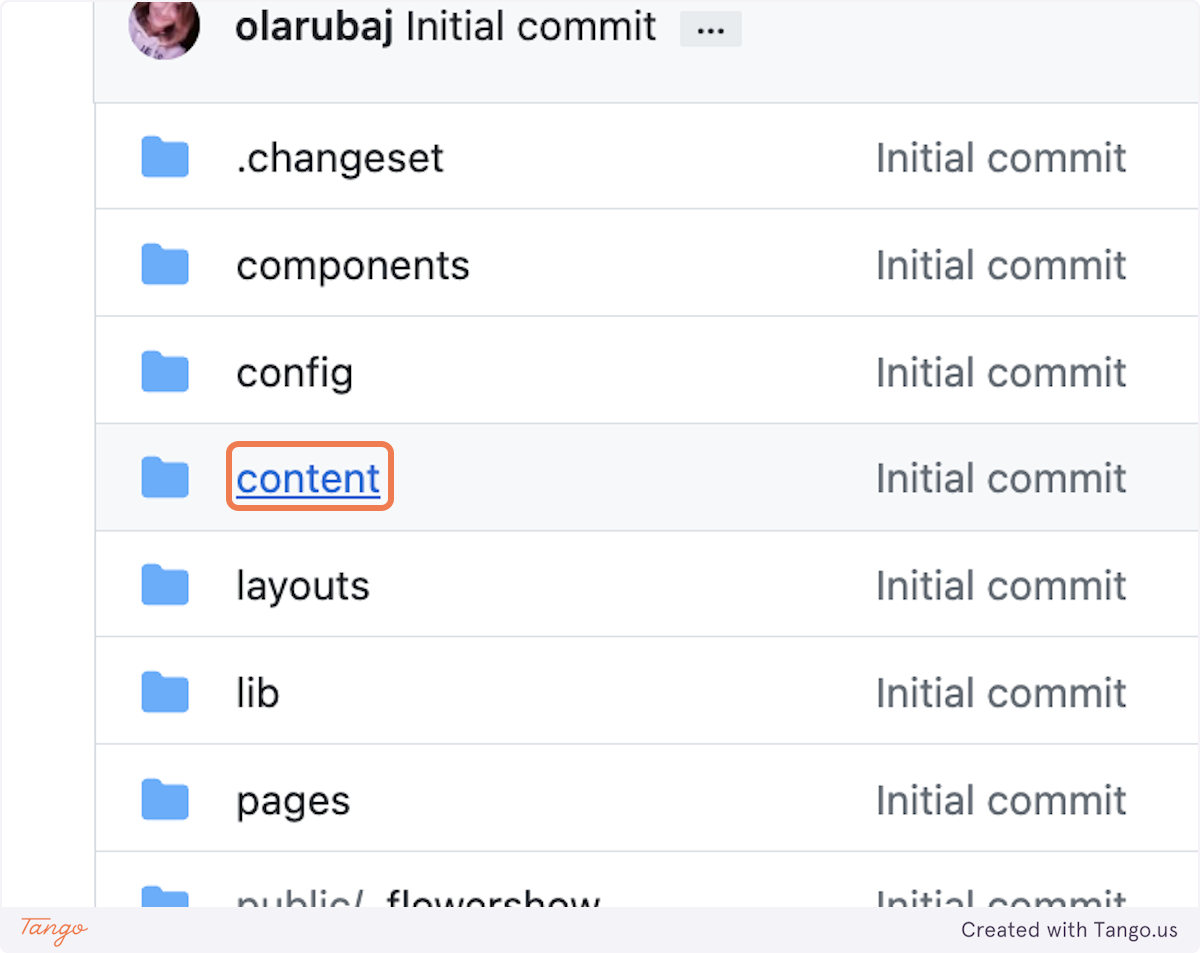
|
||||
|
||||
### 3. Edit the "index.md" file
|
||||
|
||||
The homepage on your website is built with the "index.md" file in the root of the "content" folder. Click on it to open.
|
||||
|
||||
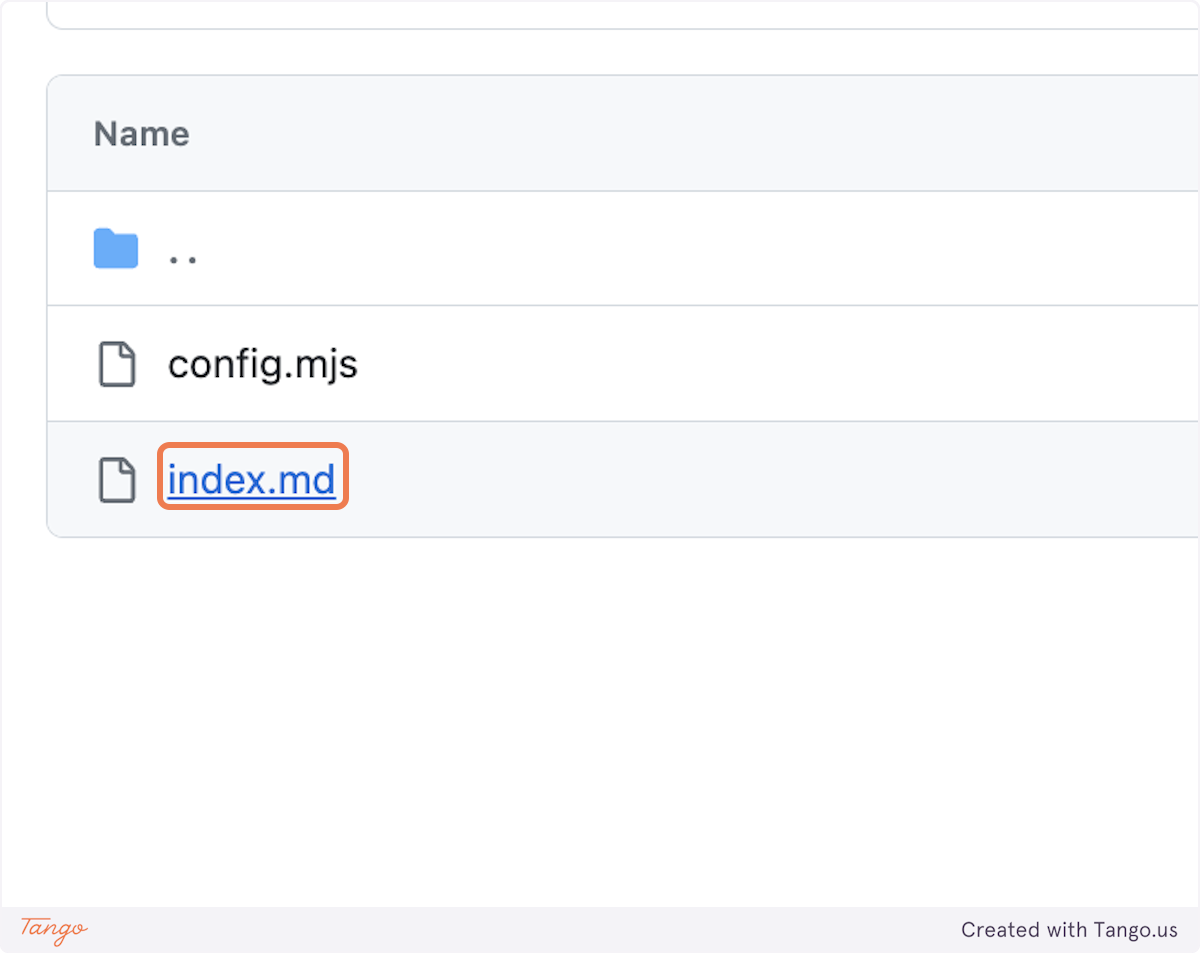
|
||||
|
||||
Then, click on the "Edit this file" icon...
|
||||
|
||||
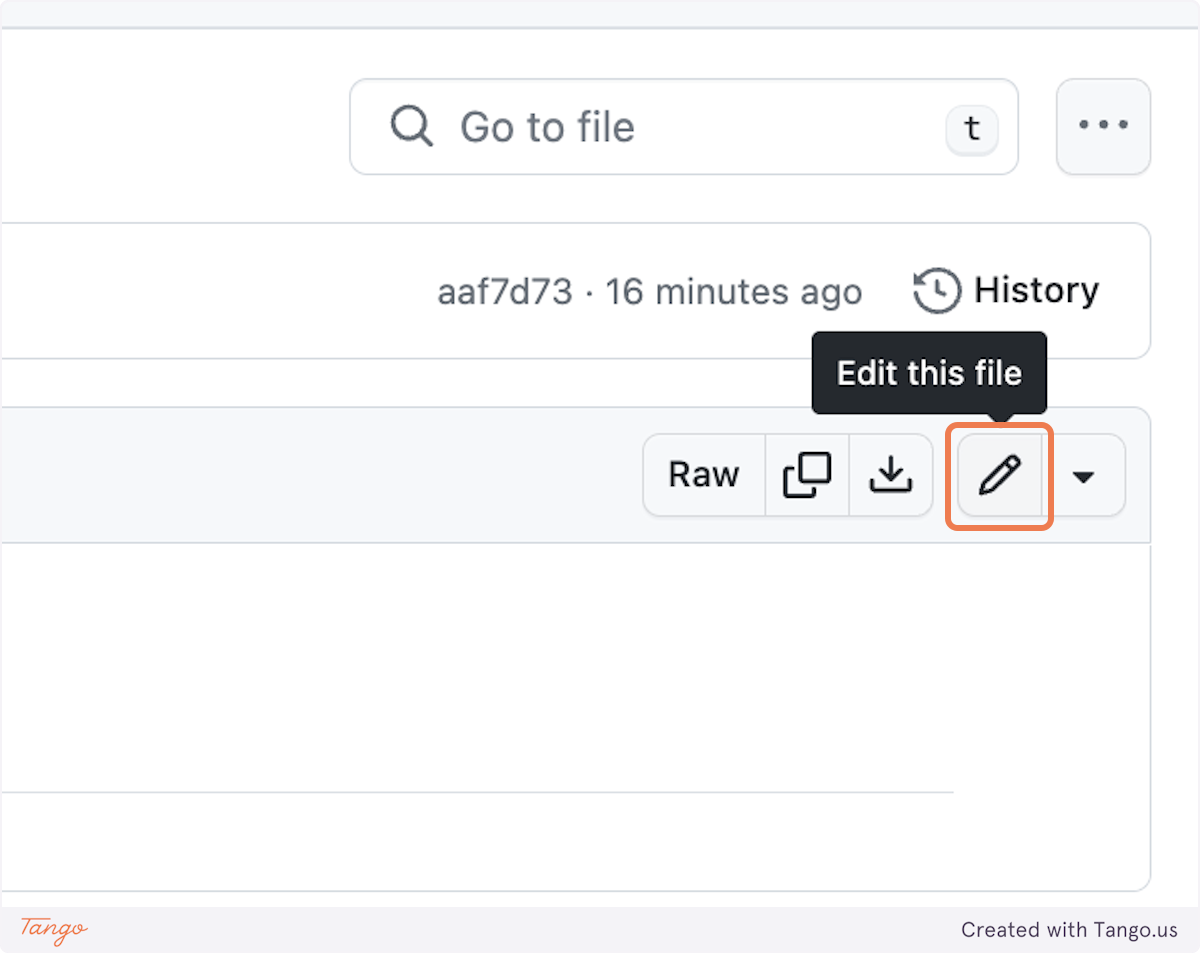
|
||||
|
||||
... and add some content.
|
||||
|
||||
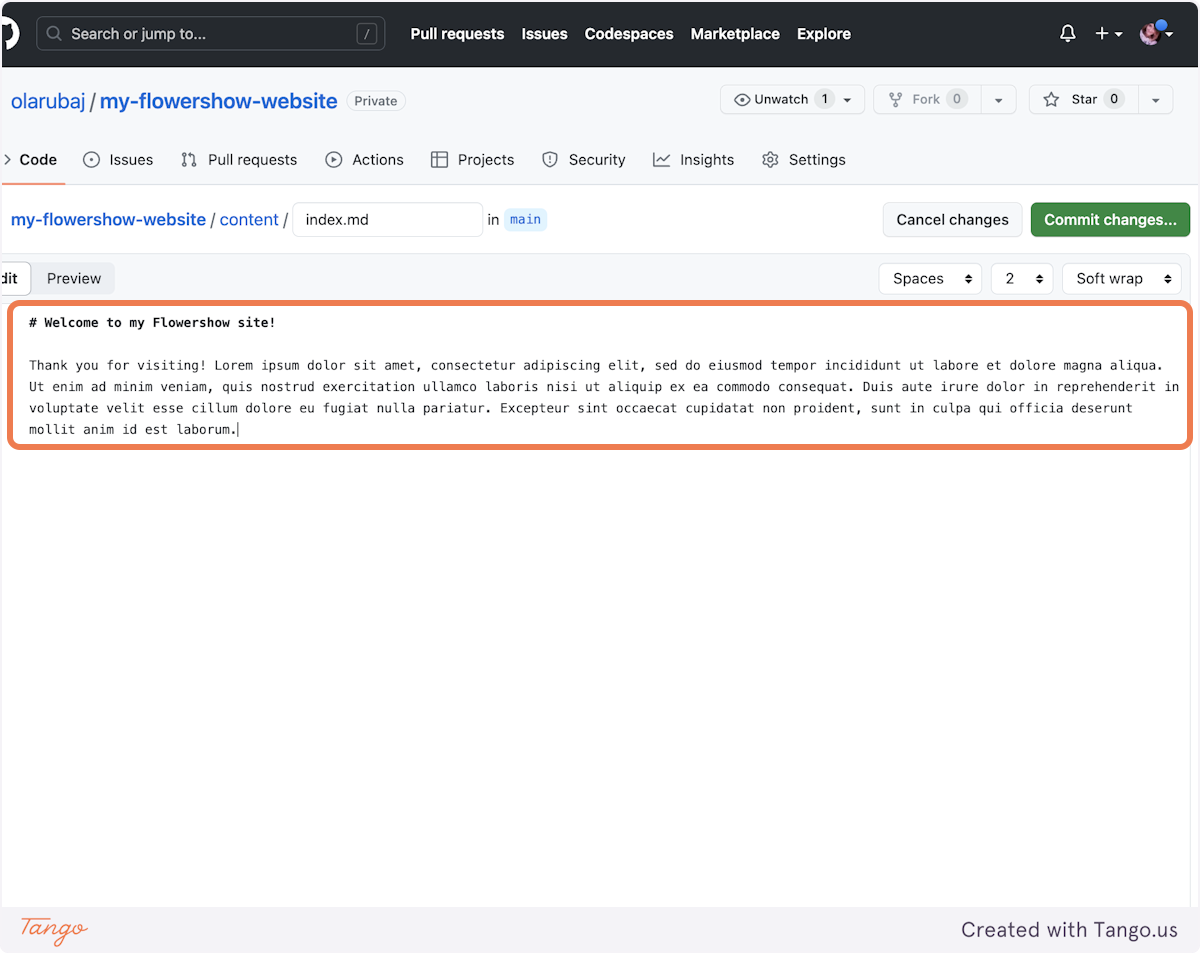
|
||||
|
||||
### 4. Save your changes
|
||||
|
||||
To see your changes live, you need to "commit" them. Click on "Commit changes..." buttom in the top-tight corner.
|
||||
|
||||

|
||||
|
||||
In the "Commit message" field add a concise description of your changes. Optionally, if the commit message is not enough, you can add more info in the "Extended description" field.
|
||||
|
||||

|
||||
|
||||
Leave "Commit directly to `main` branch" selected and click on "Commit changes". Doing that will trigger rebuilding of your site on Vercel.
|
||||
|
||||
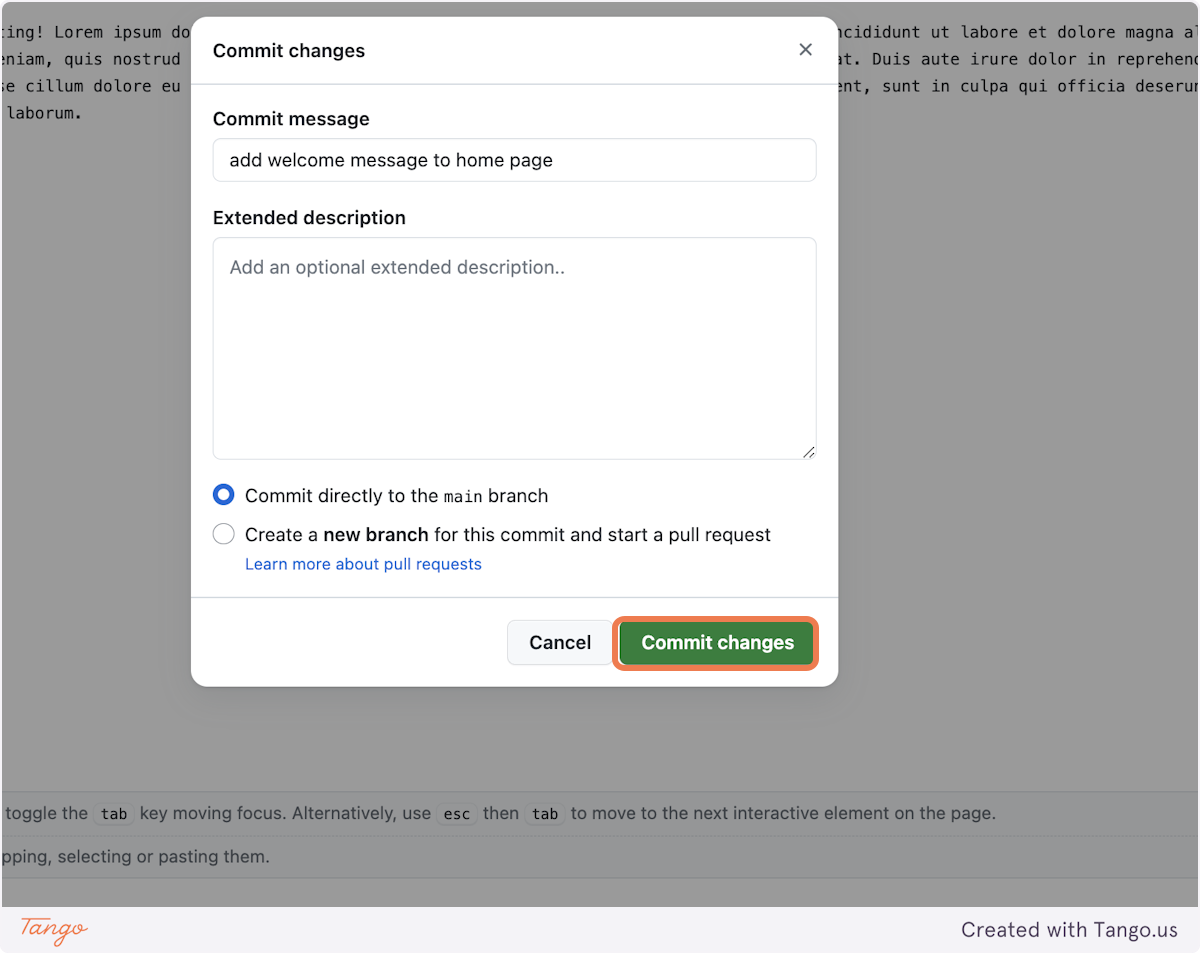
|
||||
|
||||
### 5. See your site getting rebuild
|
||||
|
||||
If you want to see the current progress of rebuilding your website after you've commited the changes, click on the dot next to your commit message.
|
||||
|
||||
> [!note]
|
||||
> It will be either a dot (if the site is currently being rebuilt after your changes), a check mark (if the site has finished building) or a cross (if something went wrong when rebuilding it).
|
||||
|
||||
|
||||
|
||||
Click on "Details" to see your project's deployment status on Vercel.
|
||||
|
||||
|
||||
|
||||
### 6. Preview your site after changes
|
||||
|
||||
Once the site has been rebuilt, click the preview to see your changes live.
|
||||
|
||||
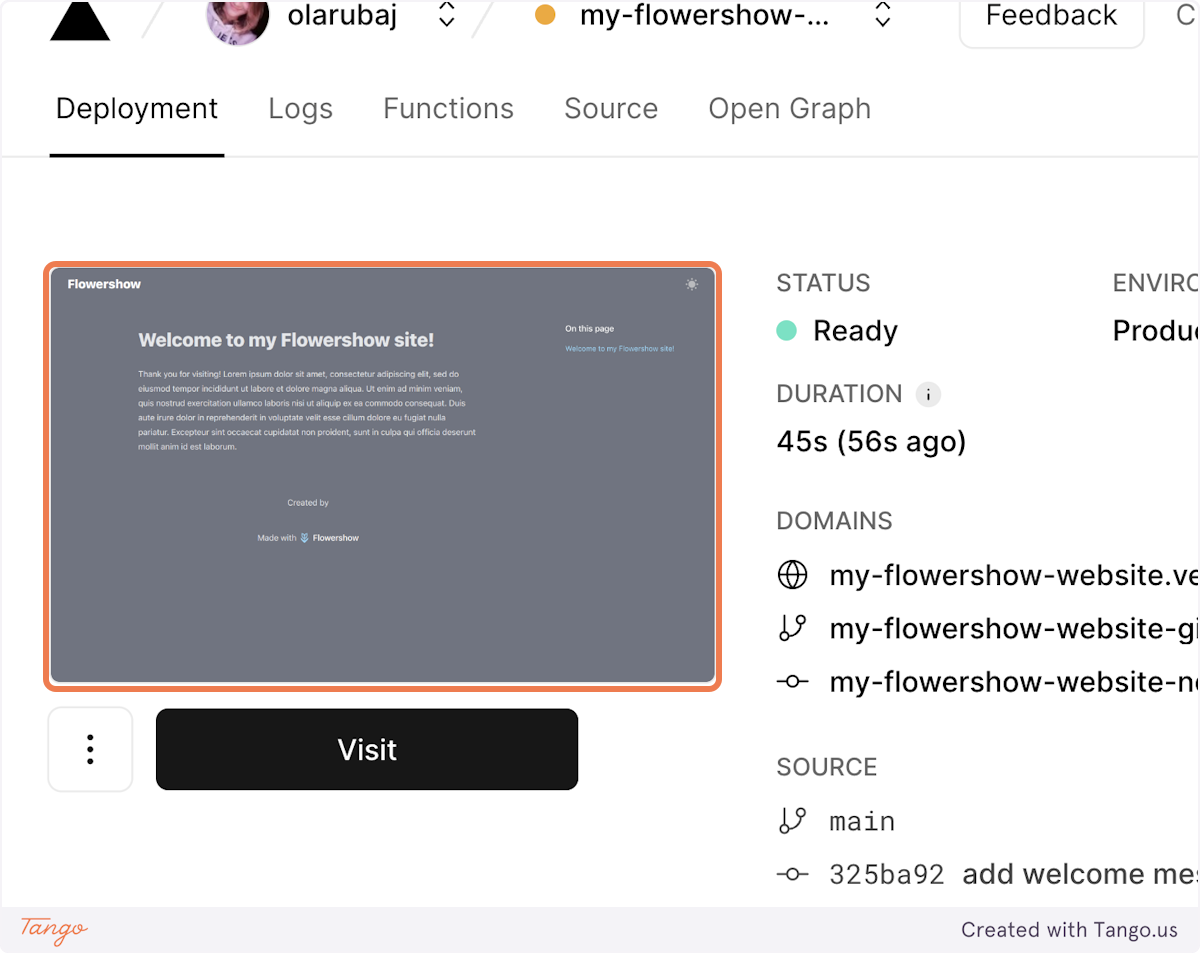
|
||||
|
||||
## Add a single Markdown-based page
|
||||
|
||||
### 1. Navigate to the "content" folder in your website's repository
|
||||
|
||||
See how to find it in the previous section.
|
||||
|
||||
### 2. Create new file
|
||||
|
||||
Click on "Add file"...
|
||||
|
||||
|
||||
|
||||
...and "Create new file".
|
||||
|
||||
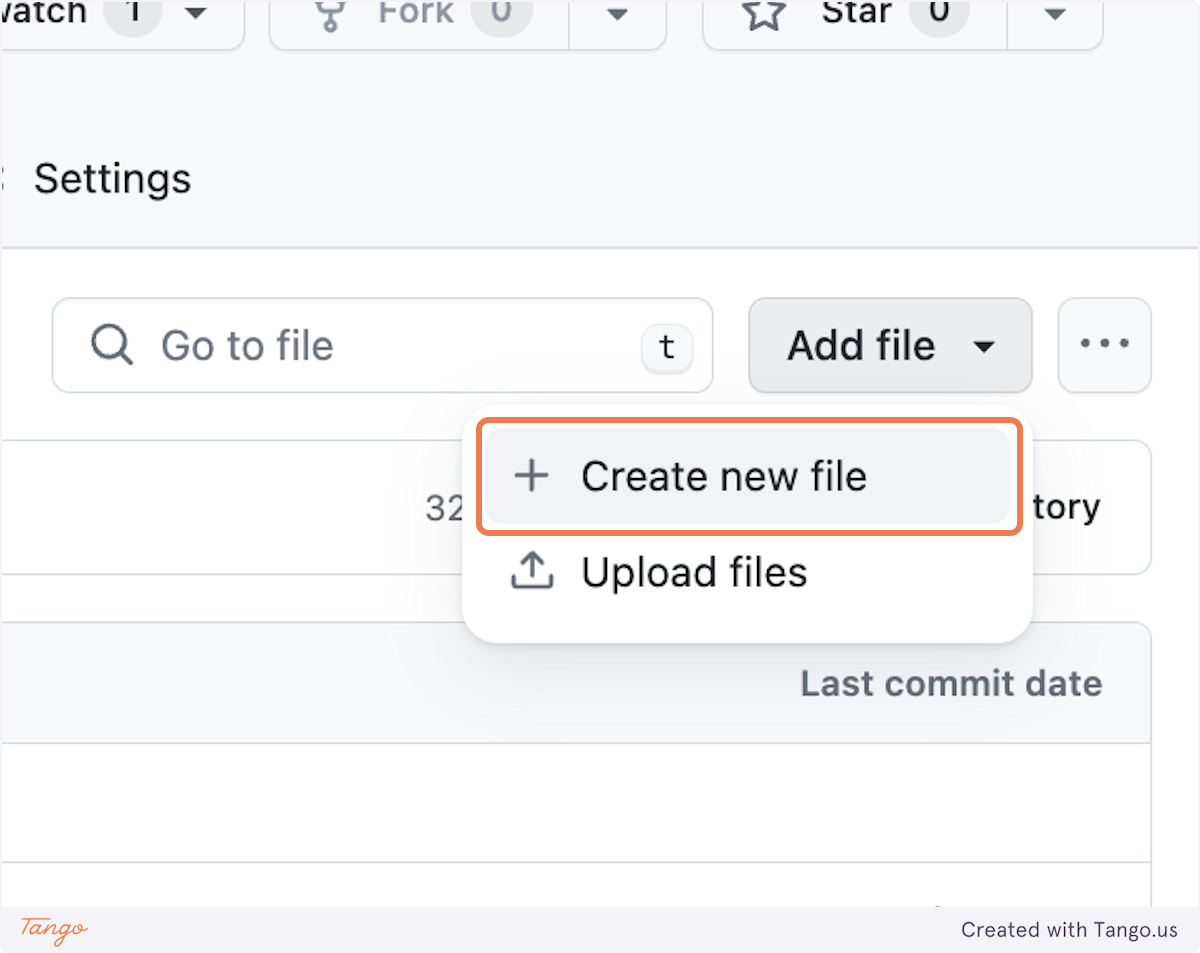
|
||||
|
||||
### 3. Type the name of the new file you want to create
|
||||
|
||||
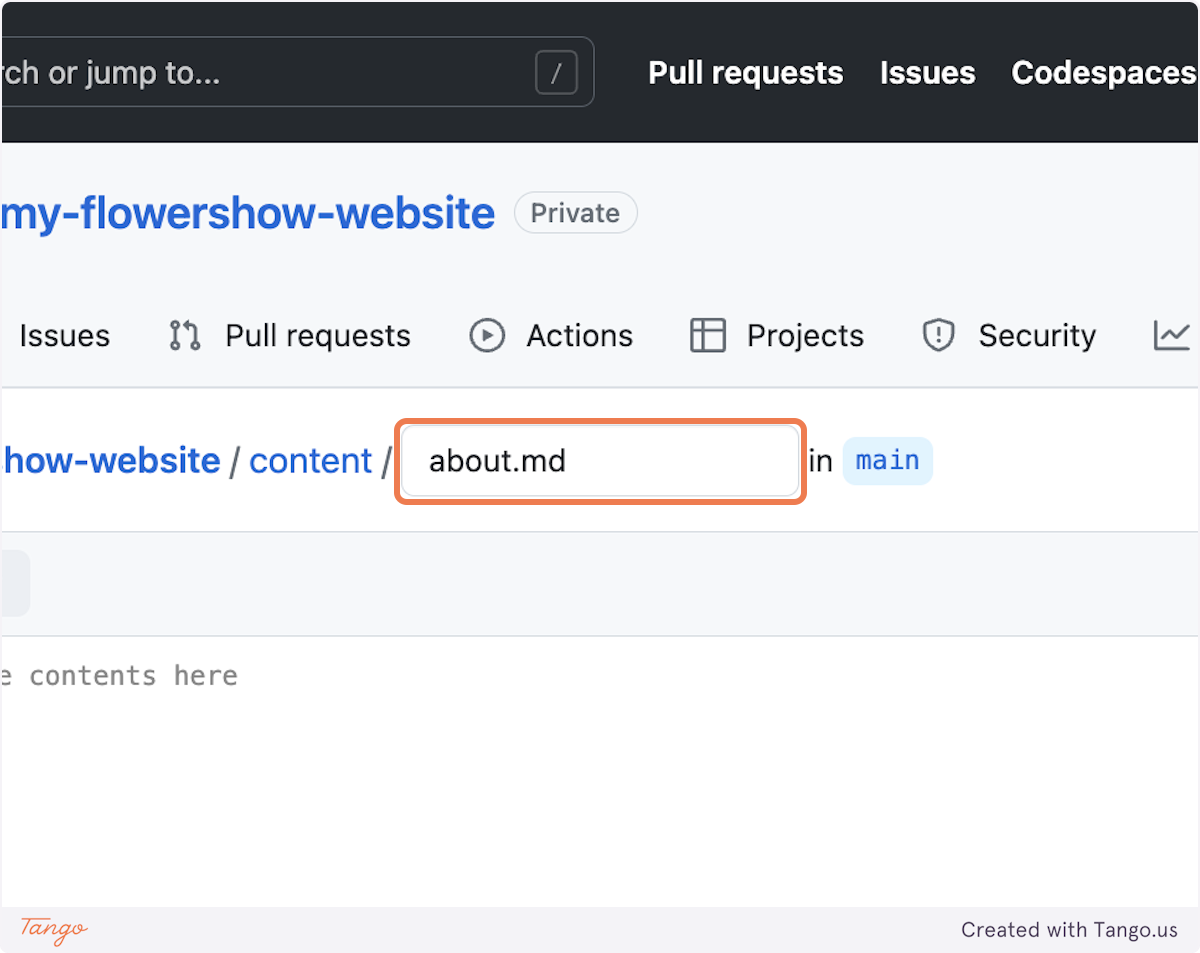
|
||||
|
||||
### 4. Write the content of the file
|
||||
|
||||
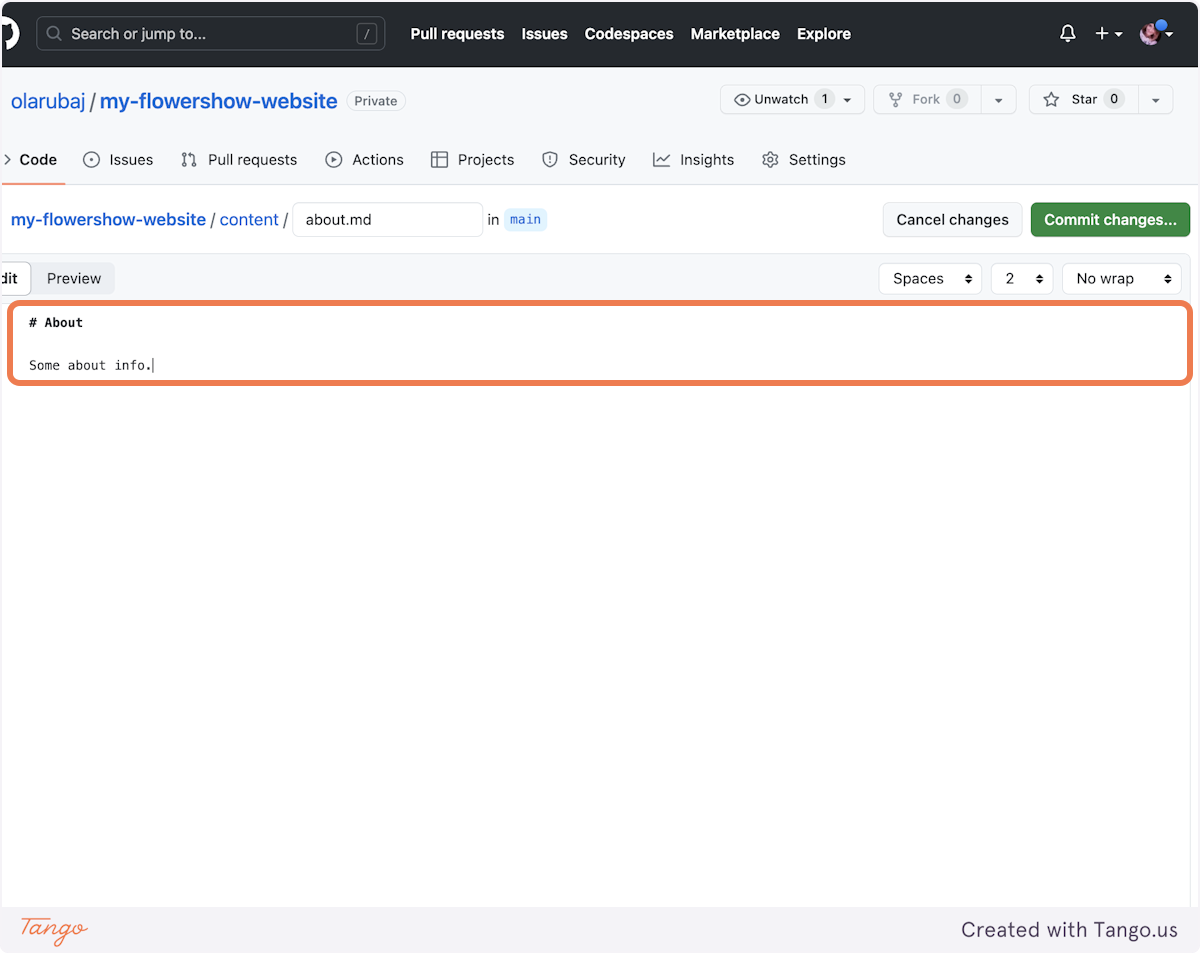
|
||||
|
||||
### 5. Save your changes
|
||||
|
||||
To see your changes live, you need to "commit" them. Click on "Commit changes..." buttom in the top-tight corner.
|
||||
|
||||
|
||||
|
||||
In the "Commit message" field add a concise description of your changes. Optionally, if the commit message is not enough, you can add more info in the "Extended description" field.
|
||||
|
||||
|
||||
|
||||
Leave "Commit directly to `main` branch" selected and click on "Commit changes". Doing that will trigger rebuilding of your site on Vercel.
|
||||
|
||||

|
||||
|
||||
### 6. Preview your site after changes
|
||||
|
||||
As you already know, Vercel will now start rebuilding your website. When it's done, you can navigate to `/about` url on your website to see the new file we've just added.
|
||||
|
||||
## What's next?
|
||||
|
||||
While editing on GitHub UI is acceptable, it has its limitations – it doesn't support working offline, adding multiple files simultaneously, or previewing many markdown syntax elements supported by Flowershow-based websites. We'll delve into these issues and solutions to overcome them in our next tutorial. Stay tuned!
|
||||
250
site/content/blog/edit-a-website-locally.md
Normal file
@@ -0,0 +1,250 @@
|
||||
---
|
||||
title: 'Tutorial 2: Edit your Flowershow website locally on your computer'
|
||||
date: 2023-06-22
|
||||
authors: ['Ola Rubaj']
|
||||
filetype: 'blog'
|
||||
---
|
||||
|
||||
In this tutorial, we will walk you through the process of editing your Flowershow website locally on your computer.
|
||||
|
||||
By the end of this tutorial, you will:
|
||||
|
||||
- Understand what is Markdown and why you should use Obsidian to edit content on your Flowershow websites in most cases.
|
||||
- Gain a deeper understanding of working with Git and GitHub Desktop.
|
||||
- Learn how to clone your website's repository to your computer.
|
||||
- Learn how to edit content using Obsidian and what are the benefits of it.
|
||||
- Learn how to commit (save) your changes locally and push them back to the GitHub repository.
|
||||
|
||||
Below is a screenshot of how the final website will look like:
|
||||
|
||||
![[tutorial-2-result.png]]
|
||||
|
||||
Let's start by understanding why using GitHub UI as we did in tutorial 1 is not always a good choice.
|
||||
|
||||
## What is Markdown and why use Obsidian for editing it in Flowershow-based websites
|
||||
|
||||
While editing on the GitHub UI is convenient, there are certain limitations and drawbacks to consider. For example, you can't work offline, can't add or edit multiple files simultaneously, and the GitHub UI's preview doesn't render all the Markdown syntax elements that are supported by Flowershow-based websites.
|
||||
|
||||
Ok, but, what exactly is Markdown?
|
||||
|
||||
[Markdown](https://en.wikipedia.org/wiki/Markdown) is a simple and intuitive syntax, that allows you to structure your text documents. It's widely used for creating content on the web. As Wikipedia puts it:
|
||||
|
||||
> *Markdown is a lightweight [**markup language**](https://en.wikipedia.org/wiki/Markup_language) for creating [**formatted text**](https://en.wikipedia.org/wiki/Formatted_text) using a **plain-text editor**.*
|
||||
|
||||
The key term here is "markup language". In simple terms, it is a way to annotate or "mark up" a plain text document with symbols that describe how the document is structured and so, how it should be understood, processed, or displayed. These tags can tell a computer program that supports this syntax (e.g. a website) how to format the rendered text, for example: which words should be bold or italic, where to insert images, when to start new paragraphs, how to create tables, and so forth. It's important to note, that even though Markdown symbols change how the text is displayed when it's rendered by a Markdown-compatible viewer, the underlying document in still just a plain text. For instance, if you want to create a heading in Markdown, you use the "#" symbol before your heading text, like this:
|
||||
|
||||
```md
|
||||
# This is a Heading
|
||||
```
|
||||
|
||||
BUT, there is no single version of Markdown. It comes in different "flavours", with CommonMark and GitHub Flavoured Markdown (GFM) being the most popular ones. And different tools supporting Markdown may use their own specific versions of Markdown. The two tools relevant in the context of this guide are Obsidian and Flowershow.
|
||||
|
||||
Obsidian supports an extended version of Markdown that includes majority of elements from CommonMark and GFM, while also introducing its own unique features, like [wiki-links](https://help.obsidian.md/Linking+notes+and+files/Internal+links) or [callouts](https://help.obsidian.md/Editing+and+formatting/Callouts). And Flowershow template is Obsidian-compatible, meaning it supports (or aims to support) all of the Obsidian Markdown features.
|
||||
|
||||
To make things a bit clearer, there are:
|
||||
|
||||
- CommonMark
|
||||
- GitHub Flavored Markdown (GFM) - superset of CommonMark
|
||||
- "Obsidian flavoured Markdown" - majority of the GFM + some extra elements, like wiki-links or callouts
|
||||
- "Flowershow flavoured Markdown" - majority of Obsidian-supported syntax
|
||||
|
||||
As you might have guessed by now, GitHub UI will only preview GitHub Flavoured Markdown. And while it's a majority of Markdown you would write, it won't be able to render Obsidian-only (or Flowershow-only) syntax elements, like callouts, wiki-links or inline table of contents.
|
||||
|
||||
Another drawback of GitHub UI, is that it doesn't allow you to make changes (or to add) multiple files at once. Changes to each file will have to be commited (saved) separately, which can introduce a bit of a mess to your GitHub history, and may be cumbersome (e.g. if you want to update a link to some page on 10 other pages...).
|
||||
|
||||
Ok, now we have this sorted, let's dive in and start editing your Flowershow website locally!
|
||||
|
||||
## Prerequisites
|
||||
|
||||
- A [GitHub](https://github.com/) account.
|
||||
- A [Vercel](https://vercel.com/) account. You can set it up using your GitHub account.
|
||||
- [Obsidian](https://obsidian.md/) installed
|
||||
- [GitHub Desktop](https://desktop.github.com/) installed
|
||||
- [[create-a-website-from-scratch|Tutorial 1: Create a website from scratch using Markdown and PortalJS]] completed - this one is recommended so that you have the same sandbox website we're working on in this tutorial.
|
||||
|
||||
## Clone the GitHub repository on your computer
|
||||
|
||||
### 1. Open GitHub Desktop app
|
||||
|
||||
### 2. Click on "Clone a Repository from the Internet..."
|
||||
|
||||
Or click on "File" -> "Clone repository".
|
||||
|
||||
![[gh-desktop-starting-screen.png]]
|
||||
|
||||
If this is the first time you're using GitHub Desktop, it will prompt you to log in to your GitHub account. Click "Sign In" and follow the prompts.
|
||||
|
||||
![[gh-desktop-clone-signin.png]]
|
||||
|
||||
Once you're done and you've authorised GitHub Desktop to access your repositories, go back to GitHub Desktop. You should now see a list of all your GitHub repositories.
|
||||
|
||||
### 3. Select the repository you want to clone
|
||||
|
||||
![[gh-desktop-clone.png]]
|
||||
|
||||
### 4. Choose where your repository should be saved
|
||||
|
||||
Type the path manually or click "Choose..." to find it using file explorer.
|
||||
|
||||
![[gh-desktop-clone-path-select.png]]
|
||||
|
||||
### 5. Click "Clone" and wait for the process to complete
|
||||
|
||||
You should now see the following screen:
|
||||
|
||||
![[gh-desktop-no-local-changes.png]]
|
||||
|
||||
Done! You've successfully cloned your website's repository on your computer! 🎉
|
||||
|
||||
## Edit your site in Obsidian
|
||||
|
||||
### 1. Open Obsidian
|
||||
|
||||
### 2. Open your repository's `/content` folder as vault
|
||||
|
||||
Click on "Open" in "Open folder as vault" section and select the path to the `/content` of the cloned repository.
|
||||
|
||||
![[obsidian-starting.png]]
|
||||
Now you're ready to edit your site! In the left-hand side panel you should see the two files we created in [[create-a-website-from-scratch|tutorial 1]]: `index.md` and `about.md`.
|
||||
|
||||
![[obsidian-content-start.png]]
|
||||
|
||||
### 3. Edit your site's content
|
||||
|
||||
Now, let's add some more stuff to the home page.
|
||||
|
||||
Click on `index.md` to open it and replace the dummy text with "About Me" section, .e.g.:
|
||||
|
||||
```md
|
||||
## About Me
|
||||
|
||||
Hey there! I'm Your Name, a passionate learner and explorer of ideas.
|
||||
```
|
||||
|
||||
![[obsidian-content-index-edit.png]]
|
||||
|
||||
Now, let's say for more information about you and your site, you want to add link to the about page. You can do so, by creating a wiki-link to that page, like so:
|
||||
|
||||
```md
|
||||
[[about]]
|
||||
```
|
||||
|
||||
When you start typing, after writing empty double brackets `[[]]`, Obsidian will suggest all the available pages you can link to, and after you select one it will create the link automatically for you.
|
||||
|
||||
![[obsidian-content-index-add-link.png]]
|
||||
![[obsidian-content-index-add-link-2.png]]
|
||||
|
||||
Now, let's say you want to show people what books you've read and share your reviews and other information on each one. And let's say information on each book should be available at `/books/abc` path on our website. To achieve this, you need to create a folder called `books` in your vault and add all the project-related files in there.
|
||||
|
||||
To create a new folder in Obsidian, click on the "New folder" icon, and give your folder a name:
|
||||
|
||||
![[obsidian-content-add-folder.png]]
|
||||
|
||||
![[obsidian-content-add-folder-2.png]]
|
||||
|
||||
Now, let's write some book reviews. You can do this by right-clicking on the `/books` folder, and selecting "New note" option. Rename the newly created `Untitled.md` file and add some review in it. Then add some other reviews.
|
||||
|
||||
![[obsidian-content-book.png]]
|
||||
|
||||
Ok, now let's make a page that will list all your books reviews - our Bookshelf! It would be nice to have it available under `/books` path on the website, since each of our books will be available under `/books/abc`. To achieve this, we have to create an index page **inside** our `/books` folder, like so:
|
||||
|
||||
![[obsidian-content-book-index.png]]
|
||||
|
||||
Then, let's list our book reviews with wiki-links to their pages:
|
||||
|
||||
![[obsidian-content-book-index-2.png]]
|
||||
|
||||
![[obsidian-content-book-index-3.png]]
|
||||
|
||||
Now, let's add a link to our Bookshelf page on our home page, so that it's easy to find.
|
||||
|
||||
![[obsidian-content-index-bookshelf-link.png]]
|
||||
|
||||
Now, if you want to have your link say something different than the raw `books/index`, you can do this by typing `|` after the path and specifying an alternative name, .e.g:
|
||||
|
||||
```md
|
||||
[[books/index|Bookshelf]]
|
||||
```
|
||||
|
||||
Let's also do this for the about page:
|
||||
|
||||
```md
|
||||
[[about|About me]]
|
||||
```
|
||||
|
||||
![[obsidian-content-index-link-aliases.png]]
|
||||
|
||||
That's better!
|
||||
|
||||
Now, let's maybe add a short info at the bottom, that this site is new and is currently being worked on, in form of an Obsidian callout:
|
||||
|
||||
```md
|
||||
> [!info]
|
||||
> 🚧 This site it pretty new and I'm enhancing it every day. Stay tuned!
|
||||
```
|
||||
|
||||
![[obsidian-content-index-callout.png]]
|
||||
|
||||
Great, our updated site is ready to be published! 🔥
|
||||
|
||||
## Save and publish your changes
|
||||
|
||||
### 1. Navigate to GitHub Desktop app
|
||||
|
||||
In the "Changes" tab, you'll see all the changes that have been made to the repository.
|
||||
|
||||
![[github-desktop-all-changed-files.png]]
|
||||
|
||||
All the new files will have `[+]` sign next to them, and all the edited files will have `[•]`.
|
||||
|
||||
### 2. Commit your changes
|
||||
|
||||
Now, to save these changes we need to "commit" them, which is a fancy term for making a checkpoint of the state at which your repository is currently in.
|
||||
|
||||
Let's make this checkpoint! In the bottom left corner there is a "Summary (required)" field, which is the place for a commit message - a concise description of the changes you made. The "Description" field is optional, and it's only needed if you need to add some more information about your changes that doesn't fit in the commit message.
|
||||
|
||||
![[github-desktop-add-commit-message.png]]
|
||||
|
||||
Now, hit the "Commit to main" button, and done! Now GitHub Desktop should say there are no local changes again. And that's correct, as all the changes we made have successfully been saved, and no other changes have been made since then.
|
||||
|
||||
You should see the last commit message under the button:
|
||||
|
||||
![[github-desktop-commit-message.png]]
|
||||
|
||||
You can also inspect the whole history of past commits in the "History tab".
|
||||
|
||||
![[github-desktop-history.png]]
|
||||
|
||||
The very fist commit on top is the commit we've just made, but you can also see all the commits to the repository we made in [[create-a-website-from-scratch|tutorial 1]], via GitHub UI.
|
||||
|
||||
### 3. Push your changes to the remote repository
|
||||
|
||||
The commit we've just crated has ↑ sign next to it. It means it hasn't yet been pushed to our remote version of the repository - the changes you made has been saved, but only locally on your computer. In order to push them to the cloud copy of the repository (aka "remote"), click "↑ Push origin (1 ↑)" tab.
|
||||
|
||||
When the "push" is complete, the arrow next to the last commit message should disappear, and there should be no `(1 )` indicator next to "Push origin" button.
|
||||
|
||||
![[github-desktop-history-after-push.png]]
|
||||
|
||||
### 4. See updated site live!
|
||||
|
||||
Navigate to your [vercel dashboard](https://vercel.com/dashboard).
|
||||
|
||||
![[vercel-dashboard.png]]
|
||||
|
||||
Click on the project repository to go to its dashboard.
|
||||
|
||||
You may have to wait a bit until the site builds, but once it's ready, you should see the preview with our latest changes.
|
||||
|
||||
![[vercel-project-dashboard.png]]
|
||||
|
||||
Note, that under "SOURCE" section (next to the preview) there is also our last commit message, indicating that the latest deployment has been triggered by this commit.
|
||||
|
||||
Click on the preview to see the updated site live!
|
||||
|
||||
![[tutorial-2-result.png]]
|
||||
![[live-book-home-page.png]]
|
||||
![[live-book.png]]
|
||||
|
||||
Congratulations!
|
||||
|
||||
You have successfully completed the tutorial on editing your Flowershow website locally on your computer. By utilising Obsidian and GitHub Desktop, you have unlocked powerful editing capabilities and improved the overall publishing process. Now, you can enjoy the benefits of offline editing, simultaneous file editing, and previewing the extended Markdown syntax provided by Obsidian.
|
||||
@@ -0,0 +1,64 @@
|
||||
---
|
||||
title: 'Enhancing Geospatial Data Visualization with PortalJS'
|
||||
date: 2023-07-18
|
||||
authors: ['João Demenech', 'Luccas Mateus', 'Yoana Popova']
|
||||
filetype: 'blog'
|
||||
---
|
||||
|
||||
Are you keen on building rich and interactive data portals? Do you find value in the power and flexibility of JavaScript, Nextjs, and React? In that case, allow us to introduce you to [PortalJS](https://portaljs.org/), a state-of-the-art framework leveraging these technologies to help you build amazing data portals.
|
||||
|
||||
Perhaps you already understand that the effective data visualization lies in the adept utilization of various data components. Within [PortalJS](https://portaljs.org/), we take data visualization a step further. It's not just about displaying data - it's about telling a captivating story through the strategic orchestration of a diverse array of data components.
|
||||
|
||||
We are now eager to share our latest enhancement to [PortalJS](https://portaljs.org/): maps, a powerful tool for visualizing geospatial data. In this post, we will to take you on a tour of our experiments and progress in enhancing map functionalities on [PortalJS](https://portaljs.org/). Our journey into this innovative feature is still in its early stages, with new facets being unveiled and refined as we perfect our API. Still, this exciting development opens a new avenue for visualizing data, enhancing your ability to convey complex geospatial information with clarity and precision.
|
||||
|
||||
## Exploring Map Formats
|
||||
|
||||
Maps play a crucial role in geospatial data visualization. Several formats exist for storing and sharing this type of data, with GeoJSON, KML, and shapefiles being among the most popular. As a prominent figure in the field of open-source data portal platforms, [PortalJS](https://portaljs.org/) strives to support as many map formats as possible.
|
||||
|
||||
Taking inspiration from the ckanext-geoview extension, we currently support KML and GeoJSON formats in [PortalJS](https://portaljs.org/). This remarkable extension is a plugin for CKAN, the world’s leading open source data management system, that enables users to visualize geospatial data in diverse formats on an interactive map. Apart from KML and GeoJSON formats support, our roadmap entails extending compatibility to encompass all other formats supported by ckanext-geoview. Rest assured, we are committed to empowering users with a wide array of map format options in the future.
|
||||
|
||||
So, what makes these formats special?
|
||||
|
||||
- **GeoJSON**: This format uses JSON to depict simple geographic features and their associated attributes. It's often hailed as the most popular choice in the field.
|
||||
- **KML**: An XML-based format, KML can store details like placemarks, paths, polygons, and styles.
|
||||
- **Shapefiles**: These are file collections that store vector data—points, lines, and polygons—and their attributes.
|
||||
|
||||
## Unveiling the Power of Leaflet and OpenLayers
|
||||
|
||||
To display maps in [PortalJS](https://portaljs.org/), we utilize two powerful JavaScript libraries for creating interactive maps based on different layers: Leaflet and OpenLayers. Each offers distinct advantages (and disadvantages), inspiring us to integrate both and give users the flexibility to choose.
|
||||
|
||||
Leaflet is the leading open-source JavaScript library known for its mobile-friendly, interactive maps. With its compact size (just 42 KB of JS), it provides all the map features most developers need. Leaflet is designed with simplicity, performance and usability in mind. It works efficiently across all major desktop and mobile platforms.
|
||||
|
||||
OpenLayers is a high-performance library packed with features for creating interactive web maps. OpenLayers can display map tiles, vector data, and markers sourced from anywhere on any webpage. It's an excellent tool for leveraging geographic information of all kinds.
|
||||
|
||||
## Introducing Map Feature
|
||||
|
||||
Both components have some similar features and props, such as:
|
||||
|
||||
### Polygons and points
|
||||
|
||||

|
||||
|
||||
Our initial version enables the use of both vectors and points to display information. Points are simpler and faster to render than vectors, but they have less detail and interactivity. For example, if you have data that is represented by coordinates or addresses, you can use points to show them on the map. This way, you can avoid time-consuming loading and rendering complex vector shapes that may slow down your map.
|
||||
|
||||
### Tooltips
|
||||
|
||||

|
||||
|
||||
We have implemented an exciting feature that enhances the usability of our map component: tooltips. When you hover over a polygon or point on the map, a small pop-up window, known as a tooltip, appears. This tooltip provides relevant details about the feature under your cursor, according to what features the map creator wants to highlight. For example, when exploring countries, you can effortlessly discover their name, population, and area by hovering over them. Similarly, hovering over cities reveals useful information like their name, temperature, and elevation. To enable this handy tooltip functionality on our map, simply include a tooltip prop when using the map component.
|
||||
|
||||
### Focus
|
||||
|
||||

|
||||
|
||||
Users can also choose a region of focus, which will depend on the data, by setting initial center coordinates and zoom level. This is especially helpful for maps that are not global, such as the ones that use data from a specific country, city or region.
|
||||
|
||||
## Mapping the Future with PortalJS
|
||||
|
||||
Through our ongoing enhancements to the [PortalJS library](https://storybook.portaljs.org/), we aim to empower users to create engaging and informative data portals featuring diverse map formats and data components.
|
||||
|
||||
Why not give [PortalJS](https://portaljs.org/) a try today and discover the possibilities for your own data portals? To get started, check out our comprehensive documentation here: [PortalJS Documentation](https://portaljs.org/docs).
|
||||
|
||||
Have questions or comments about using [PortalJS](https://portaljs.org/) for your data portals? Feel free to share your thoughts on our [Discord channel](https://discord.com/invite/EeyfGrGu4U). We're here to help you make the most of your data.
|
||||
|
||||
Stay tuned for more exciting developments as we continue to enhance [PortalJS](https://portaljs.org/)!
|
||||
@@ -1,60 +1,72 @@
|
||||
const config = {
|
||||
title:
|
||||
"PortalJS",
|
||||
title: 'PortalJS - The JavaScript framework for data portals.',
|
||||
description:
|
||||
"PortalJS is a framework for rapidly building rich data portal frontends using a modern frontend approach. PortalJS can be used to present a single dataset or build a full-scale data catalog/portal.",
|
||||
'PortalJS is a framework for rapidly building rich data portal frontends using a modern frontend approach.',
|
||||
theme: {
|
||||
default: "dark",
|
||||
toggleIcon: "/images/theme-button.svg",
|
||||
default: 'dark',
|
||||
toggleIcon: '/images/theme-button.svg',
|
||||
},
|
||||
author: "Datopian",
|
||||
authorLogo: "/datopian-logo.png",
|
||||
authorUrl: "https://datopian.com/",
|
||||
author: 'Datopian',
|
||||
authorLogo: '/datopian-logo.webp',
|
||||
authorUrl: 'https://datopian.com/',
|
||||
navbarTitle: {
|
||||
// logo: "/images/logo.svg",
|
||||
text: "🌀 PortalJS",
|
||||
text: '🌀 PortalJS',
|
||||
// version: "Alpha",
|
||||
},
|
||||
navLinks: [
|
||||
{ name: "Docs", href: "/docs" },
|
||||
{ name: 'Docs', href: '/docs' },
|
||||
// { name: "Components", href: "/docs/components" },
|
||||
{ name: "Blog", href: "/blog" },
|
||||
{ name: "Showcases", href: "/#showcases" },
|
||||
{ name: "Howtos", href: "/howto" },
|
||||
{ name: "Examples", href: "https://github.com/datopian/portaljs/tree/main/examples", target: "_blank" },
|
||||
{ name: "Components", href: "https://storybook.portaljs.org", target: "_blank" },
|
||||
{ name: 'Blog', href: '/blog' },
|
||||
{ name: 'Showcases', href: '/#showcases' },
|
||||
{ name: 'Howtos', href: '/howtos' },
|
||||
{ name: 'Guide', href: '/guide' },
|
||||
{
|
||||
name: 'Examples',
|
||||
href: 'https://github.com/datopian/portaljs/tree/main/examples',
|
||||
target: '_blank',
|
||||
},
|
||||
{
|
||||
name: 'Components',
|
||||
href: 'https://storybook.portaljs.org',
|
||||
target: '_blank',
|
||||
},
|
||||
// { name: "DL Demo", href: "/data-literate/demo" },
|
||||
// { name: "Excel Viewer", href: "/excel-viewer" },
|
||||
],
|
||||
footerLinks: [],
|
||||
nextSeo: {
|
||||
additionalLinkTags: [
|
||||
{ rel: 'icon', href: '/favicon.ico' },
|
||||
{ rel: 'apple-touch-icon', href: '/icon.png', sizes: '120x120' },
|
||||
],
|
||||
openGraph: {
|
||||
type: "website",
|
||||
type: 'website',
|
||||
title:
|
||||
"PortalJS - rapidly build rich data portals using a modern frontend framework.",
|
||||
'PortalJS - rapidly build rich data portals using a modern frontend framework.',
|
||||
description:
|
||||
"PortalJS is a framework for rapidly building rich data portal frontends using a modern frontend approach. PortalJS can be used to present a single dataset or build a full-scale data catalog and portal.",
|
||||
locale: "en_US",
|
||||
'PortalJS is a framework for rapidly building rich data portal frontends using a modern frontend approach. PortalJS can be used to present a single dataset or build a full-scale data catalog and portal.',
|
||||
locale: 'en_US',
|
||||
images: [
|
||||
{
|
||||
url: "/homepage-screenshot.png", // TODO
|
||||
alt: "PortalJS - rapidly build rich data portals using a modern frontend framework.",
|
||||
url: '/homepage-screenshot.png', // TODO
|
||||
alt: 'PortalJS - rapidly build rich data portals using a modern frontend framework.',
|
||||
width: 1280,
|
||||
height: 720,
|
||||
type: "image/jpg",
|
||||
type: 'image/jpg',
|
||||
},
|
||||
],
|
||||
},
|
||||
twitter: {
|
||||
handle: "@datopian",
|
||||
site: "https://datopian.com/",
|
||||
cardType: "summary_large_image",
|
||||
handle: '@datopian',
|
||||
site: 'https://datopian.com/',
|
||||
cardType: 'summary_large_image',
|
||||
},
|
||||
},
|
||||
github: "https://github.com/datopian/portaljs",
|
||||
discord: "https://discord.gg/EeyfGrGu4U",
|
||||
github: 'https://github.com/datopian/portaljs',
|
||||
discord: 'https://discord.gg/EeyfGrGu4U',
|
||||
tableOfContents: true,
|
||||
analytics: "G-96GWZHMH57",
|
||||
analytics: 'G-96GWZHMH57',
|
||||
// editLinkShow: true,
|
||||
};
|
||||
export default config;
|
||||
|
||||
@@ -63,7 +63,7 @@ Congratulations, your new app is now running at http://localhost:3000.
|
||||
|
||||
[](https://vercel.com/new/clone?repository-url=https%3A%2F%2Fgithub.com%2Fdatopian%2Fportaljs%2Ftree%2Fmain%2Fexamples%2Fgithub-backed-catalog)
|
||||
|
||||
By clicking on this button, you will be redirected to a page which will allows you to clone the example into your own GitHub/GitLab/BitBucket account and automatically deploy it.
|
||||
By clicking on this button, you will be redirected to a page which will allow you to clone the example into your own GitHub/GitLab/BitBucket account and automatically deploy it.
|
||||
|
||||
### GitHub token
|
||||
|
||||
@@ -101,7 +101,7 @@ It has
|
||||
You can also add
|
||||
|
||||
- A `description` which is useful if you have more than one dataset for each repo, if not provided we are just going to use the repo description
|
||||
- A `Name` which is useful if you want to give your dataset a nice name, if not provided we are going to use the junction of the `owner` the `repo` + the path of the README, in the exaple above it will be `fivethirtyeight/data/nba-raptor`
|
||||
- A `Name` which is useful if you want to give your dataset a nice name, if not provided we are going to use the junction of the `owner` the `repo` + the path of the README, in the example above it will be `fivethirtyeight/data/nba-raptor`
|
||||
|
||||
## Extra commands
|
||||
|
||||
|
||||
@@ -38,7 +38,7 @@ Let's check it's working and what we have! Open http://localhost:3000 from your
|
||||
|
||||
You should see a page like this when you access http://localhost:3000. This is the starter template page which shows the most simple data portal you could have: a simple README plus csv file.
|
||||
|
||||
<img src="/assets/examples/basic-example.png" />
|
||||
<img src="/assets/examples/basic-example.png" alt="Basic example" />
|
||||
|
||||
### Editing the Page
|
||||
|
||||
@@ -51,8 +51,8 @@ Let’s try editing the starter page.
|
||||
|
||||
After refreshing the page, you should see the new text:
|
||||
|
||||
<img src="/assets/docs/editing-the-page-1.png" />
|
||||
<img src="/assets/docs/editing-the-page-1.png" alt="Editing base example" />
|
||||
|
||||
Congratulations! The app is up and running and you learned how to edit a page. In the next lesson, you are going to learn how to create new datasets.
|
||||
Congratulations! The app is up and running and you learned how to edit a page. In the next lesson, you are going to learn how to create new datasets.
|
||||
|
||||
<DocsPagination next="/docs/creating-new-datasets" />
|
||||
|
||||
96
site/content/guide/index.md
Normal file
@@ -0,0 +1,96 @@
|
||||
---
|
||||
showToc: false
|
||||
showSidebar: false
|
||||
title: 'Markdown-based Websites Guide'
|
||||
disableTitle: true
|
||||
---
|
||||
|
||||
<Hero title="Markdown-based Websites" subtitle="Create markdown-based website, update it, add collaborators and discover markdown superpowers" />
|
||||
|
||||
## Tutorials
|
||||
|
||||
### Tutorial 1: Create a website from scratch using markdown and PortalJS
|
||||
|
||||
In this tutorial we will walk you through creating an elegant, fully functional website written in simple markdown and published with PortalJS.
|
||||
|
||||
By the end of this tutorial you will:
|
||||
|
||||
- have a working markdown-based website powered by PortalJS.
|
||||
- be able to edit the text and add pages, all from an online interface without installing anything.
|
||||
|
||||
Below is a screenshot of how the final website will look like:
|
||||
![[tutorial-1-result.png]]
|
||||
|
||||
#### Setup a sandbox website including live publishing
|
||||
|
||||
- Prerequisites: sign up for GitHub and Vercel
|
||||
- Navigate to [datopian/flowershow repository](https://github.com/datopian/flowershow)
|
||||
- Click on "Deploy"
|
||||
- Let the site build on Vercel
|
||||
- Visit the site! Yay! Your site is working! 🎉
|
||||
|
||||
#### Now, let's edit the front page
|
||||
|
||||
- Navigate to `content/index.md` file in the site repository
|
||||
- Add some text to it
|
||||
- Save and watch the site redeploy
|
||||
- Visit the site! Yay! Your changes are live! 🎉
|
||||
|
||||
#### Let's add a page: e.g. about page
|
||||
|
||||
- Navigate to the `content` folder in the site repository
|
||||
- Add `about.md` file with some text
|
||||
- Save and watch the site redeploy
|
||||
- Visit the site! Yay! Your changes are live! 🎉
|
||||
|
||||
> [!tip]
|
||||
> Read full tutorial [[create-a-website-from-scratch|here!]]
|
||||
|
||||
### Tutorial 2: Editing your site locally on your computer
|
||||
|
||||
In this tutorial, we will walk you through the process of editing your Flowershow website locally on your computer.
|
||||
|
||||
By the end of this tutorial, you will:
|
||||
|
||||
- Understand what is Markdown and why you should use Obsidian to edit content on your Flowershow websites in most cases.
|
||||
- Gain a deeper understanding of working with Git and GitHub Desktop.
|
||||
- Learn how to clone your website's repository to your computer.
|
||||
- Learn how to edit content using Obsidian and what are the benefits of it.
|
||||
- Learn how to commit (save) your changes locally and push them back to the GitHub repository.
|
||||
|
||||
Below is a screenshot of how the final website will look like:
|
||||
|
||||
![[tutorial-2-result.png]]
|
||||
|
||||
#### Clone the repository to your computer
|
||||
|
||||
- Setup GitHub Desktop app with your GitHub account
|
||||
- Grab your site's repository URL
|
||||
- Open GitHub Desktop app and clone the repository
|
||||
- Yay! You have a copy of your website's repository on your computer! 🎉
|
||||
|
||||
#### Now, let's edit in Obsidian
|
||||
|
||||
- Open the `/content` folder of the cloned repository in Obsidian
|
||||
- Edit the home page and the about page
|
||||
- Create a folder with the reviews of books you've read
|
||||
|
||||
#### Commit your changes
|
||||
|
||||
- Commit the changes in GitHub Desktop app
|
||||
- Push the changes to the remote repository
|
||||
- Watch the site redeploy
|
||||
- Visit the site! Yay! Your changes are live! 🎉
|
||||
|
||||
> [!tip]
|
||||
> Read full tutorial [[edit-a-website-locally|here!]]
|
||||
|
||||
## Howtos
|
||||
|
||||
- [[quickly-create-a-sandbox-website|How to quickly create a sandbox website]]
|
||||
- [[edit-text-on-a-single-md-page|How to quickly edit text on a single Markdown-based page]]
|
||||
- [[add-a-simple-md-page|How to add a simple Markdown page]]
|
||||
- [[edit-or-add-md-pages-locally|How to edit or add Markdown-based pages locally on your computer]]
|
||||
- [[how-to-add-images-to-a-md-page|How to add images to a Markdown-based page]]
|
||||
- [[publish-obsidian-vault-to-github|How to push an Obsidian vault to a GitHub repository]]
|
||||
- [[create-a-simple-catalog-of-anything|How to create a simple catalog of anything in Obsidian]]
|
||||
@@ -1,12 +0,0 @@
|
||||
# Guides and tutorials
|
||||
|
||||
- [[howto/analytics|How to add web analytics?]]
|
||||
- [[howto/seo|How to customize page metadata for SEO?]]
|
||||
- [[howto/sitemap|How to build a sitemap?]]
|
||||
- [[howto/markdown|How to add markdown-based content pages?]]
|
||||
- [[howto/blog|How to add a simple blog?]]
|
||||
- [[howto/drd|How to create data-rich documents with charts and tables?]]
|
||||
- [[howto/comments|How to add user comments?]]
|
||||
|
||||
If you have questions about anything related to PortalJS, you're always welcome to ask our community on [GitHub Discussions](https://github.com/datopian/portaljs/discussions) or on [our chat channel on Discord](https://discord.gg/EeyfGrGu4U).
|
||||
|
||||
37
site/content/howtos/add-a-simple-md-page.md
Normal file
@@ -0,0 +1,37 @@
|
||||
---
|
||||
title: How to quickly add a simple Markdown-based page
|
||||
date: 2023-07-27
|
||||
authors: ['Lauren Wigmore', 'Ola Rubaj']
|
||||
filetype: 'blog'
|
||||
---
|
||||
|
||||
Welcome to this howto on how to quickly add a simple Markdown-based page to your website. The steps here are designed for non-technical contributors. There's no need to know how to code!
|
||||
|
||||
> [!important]
|
||||
> This "How to" is only recommended for very simple Markdown pages, e.g. those without images, links to other pages, diagrams, or other elements that can't be previewed in GitHub preview mode.
|
||||
|
||||
> [!tip]
|
||||
> If you are unfamiliar with Markdown (and its different flavours and extra elements supported by Flowershow based websites), check out [this short guide](https://flowershow.app/docs/syntax) on available syntax elements.
|
||||
|
||||
## Steps
|
||||
|
||||
1. Go to the repository of your website in GitHub.
|
||||
2. Click on the `content` folder to open it. This is where all the Markdown files for a Flowershow-based website are stored.
|
||||
3. Optionally, navigate to a subfolder where you want to add your page.
|
||||
4. Click “Add file” and write the page name + extension `.md`, e.g. `my-new-page.md`.
|
||||
|
||||
> [!tip]
|
||||
> If you want to add your page to a new subfolder, in the "Name your file..." field, first type the name of the new subfolder, followed by a forward slash, .e.g., `blog/`. After you hit the slash, you'll see the name field gets cleared, but the path before it has been extended with your subfolder name. You can repeat this process if you want to put your file into further nested subfolders. Then, simply type the name of the file with ".md" extension.
|
||||
|
||||
5. Paste or write the contents of the file in Markdown format.
|
||||
6. (Optionally) Switch to the "Preview" mode, by toggling from "Edit" -> "Preview" at the top of the file content, to see a rough visualisation of your changes. Keep in mind though, that the actual website may have different styling and may support additional Markdown elements that GitHub doesn't render on the preview.
|
||||
7. When you're happy with the content, click on the “Commit changes...” button. In the "Commit message" field, provide a concise summary of your changes. If necessary, you can add further explanation in the "Extended description" text field. Then select “Commit directly to the main branch”, and hit "Commit changes."
|
||||
8. The site is now going to be rebuilt to reflect the changes saved to the `main` branch. This can take up to a few minutes. After this time you should see your page live.
|
||||
|
||||
## Summary
|
||||
|
||||
Congratulations, you've now learned how to create a new Markdown page on your Flowershow-based website.
|
||||
|
||||
If anything is not clear to you, or you have suggestions on how we can make this 'How to' better, please don't hesitate to let us know.
|
||||
|
||||
Happy editing!
|
||||
@@ -0,0 +1,153 @@
|
||||
---
|
||||
title: How to add or edit content on the Life Itself ecosystem page
|
||||
isDraft: true
|
||||
---
|
||||
|
||||
## Introduction
|
||||
|
||||
From the outset, we have argued that any successful mapping effort must be collaborative and participatory. To make it as simple as possible to contribute, we have opened up the site, giving it a wiki-like structure, meaning people can contribute and add items directly - no coding required. We hope this can support the ongoing growth of our contributor community, and empower users to continue in collective efforts to make the map ever more useful and informative.
|
||||
|
||||
We have included information on how the site works and its technical architecture. If you’re wanting to get stuck in, feel free to skip over this section and go straight to our instructions on [how to edit and add to the site](#how-to-edit-and-add-to-the-site) - you can always refer back if you need to!
|
||||
|
||||
### How does the site work?
|
||||
|
||||
All the content for the [Polycrisis Action Mapping](https://ecosystem.lifeitself.us/) site is contained within the life-itself/ecosystem [Github repo](https://github.com/life-itself/ecosystem).
|
||||
|
||||

|
||||
|
||||
#### Technical Architecture
|
||||
|
||||
The website is written in [Markdown](#markdown). A tool called content layer converts the Markdown files into HTML (the standard computer language for displaying and formatting web pages) so that they are displayed as pages on the site. This is the case for all pages on the website except for the homepage which is written directly in HTML.
|
||||
|
||||
#### Markdown
|
||||
|
||||
Markdown is a markup language (computer language for displaying and formatting web pages), which is designed to be easy to write and easy to read. It’s widely deployed on the web, for example by DataHub, GitHub, Stackoverflow and many other sites.
|
||||
|
||||
In Markdown, you control the display of the document. For instance, you can format words as bold or italic, add images, create lists, and much more. Mostly, Markdown is just regular text with a few non-alphabetic characters thrown in, like ## or \*\*.
|
||||
|
||||
Head over to our [Markdown Guide](https://playbook.datopian.com/markdown/#why-markdown) to learn more about Markdown and how to use it.
|
||||
|
||||
#### Front Matter
|
||||
|
||||
In the world of computer programming, front matter is metadata (data about data) at the top of a file. Front matter does two things: a) it displays key info about a page (such as its title and description) in a structured way which helps with a consistent layout throughout the site and b) is used as metadata for SEO (search engine optimization) purposes, helping our content to reach interested readers.
|
||||
|
||||
## How to edit and add to the site
|
||||
|
||||
There are two methods for making edits to the website:
|
||||
|
||||
1. Edit directly in Github
|
||||
2. Edit on your local machine (using a code editor or Obsidian)
|
||||
|
||||
For reasons of simplicity, in this guide we have only outlined how to edit using Github. If you would like to make edits using a code editor or Obsidian, please refer to our [editors’ guide](https://docs.google.com/document/d/1RcwjaJYn0jtMw9rOR9W0Gv2fmQDd7Fjr53NM6j1-lco/edit#heading=h.vkkc3zo06um7) for our [Web3 site](https://web3.lifeitself.us/) and apply these instructions to the ecosystem repo.
|
||||
|
||||
### Edit in Github
|
||||
|
||||
#### Setup
|
||||
|
||||
- Create a [GitHub](https://github.com/) account if you don’t already have one
|
||||
|
||||
#### Key steps
|
||||
|
||||
- Go to the repo storing the website content: [https://github.com/life-itself/ecosystem](https://github.com/life-itself/ecosystem)
|
||||
- All edits can be made in the main repo - unlike adding content to the site (see below), you can make edits to existing pages without forking the repo.
|
||||
- Look for the file that corresponds with the page you want to edit. To find the file, it might help to look at the page URL. E.g. To find the file containing the profile page for 42 Acres ([https://ecosystem.lifeitself.us/profiles/alter-ego](https://web3.lifeitself.us/concepts/blockchain)), go to the folder “content”, then “profiles“, then the file “alter-ego.md”.
|
||||
- Click on the pencil icon in the upper right corner to edit this file
|
||||
- Make your edits
|
||||
- Once you’ve made your edits, go to the bottom of the page where you will see a box titled ‘Propose changes’. Type into the first text box below ‘Propose changes’ a brief description of the edits you have made. E.g. ‘fix typo’, ‘add citation’ or ‘expand definition’. Use the box below that for optional further description of your edits.
|
||||
- Then click the button that says ‘Propose changes’.
|
||||
- Once you’ve clicked the ‘Propose changes’ button you will be taken to a new page. Here, click the button that says ‘Create pull request’. This will notify a team member to review and confirm the edits you’ve made.
|
||||
- Once they’ve done that, your edit will appear on the site! Thanks for contributing!
|
||||
|
||||
### Add to the website in Github
|
||||
|
||||
- Go to the repo storing the website content: [https://github.com/life-itself/ecosystem](https://github.com/life-itself/ecosystem)
|
||||
- Unlike when you are editing an existing page, in order to add a page to the site, you are going to fork the Life Itself ecosystem repo. To do this, click the “Fork” button at the top right of the page.
|
||||
- Click the green “Create fork” button
|
||||
- You have now created a fork! You can see that you are working in a fork of the repo by looking at the top left of the screen. It should look like this (but with your own user name).
|
||||
|
||||

|
||||
|
||||
- We now recommend that you do all the following steps in the same pull request. That way, you can request all the additions to the site you want to make in one request. But we’re getting ahead of ourselves, let’s add some content!
|
||||
|
||||
#### Templates
|
||||
|
||||
To add a new profile page, please use the [profiles-template.md](https://github.com/life-itself/ecosystem/blob/main/profiles-template.md) in the ecosystem repo.
|
||||
|
||||
To add a new topics page, please use the [topics-template.md](https://github.com/life-itself/ecosystem/blob/main/topics-template.md) in the ecosystem repo.
|
||||
|
||||
Copy the raw contents from the relevant template by clicking the icon with 2 squares overlapping.
|
||||
|
||||
#### Adding a page
|
||||
|
||||
##### Create the page
|
||||
|
||||
- In your fork of the ecosystem repo, go to the folder “content”, then select the folder representing the type of page you want to add, eg “profiles” or “topics”.
|
||||
- Click on the “Add file” button in the upper right corner to add a new page. Select, “create new file”.
|
||||
- On the top right, under the “Cancel changes” button is the line wrap mode box. Select “Soft wrap”.
|
||||
|
||||
##### Add the frontmatter
|
||||
|
||||
- Place your cursor in line with the figure “1”. Then “right click” (two finger click on a mac) and select paste. Alternatively, select command+v to paste. This will paste in your template (ensure the template was the last thing you copied).
|
||||
- Fill in the [frontmatter](#frontmatter) with the relevant information. The template that you have copied across will contain information from another organization/topic. We have left this information in place so you can see how the information should be inputted.
|
||||
- For a new profile page, the following answers can be left as is, the rest should be tailored to your oragnization.
|
||||
- Notes_data_entry
|
||||
- Curation_status
|
||||
- To add a logo and image to your profile:
|
||||
- Save the logo and photo you want to be featured on the profile to your computer. Name these files on your computer something that represents the images (eg organization-name-logo.png and organization-name-image.png).
|
||||
- Copy the name of one of the files you have just made.
|
||||
- Paste the name of the file into the relevant field in the frontmatter for the profile eg logo, cached. Add /img/ to the beginning so it should look like this: logo: cached: /img/organization-name-logo.png
|
||||
- Do the same steps for the other image.
|
||||
- In the url sections of the frontmatter for the logo and image, paste the url of where you downloaded the logo and image from (eg [https://www.facebook.com/AlterEgoNetwork/photos/a.163253037723176/163253617723118/](https://www.facebook.com/AlterEgoNetwork/photos/a.163253037723176/163253617723118/)).
|
||||
- The image and logo fields of the frontmatter should look like this:
|
||||
|
||||

|
||||
|
||||
- For a new topics page, leave “image” as is. Fill in the rest of the information as appropriate for the topic you are creating the page for. Have fun picking an emoji that you think best represents it!
|
||||
- Note: All fields within the frontmatter are optional. Remove (or leave empty) the fields that are not in use to eliminate any errors during build.
|
||||
- Name your file. In the box that says “name your file”, paste in the “id” of your page followed by “.md”. Eg for a profile, it should look like this:
|
||||
|
||||

|
||||
|
||||
##### Adding a description
|
||||
|
||||
- Once you have filled in the frontmatter, add a brief description of the topic/organization. Use the example description to guide what your description should contain and how it should be formatted.
|
||||
|
||||
##### Check and propose changes
|
||||
|
||||
- Once you have filled in the frontmatter and have added a description, check it’s all worked. Click the preview button. It should look like this for a profile:
|
||||
|
||||

|
||||
|
||||
- Or this for a topic:
|
||||
|
||||

|
||||
|
||||
- Once you’ve checked everything looks fine, and you’re ready to commit the new file, go to the bottom of the page where you will see a box titled ‘Commit new file’. Type into the first text box below a brief description of what you are proposing, eg “add alter-ego.md”. Use the box below that for optional further description of your edits.
|
||||
- Now you are going to commit directly to the main branch by clicking the green button that says “Commit new file”.
|
||||
- Well done! But you’re not done yet. Remember the logo and image you downloaded to your computer? Now you need to upload them to the repo.
|
||||
|
||||
###### Adding an image/logo
|
||||
|
||||
- Remaining in your fork of the ecosystem repo, click “content”, then “assets”, then "img". Once here, click on the “Add file” button, then select “Upload files”. Once here, click on the “Add file” button, then select “Upload files”. Upload your two files eg organization-name-logo.png and organization-name-image.png
|
||||
- Once you’ve uploaded the images, go to the bottom of the page where you will see a box titled ‘Commit changes’. Type into the first text box below a brief description of what you are proposing, eg “adding images”.
|
||||
- Now you are going to commit these images directly to the main branch by clicking the green button that says “Commit changes”.
|
||||
|
||||
##### Open pull request
|
||||
|
||||
- Now that you’ve committed your new page and the relevant images, you’re ready to open the pull request. Head back to your fork of the ecosystem repo. You should see a box that looks like this:
|
||||
|
||||

|
||||
|
||||
- Click the “Contribute button”. Now click the green “Open pull request button”
|
||||
- In the box that says “Title”, give a title to your pull request. Something like “Add (name of organization) profile page + images”.
|
||||
- Now click the green “Create pull request button”. This will notify a team member to review and confirm the additions you’ve made to the site.
|
||||
- Once they’ve done that, your edit will appear on the site! Thanks for contributing!
|
||||
|
||||
## Glossary
|
||||
|
||||
- Repo => short for [Repository](https://docs.github.com/en/get-started/quickstart/github-glossary#repository). Contains all a project’s files.
|
||||
- Working directory => The folder you are currently working in.
|
||||
|
||||
## Contact
|
||||
|
||||
If you run into any issues while following this guide, please [let us know](https://lifeitself.us/contact/) so we can improve this guide to help future contributors.
|
||||
@@ -12,8 +12,8 @@ Page comments can be setup with any one of the following supported providers:
|
||||
|
||||
Each provider has it's own configuration options that you should add to your `.env` file.
|
||||
|
||||
>[!Info]
|
||||
>If you are hosting your website on hosting providers like Netlify, Vercel or Cloudflare, you will also need to add the environment variables there.
|
||||
> [!Info]
|
||||
> If you are hosting your website on hosting providers like Netlify, Vercel or Cloudflare, you will also need to add the environment variables there.
|
||||
|
||||
### Giscus
|
||||
|
||||
@@ -26,7 +26,7 @@ Each provider has it's own configuration options that you should add to your `.e
|
||||
|
||||
Once the above steps are completed, head over to [https://giscus.app](https://giscus.app/) and follow the steps there by filling out the fields to get your config values.
|
||||
|
||||
>[!important]
|
||||
> [!important]
|
||||
> Make sure to choose `pathname` under page discussions mapping.
|
||||
|
||||
After filling out the fields, you will be provided with a script tag that contains your config values. Add them to your `.env` file, like so:
|
||||
@@ -86,21 +86,17 @@ Then, add the following to your custom layout (or directly to your pages):
|
||||
```tsx
|
||||
import Navbar from './navbar';
|
||||
import Footer from './footer';
|
||||
|
||||
|
||||
export default function Layout({ children }) {
|
||||
return (
|
||||
<>
|
||||
<Navbar />
|
||||
<main>{children}</main>
|
||||
<div>
|
||||
<Comments commentsConfig={commentsConfig} slug={urlPath} />
|
||||
</div>
|
||||
<Footer />
|
||||
<Navbar />
|
||||
<main>{children}</main>
|
||||
<div>
|
||||
<Comments commentsConfig={commentsConfig} slug={urlPath} />
|
||||
</div>
|
||||
<Footer />
|
||||
</>
|
||||
);
|
||||
}
|
||||
```
|
||||
|
||||
## Add user comments
|
||||
|
||||
Learn how to add support for user comments in [[comments|this guide]].
|
||||