
191 lines
24 KiB
Markdown
191 lines
24 KiB
Markdown
---
|
||
title: 'Tutorial 1: Create a website from scratch using Markdown and Flowershow'
|
||
date: 2023-06-20
|
||
authors: ['Ola Rubaj']
|
||
filetype: 'blog'
|
||
---
|
||
|
||
In this tutorial we will walk you through creating an elegant, fully functional website written in simple markdown and published with Flowershow.
|
||
|
||
By the end of this tutorial you will:
|
||
|
||
- have a working markdown-based website powered by Flowershow.
|
||
- be able to edit the text and add pages, all from an online interface without installing anything.
|
||
|
||
Below is a screenshot of how the final website will look like:
|
||
![[tutorial-1-result.png]]
|
||
|
||
## Prerequisites
|
||
|
||
- A [GitHub](https://github.com/) account.
|
||
- A [Vercel](https://vercel.com/) account. You can set it up using your GitHub account.
|
||
|
||
## Setting up a sandbox website
|
||
|
||
### 1. Navigate to the [datopian/flowershow repository](https://github.com/datopian/flowershow).
|
||
|
||
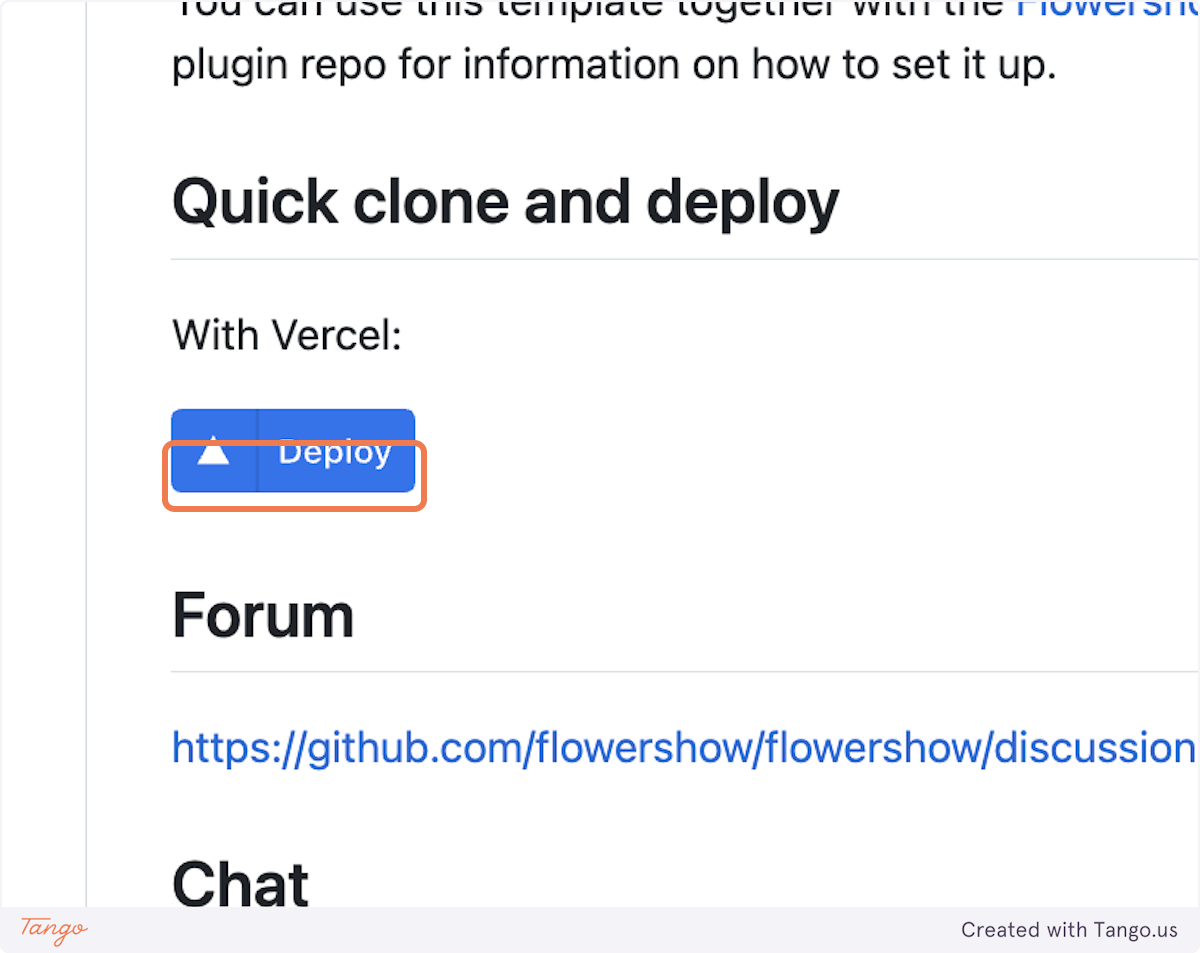
### 2. Scroll down and click on the "Deploy" button
|
||
|
||
After clicking on it, you'll be redirected to Vercel's "Create Git Repository" page.
|
||
|
||
|
||
|
||
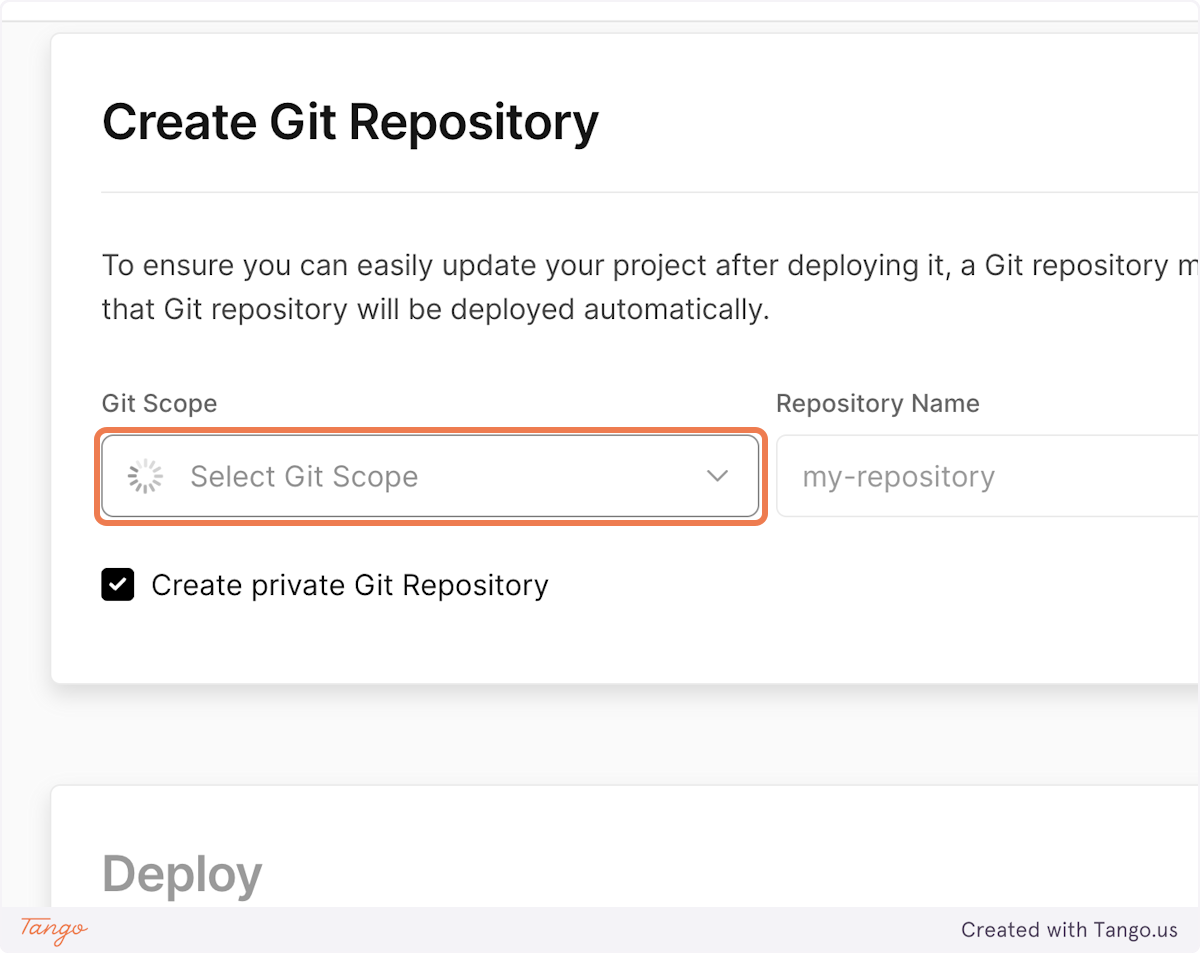
### 3. Select your GitHub account in "Git Scope"
|
||
|
||
Click on "Select Git Scope" dropdown and select your GitHub account name from the list if it's there.
|
||
|
||
|
||
|
||
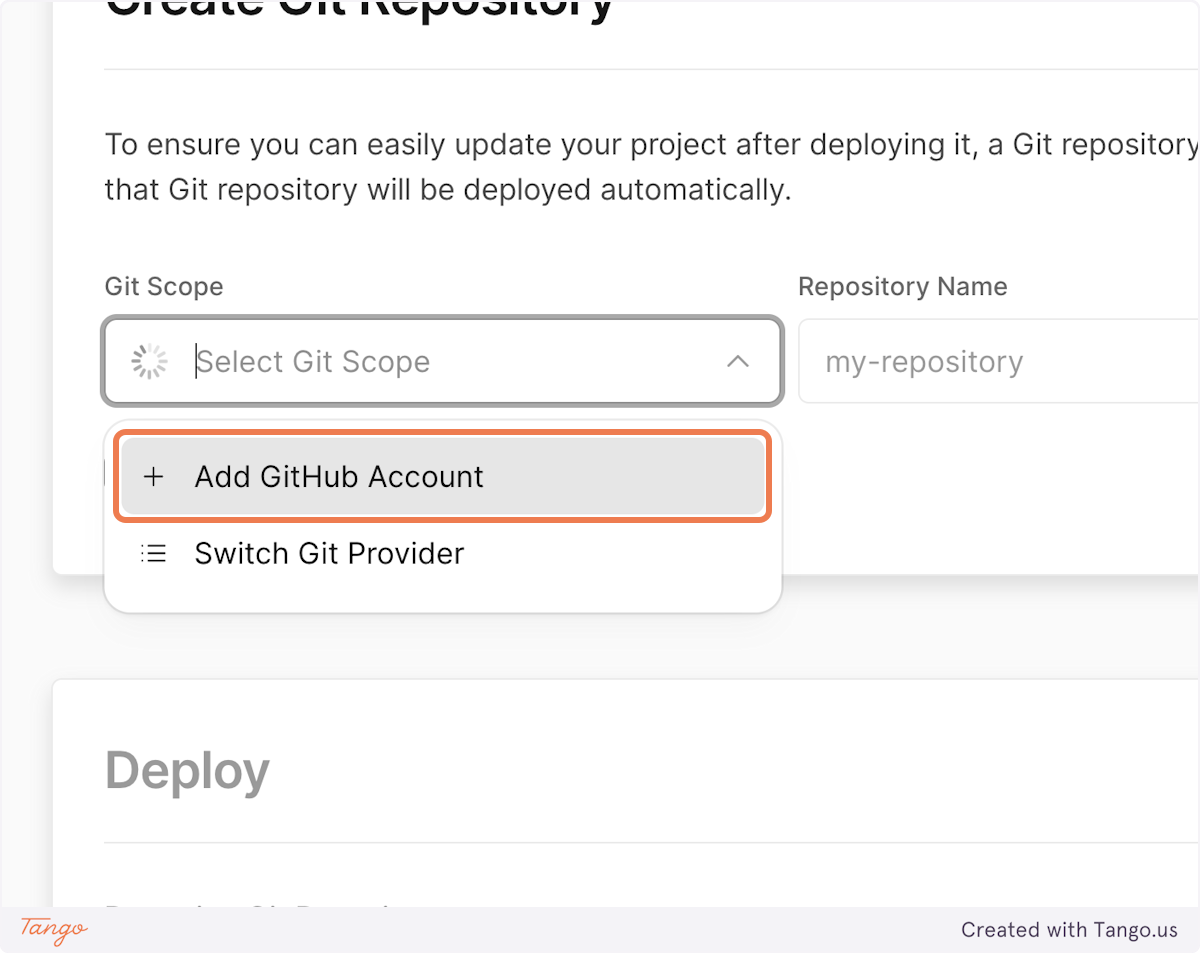
If your GitHub account is not available in the dropdown list, click on "Add GitHub Account"...
|
||
|
||
|
||
|
||
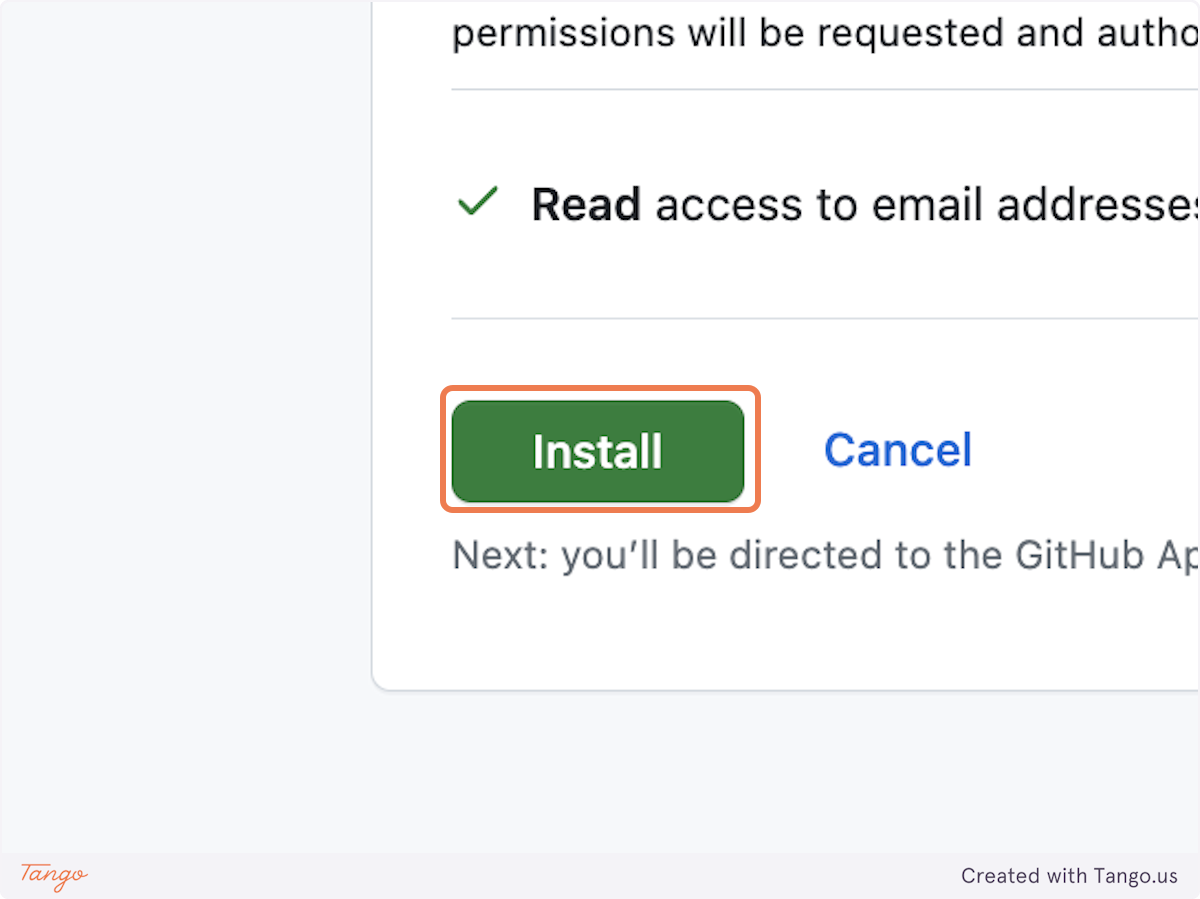
...and authorize Vercel to access your GitHub repositories by clicking "Install".
|
||
|
||
|
||
|
||
Now you can select your GitHub account.
|
||
|
||

|
||
|
||
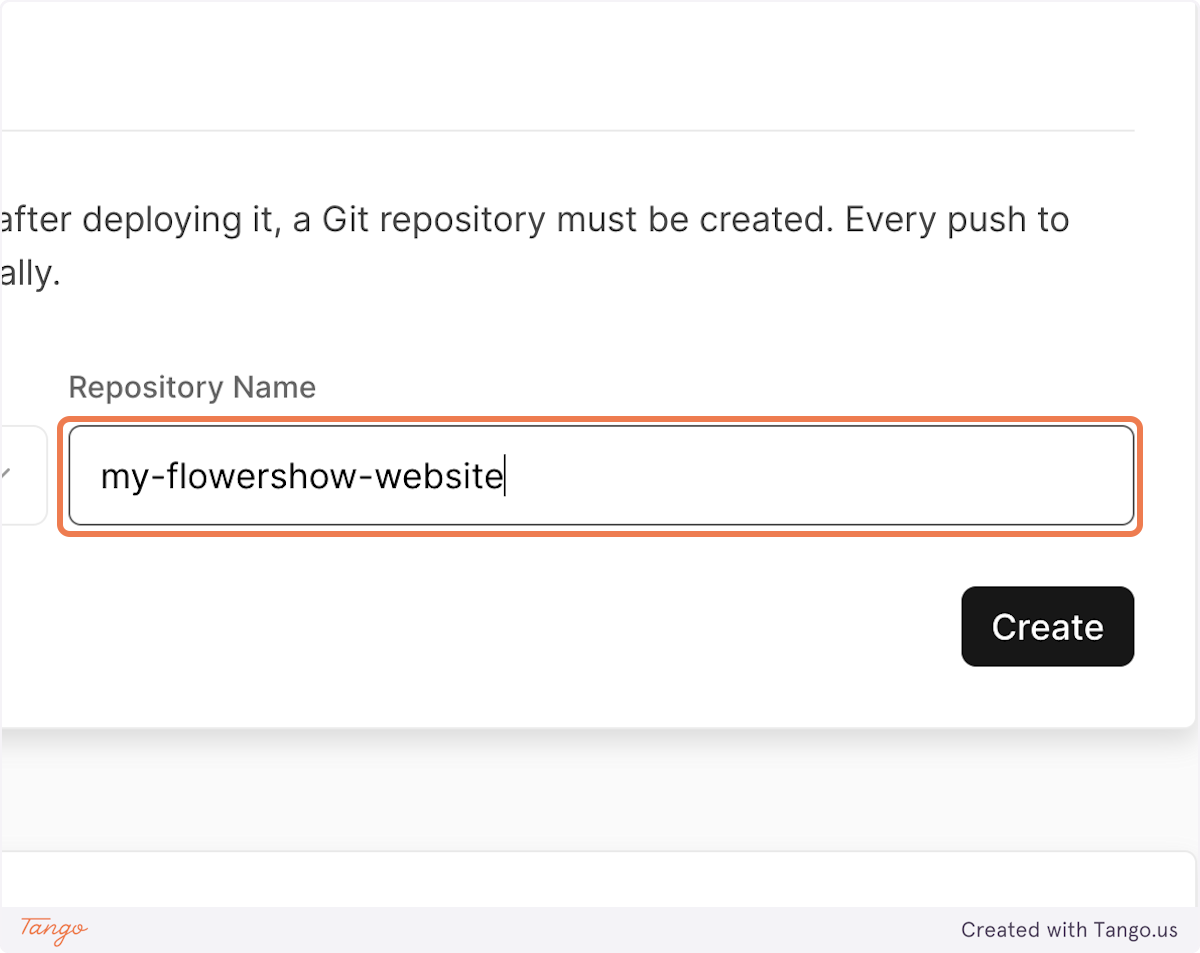
### 4. Give your repository a name
|
||
|
||
A good practice is to use lowercase and dashes.
|
||
|
||
|
||
|
||
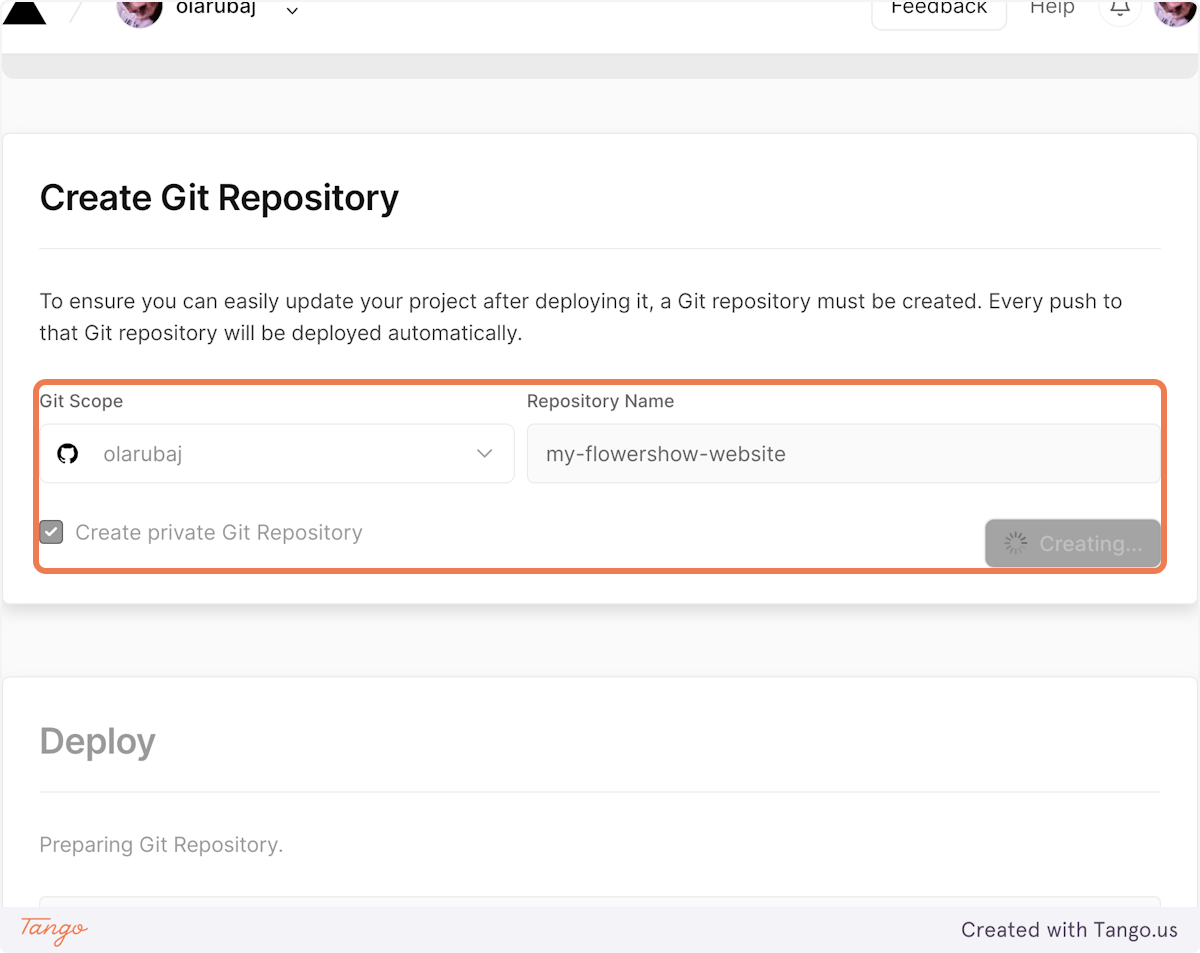
### 5. Click on "Create" and wait until the site deploys
|
||
|
||
After you click "Create", Vercel will create a new repository on your GitHub account, using the `datopian/flowershow` repository as a template. Then, it will immediately start buidling the initial version of your website. This may take about 1-2 minutes.
|
||
|
||
|
||
|
||
### 6. See your published website!
|
||
|
||
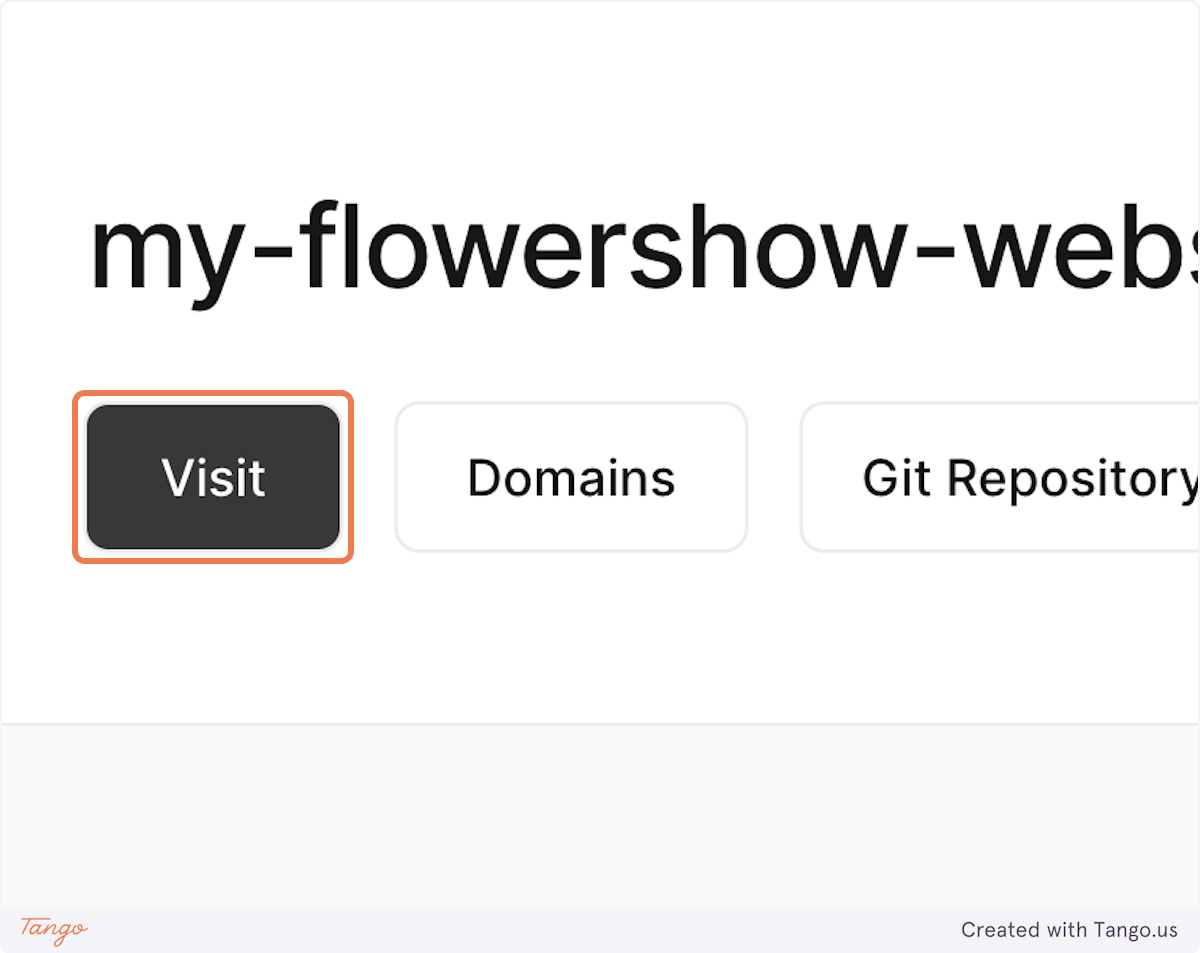
And voila! Your site is up and running. Once on the "Congratulations" screen, navigate to the project dashboard...
|
||
|
||

|
||
|
||
... and click on "Visit" to see your published website!
|
||
|
||
|
||
|
||
## Editing a page on your website
|
||
|
||
Once your site is up and running, the next step is to customize it to your liking. Let's start by editing our home page.
|
||
|
||
### 1. Navigate to the repository of your website on GitHub
|
||
|
||
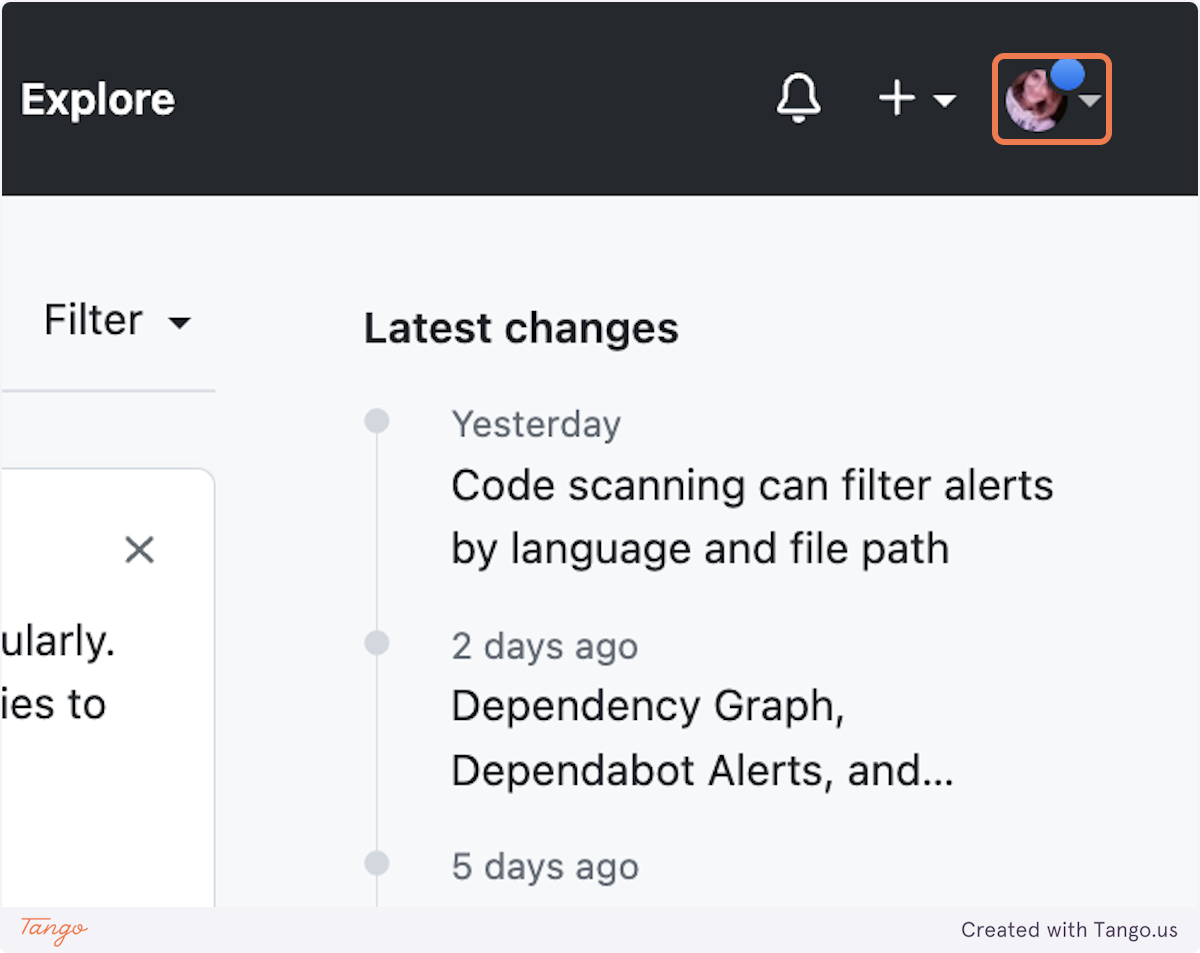
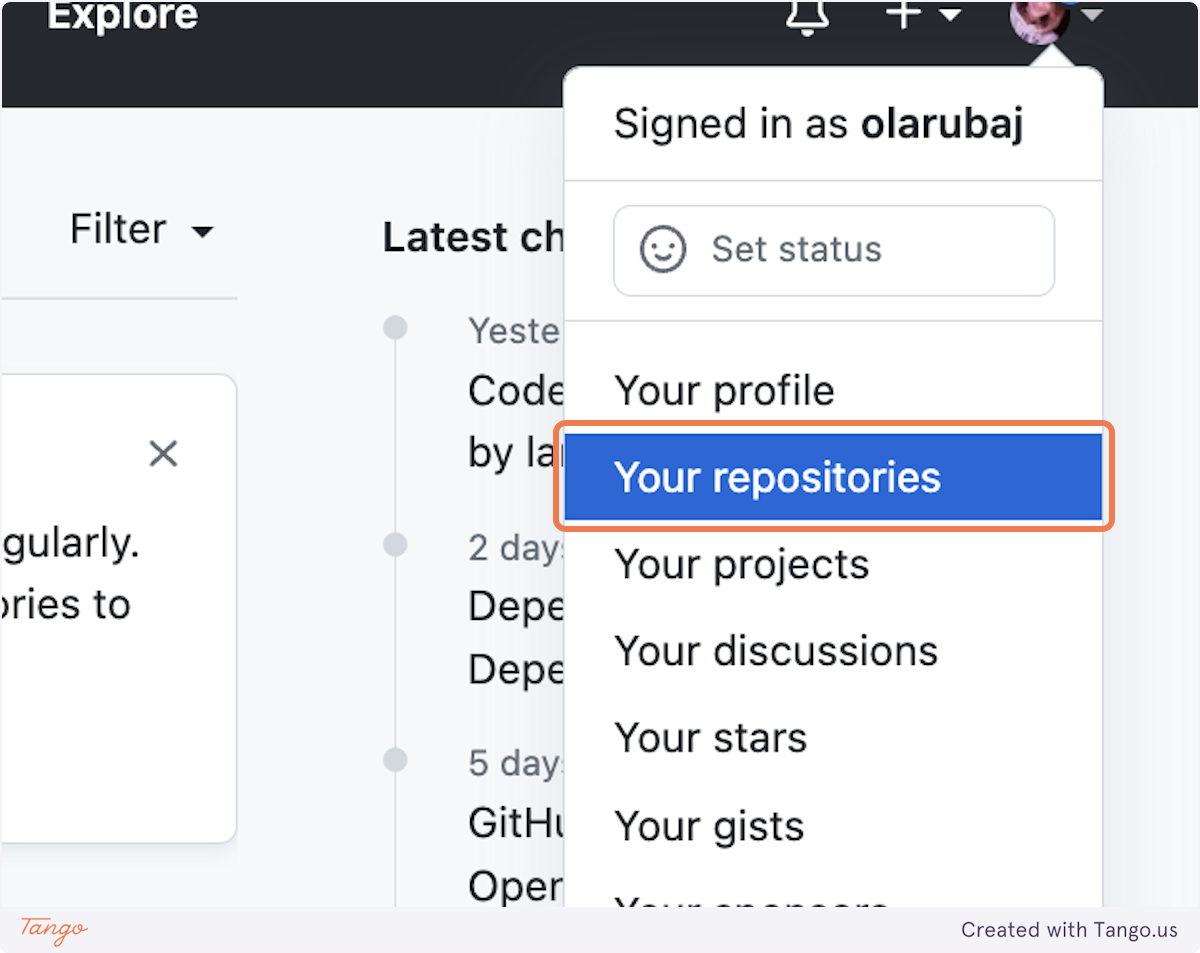
You can get there by going to GitHub, clicking on your profile icon, and going to "Your repositories".
|
||
|
||
|
||
|
||
|
||
|
||
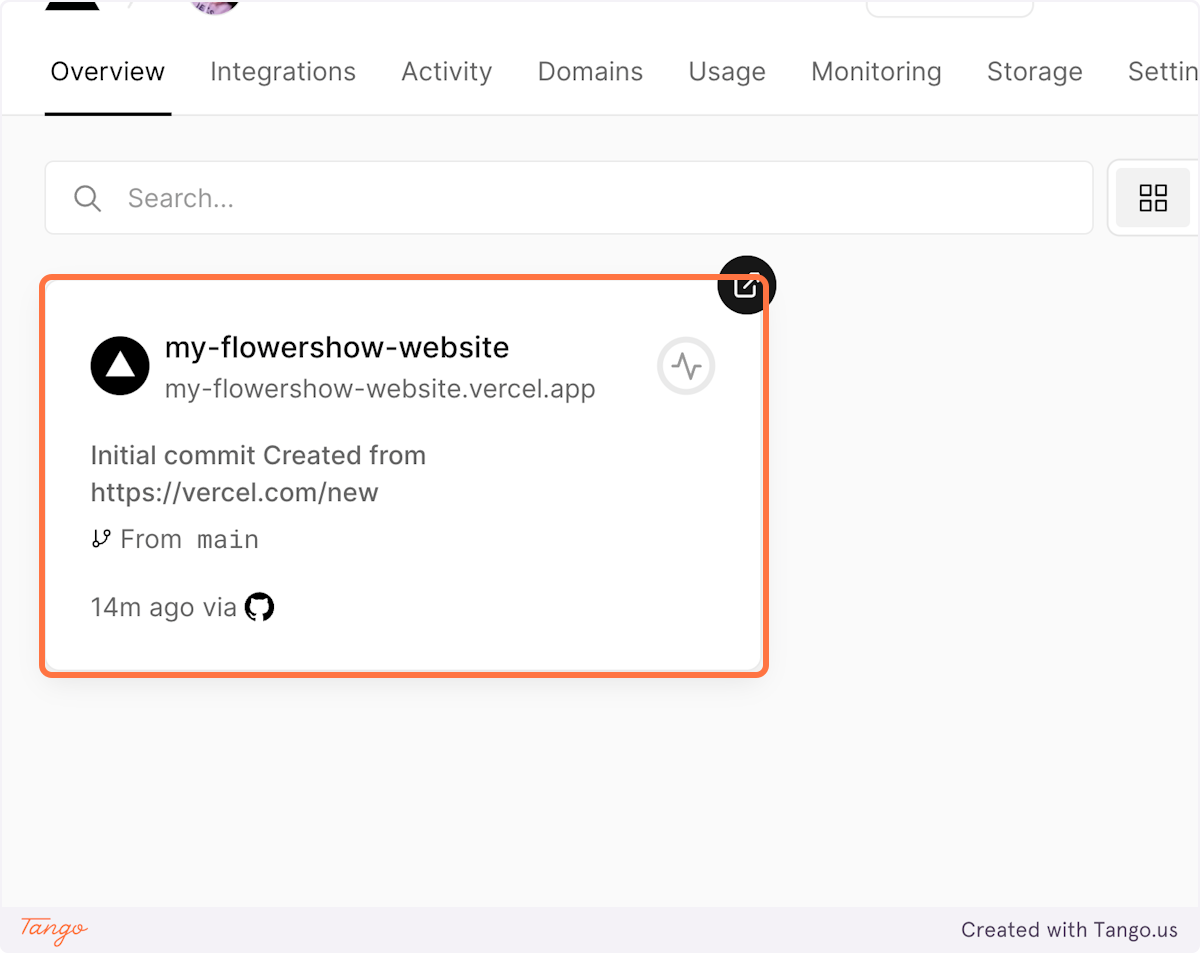
Or, you can navigate to [your Vercel dashboard](https://vercel.com/dashboard), select your project in the "Overview" tab...
|
||
|
||
|
||
|
||
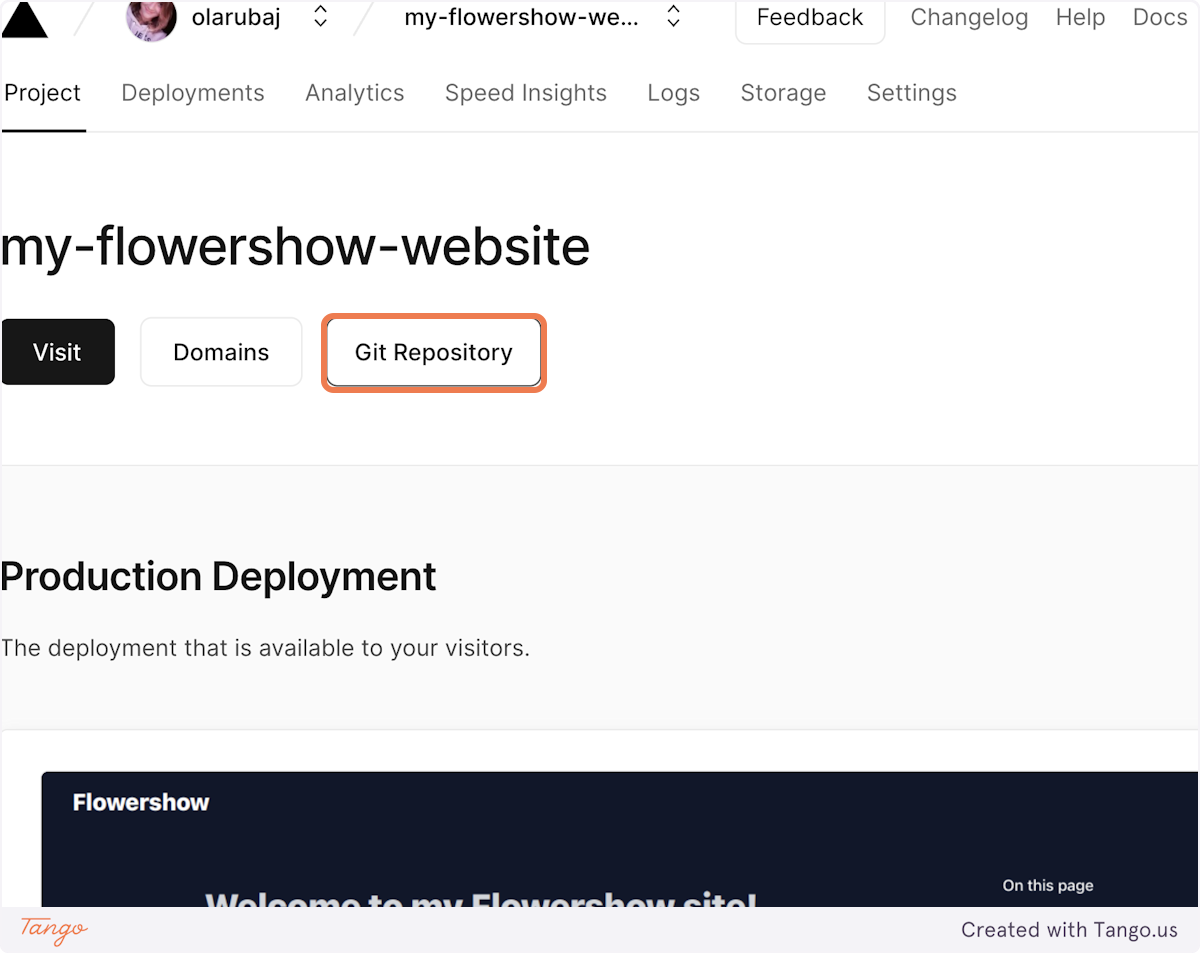
...and click on "Git Repository". You'll be redirected to the repository of your website on GitHub.
|
||
|
||
|
||
|
||
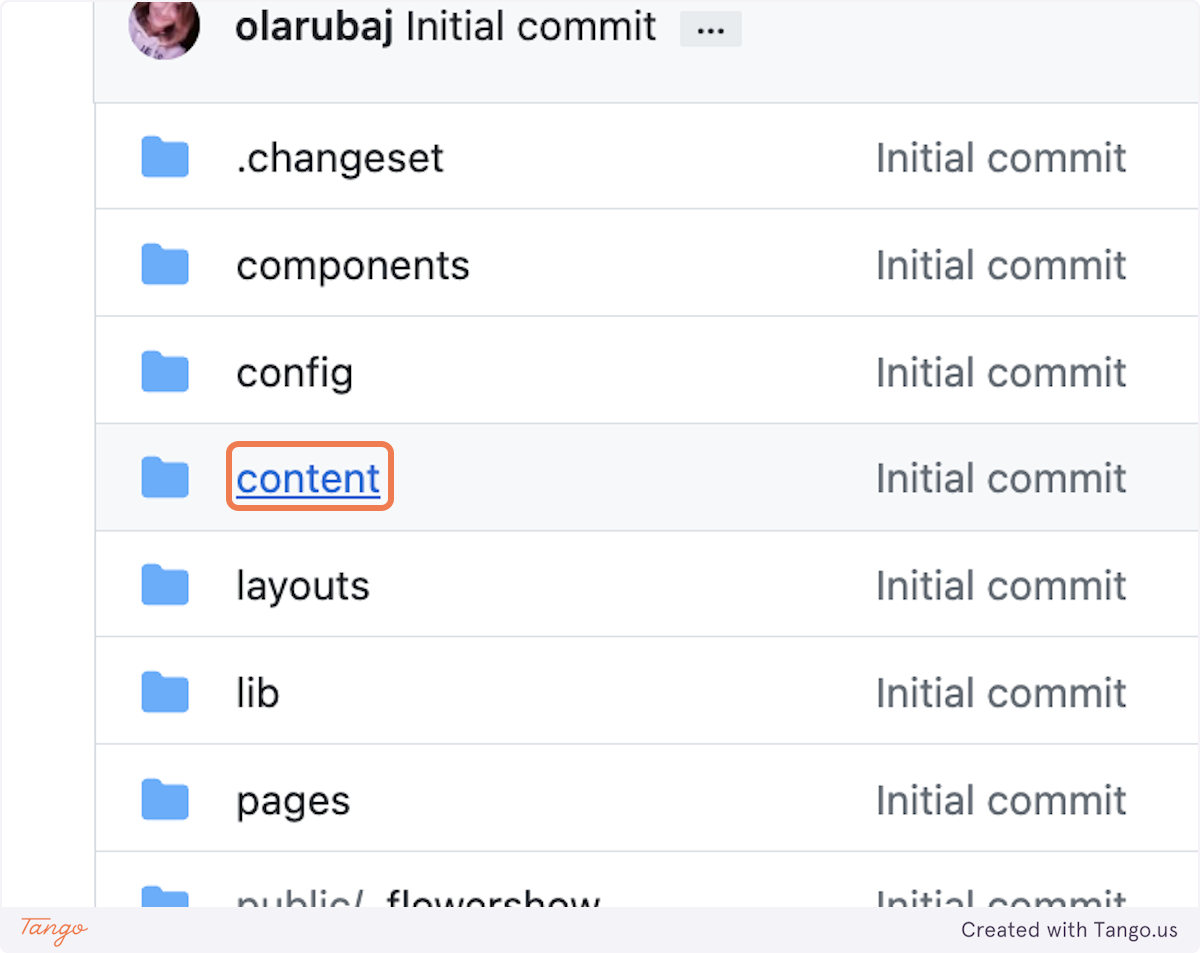
### 2. Navigate to the "content" folder
|
||
|
||
This is where all the Markdown-based pages live in a Flowershow-based project.
|
||
|
||
|
||
|
||
### 3. Edit the "index.md" file
|
||
|
||
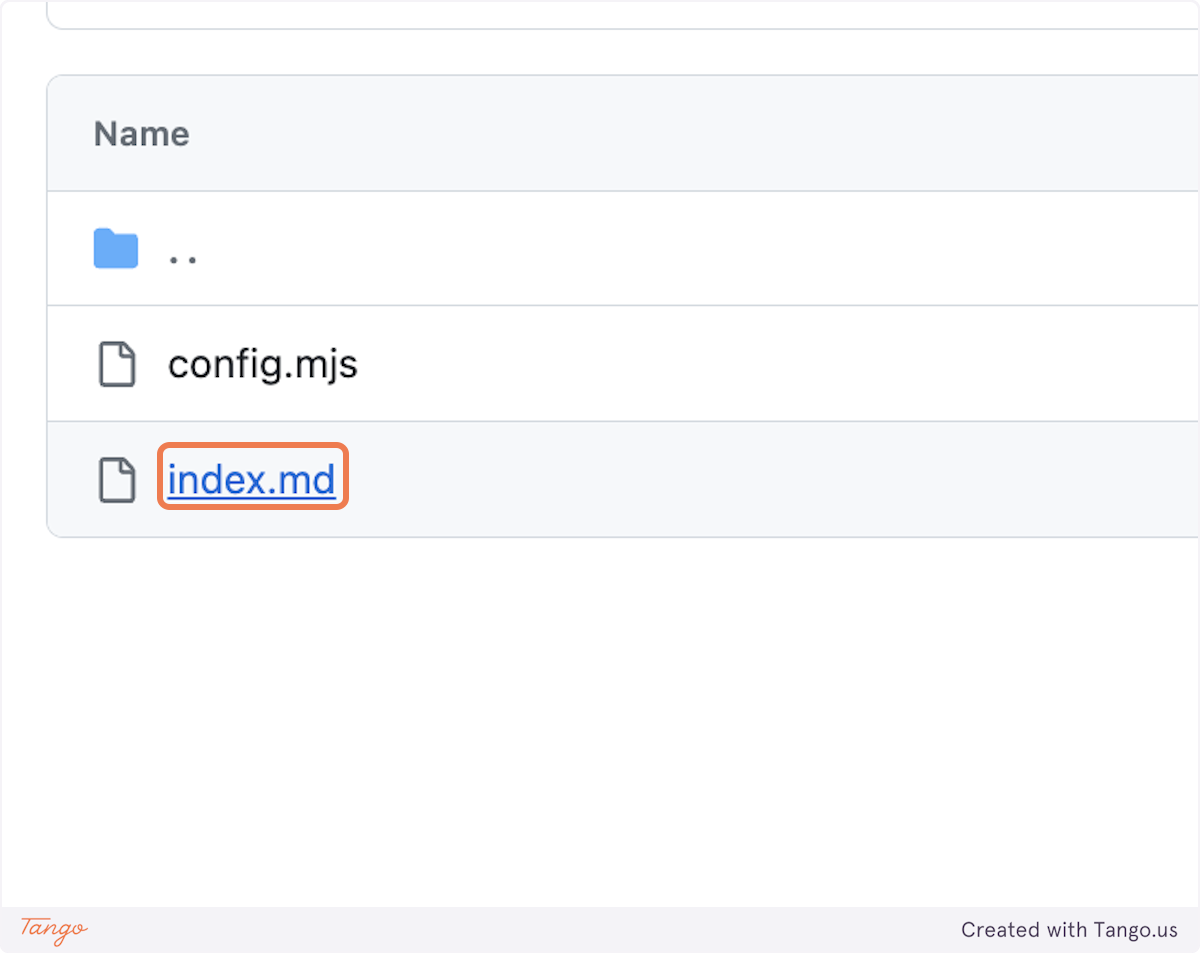
The homepage on your website is built with the "index.md" file in the root of the "content" folder. Click on it to open.
|
||
|
||
|
||
|
||
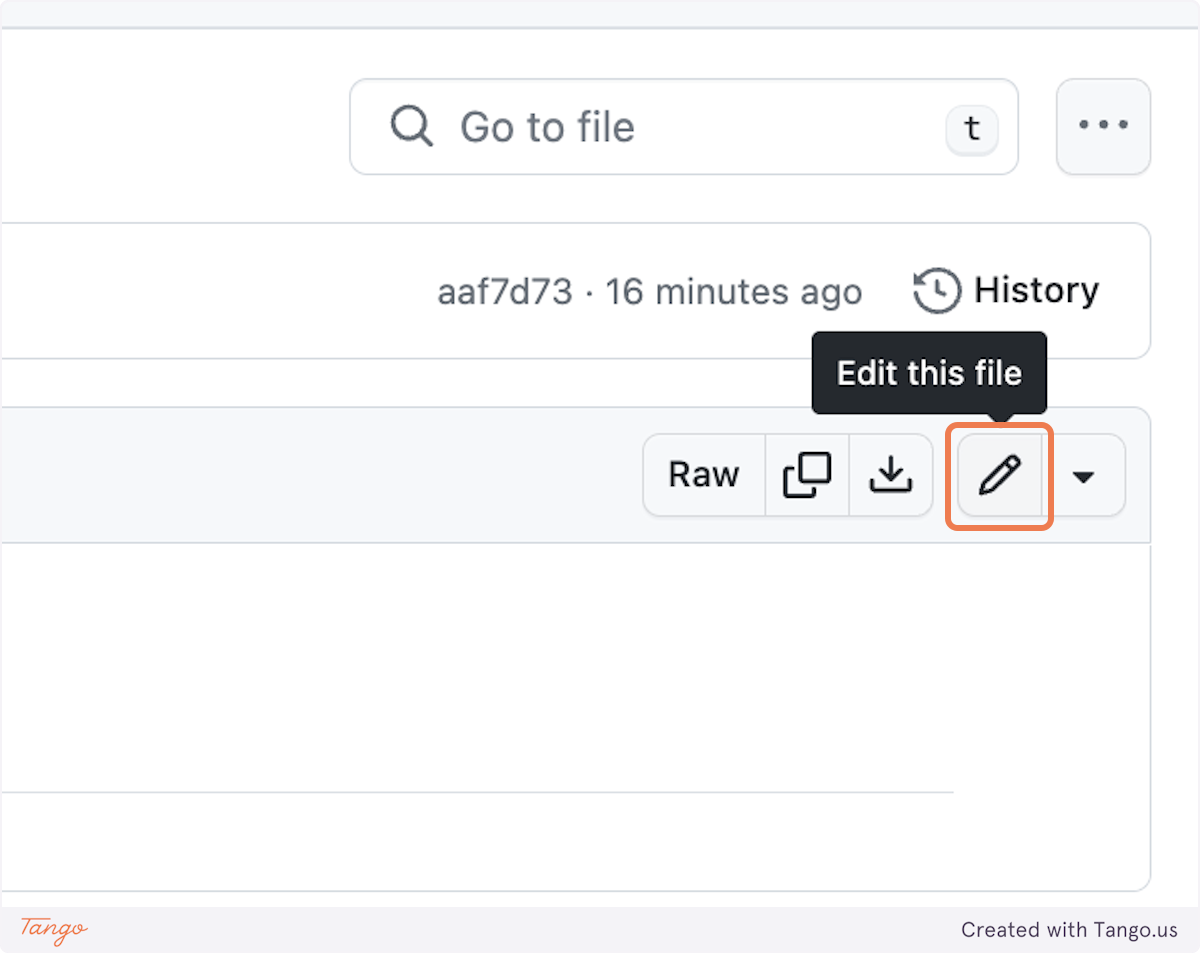
Then, click on the "Edit this file" icon...
|
||
|
||
|
||
|
||
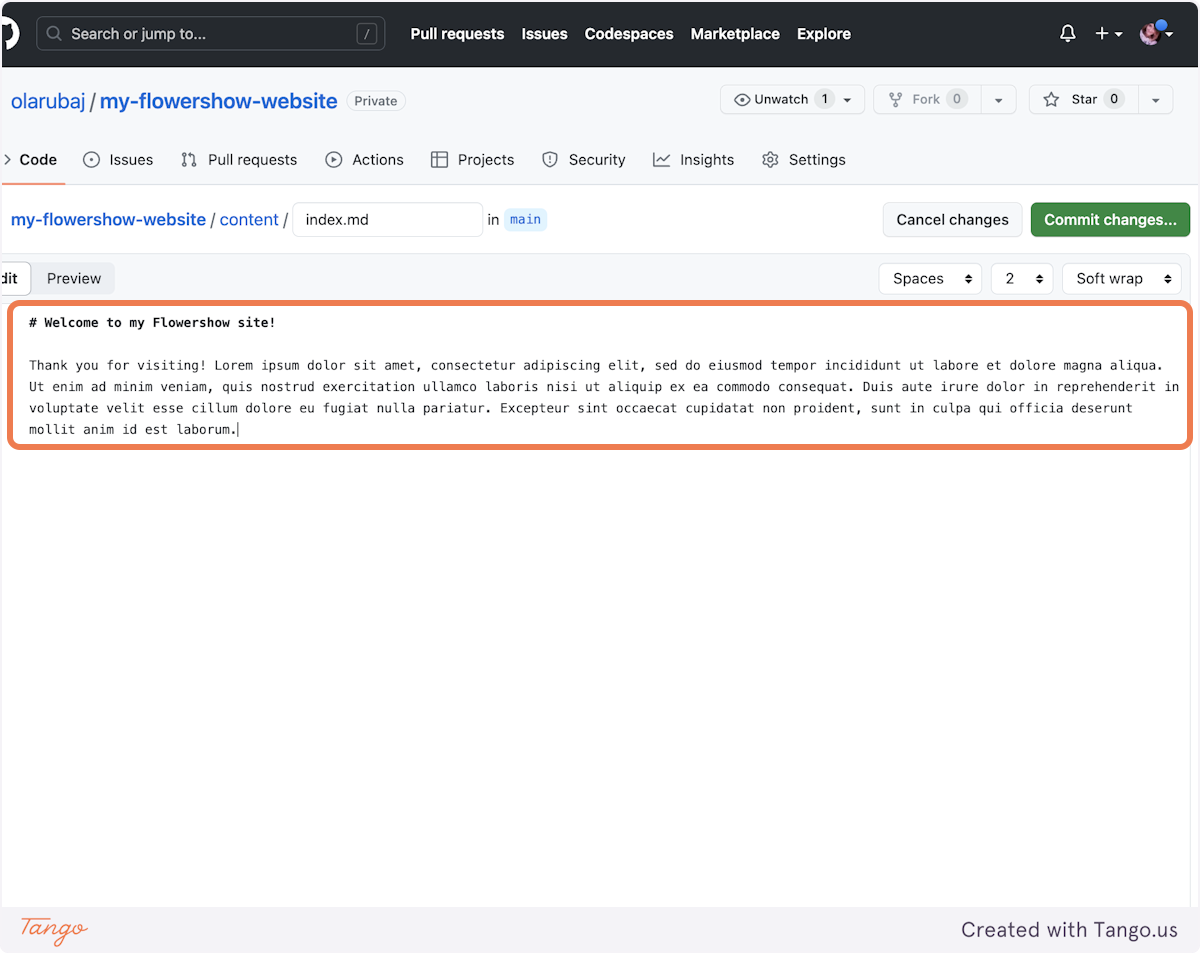
... and add some content.
|
||
|
||
|
||
|
||
### 4. Save your changes
|
||
|
||
To see your changes live, you need to "commit" them. Click on "Commit changes..." buttom in the top-tight corner.
|
||
|
||

|
||
|
||
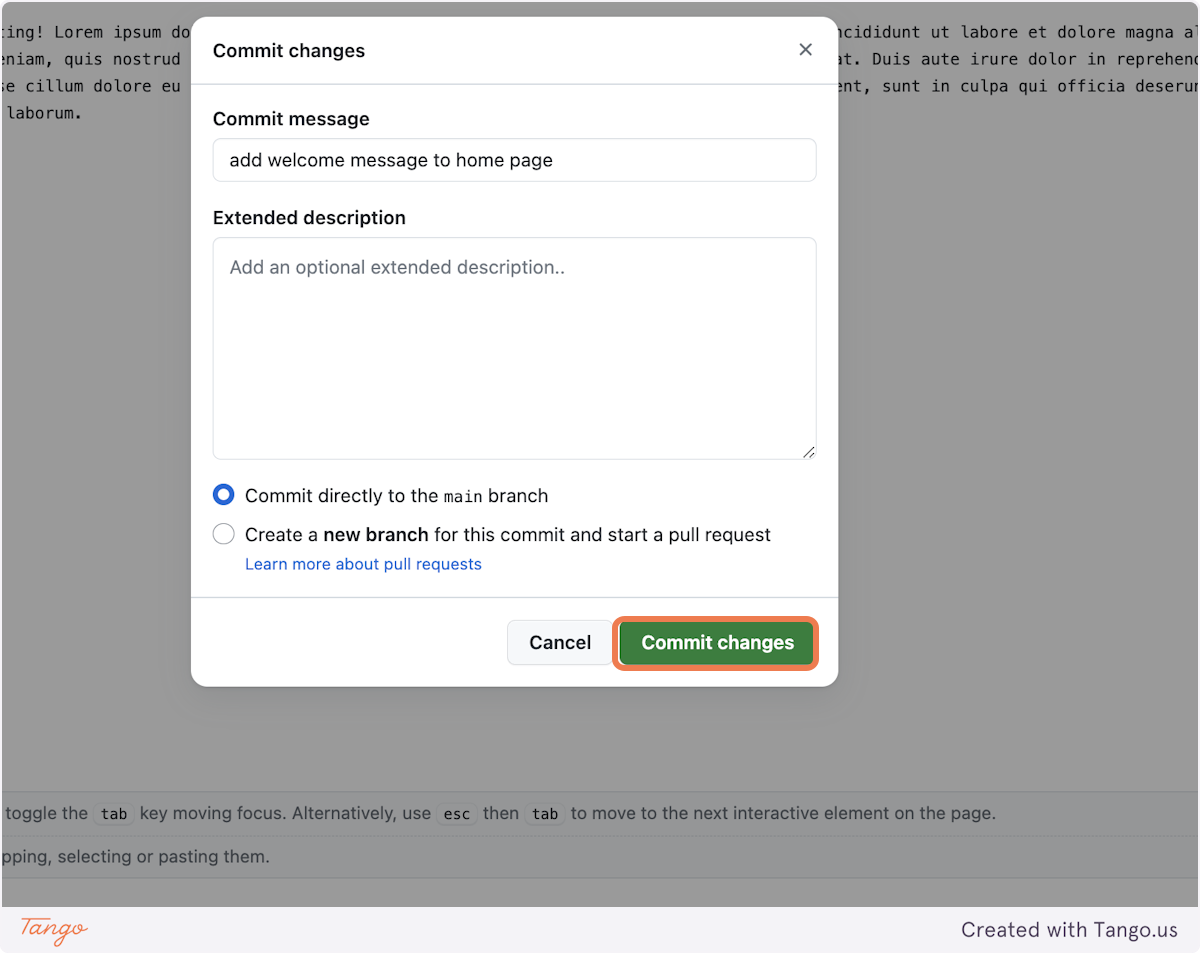
In the "Commit message" field add a concise description of your changes. Optionally, if the commit message is not enough, you can add more info in the "Extended description" field.
|
||
|
||

|
||
|
||
Leave "Commit directly to `main` branch" selected and click on "Commit changes". Doing that will trigger rebuilding of your site on Vercel.
|
||
|
||
|
||
|
||
### 5. See your site getting rebuild
|
||
|
||
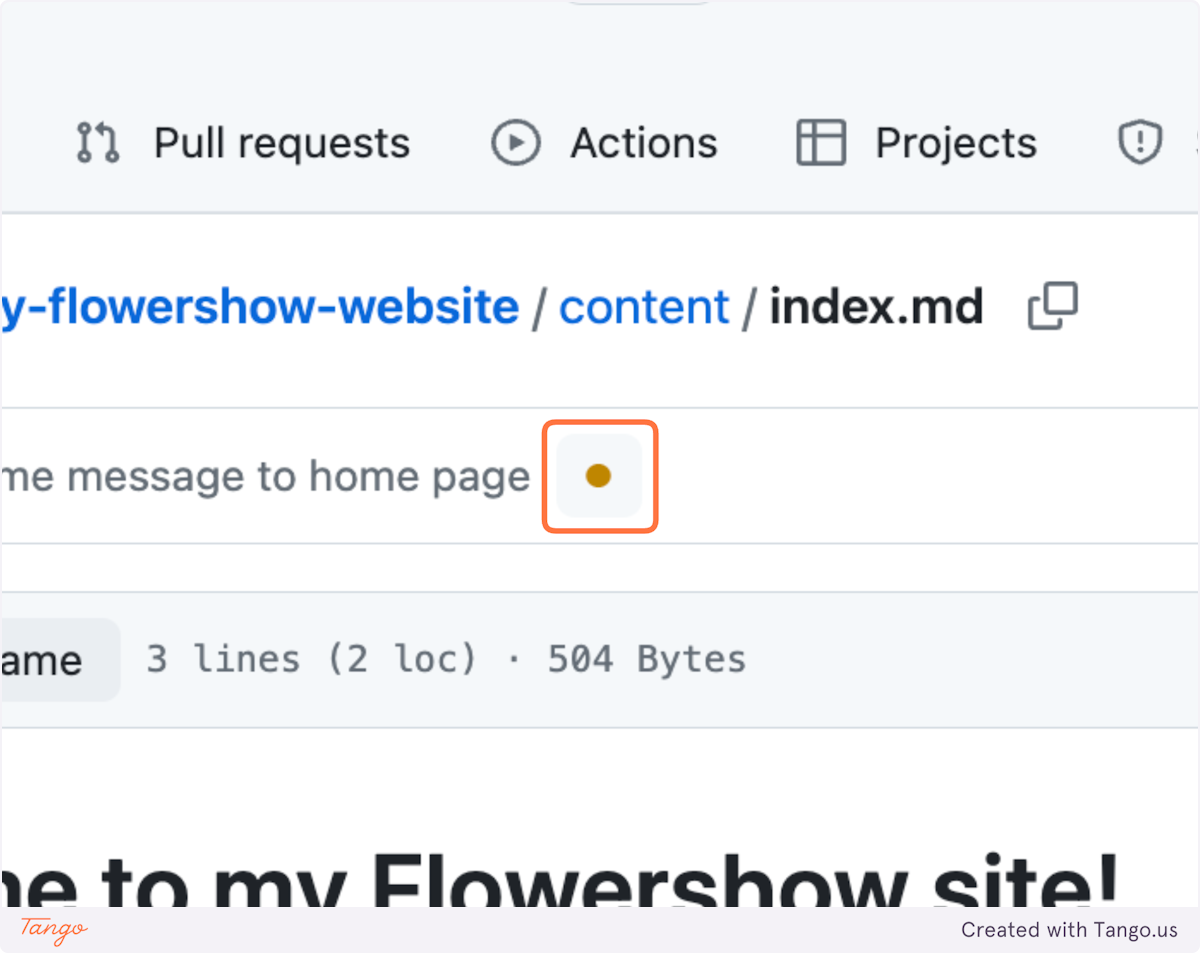
If you want to see the current progress of rebuilding your website after you've commited the changes, click on the dot next to your commit message.
|
||
|
||
> [!note]
|
||
> It will be either a dot (if the site is currently being rebuilt after your changes), a check mark (if the site has finished building) or a cross (if something went wrong when rebuilding it).
|
||
|
||
|
||
|
||
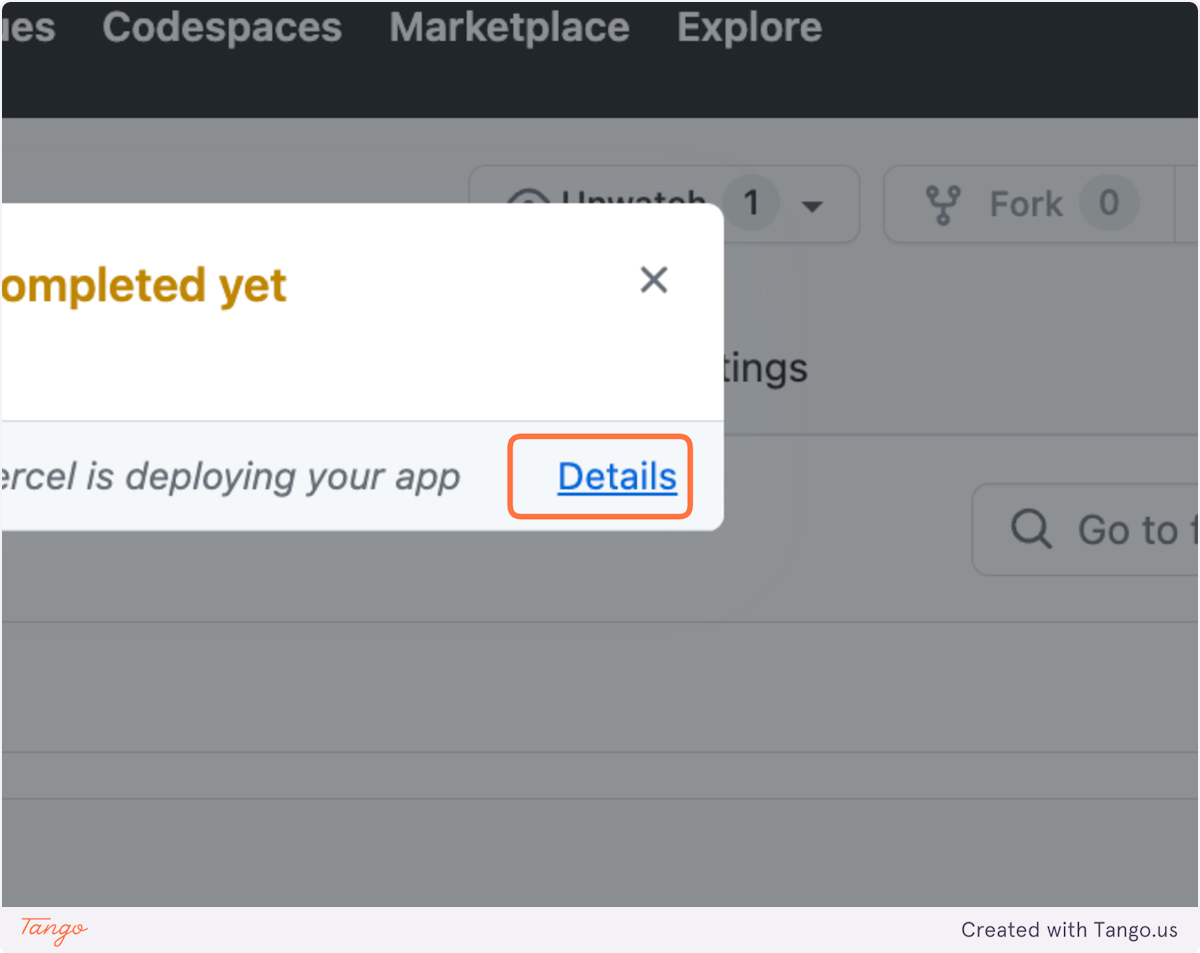
Click on "Details" to see your project's deployment status on Vercel.
|
||
|
||
|
||
|
||
### 6. Preview your site after changes
|
||
|
||
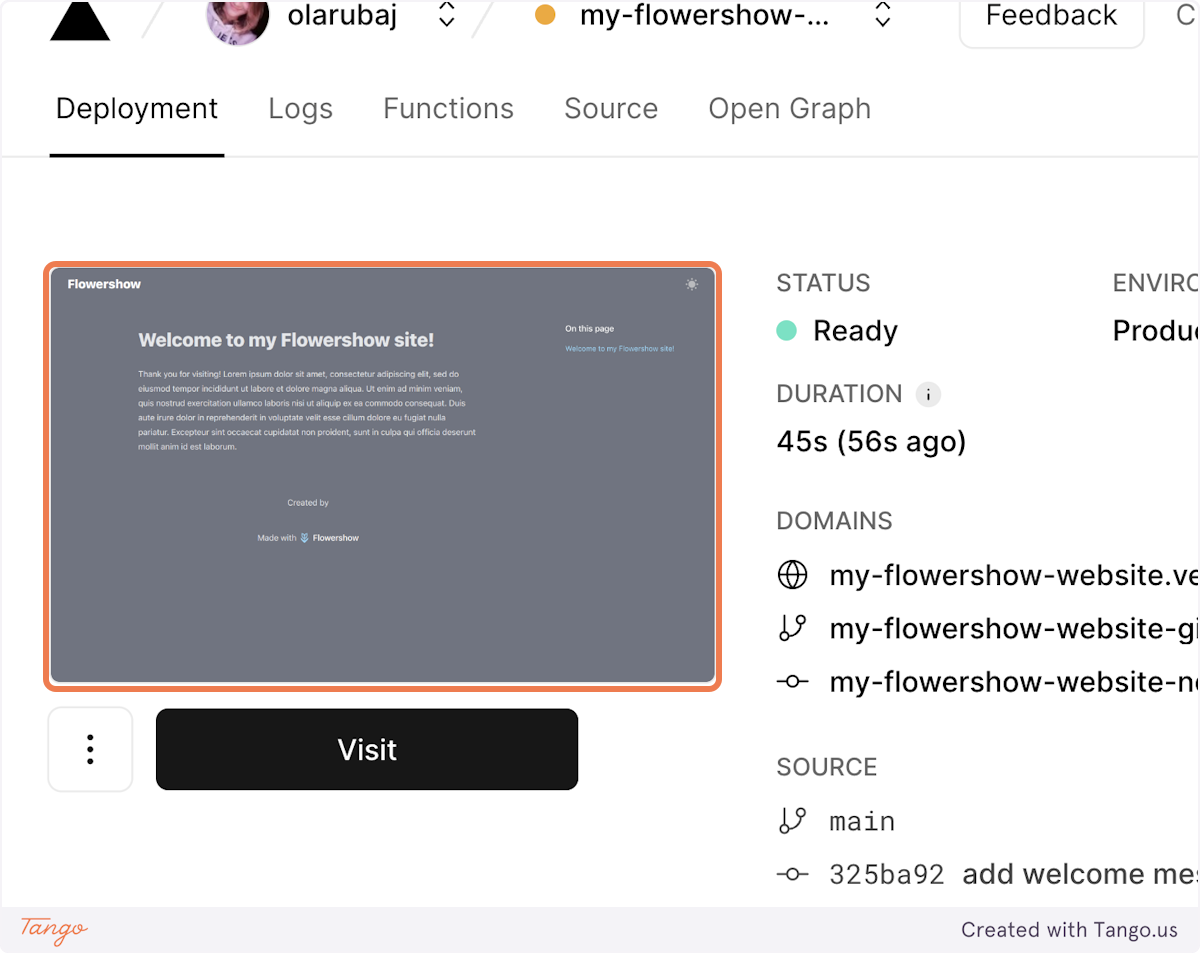
Once the site has been rebuilt, click the preview to see your changes live.
|
||
|
||
|
||
|
||
## Add a single Markdown-based page
|
||
|
||
### 1. Navigate to the "content" folder in your website's repository
|
||
|
||
See how to find it in the previous section.
|
||
|
||
### 2. Create new file
|
||
|
||
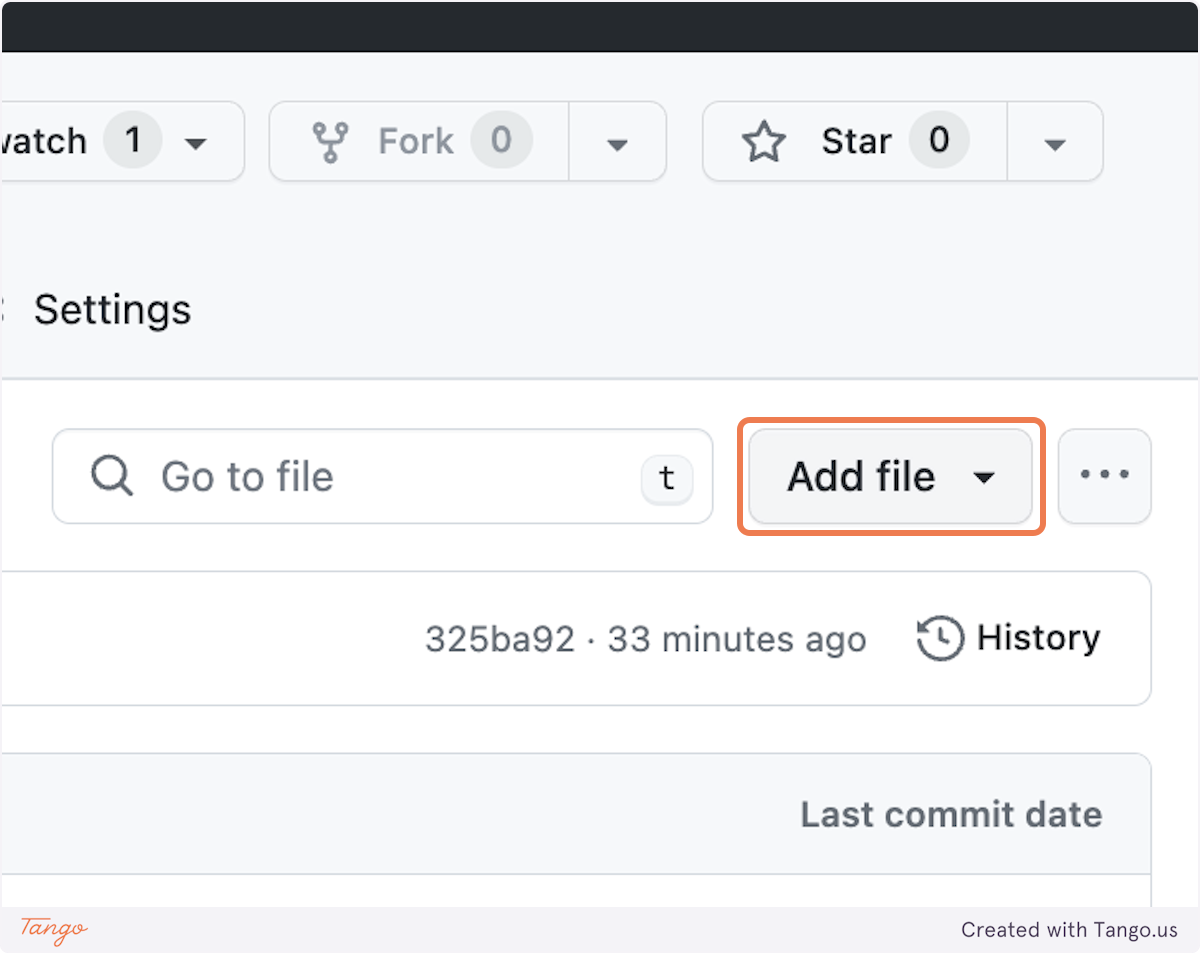
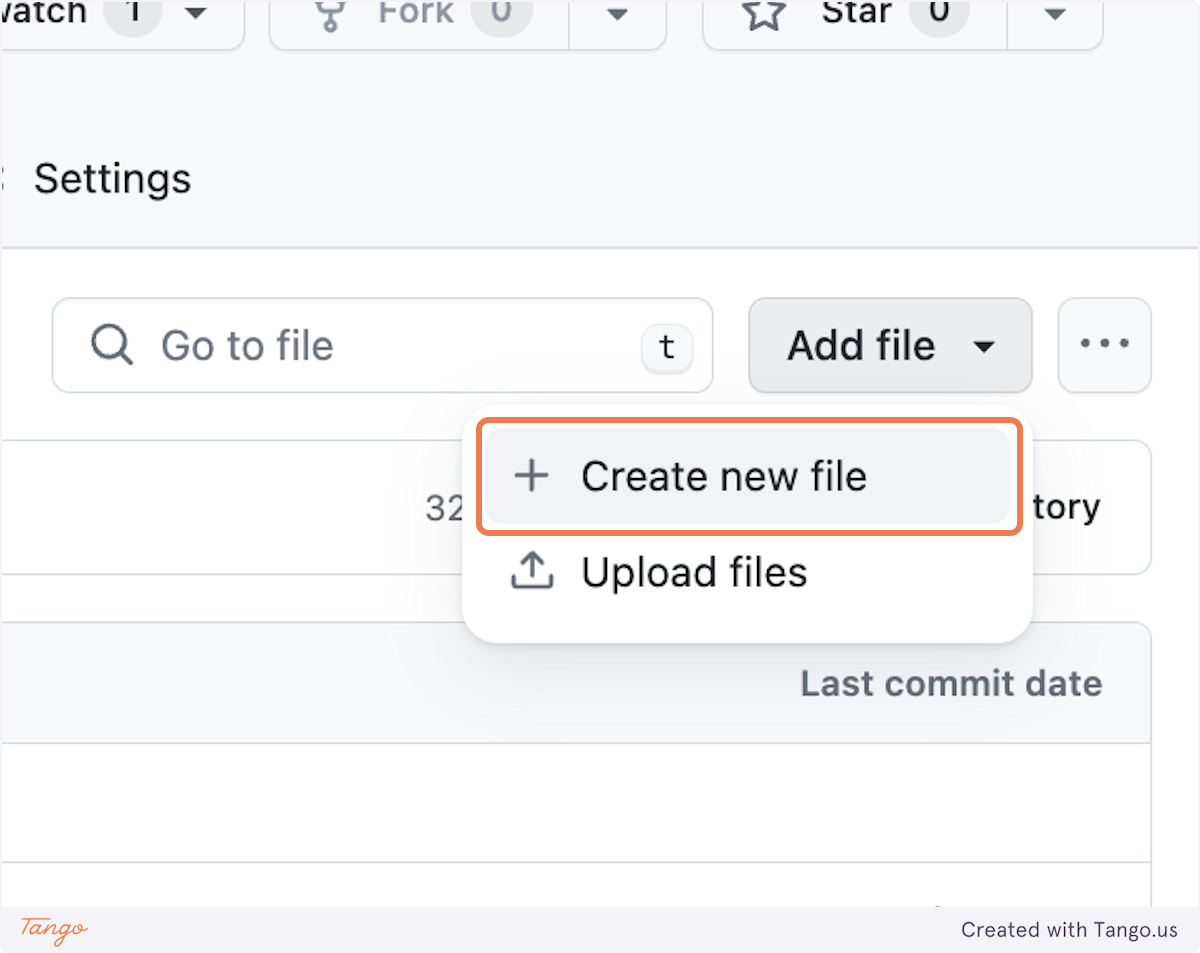
Click on "Add file"...
|
||
|
||
|
||
|
||
...and "Create new file".
|
||
|
||
|
||
|
||
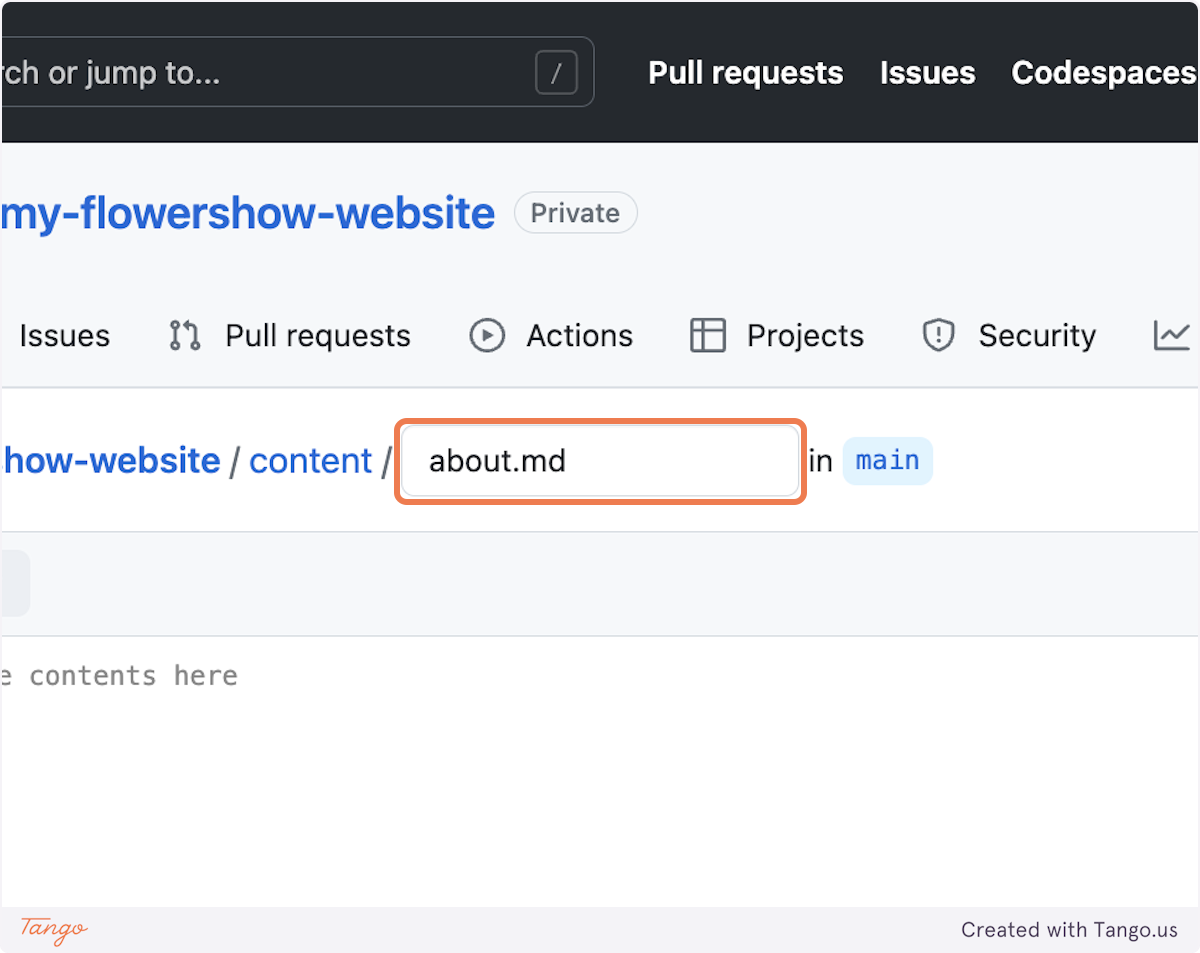
### 3. Type the name of the new file you want to create
|
||
|
||
|
||
|
||
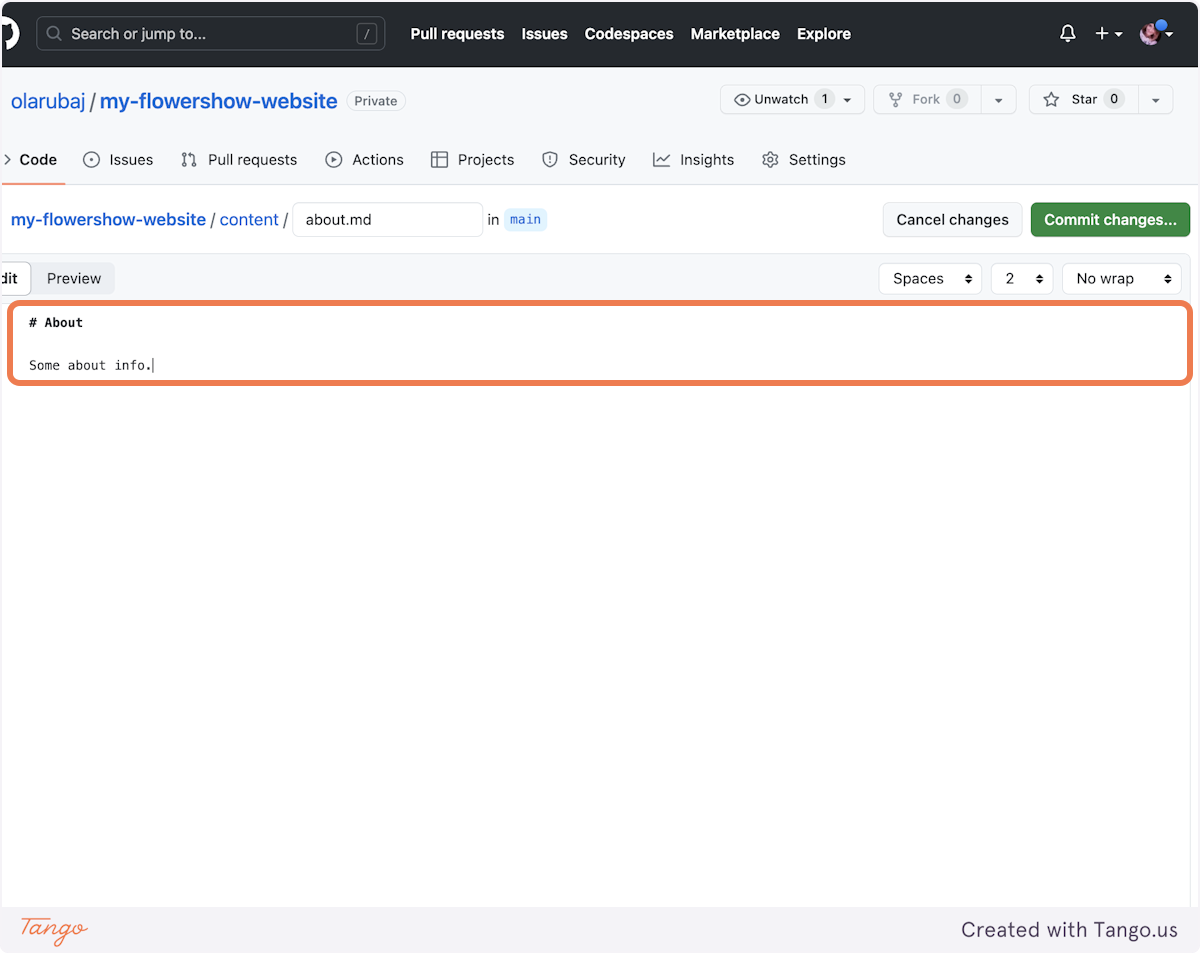
### 4. Write the content of the file
|
||
|
||
|
||
|
||
### 5. Save your changes
|
||
|
||
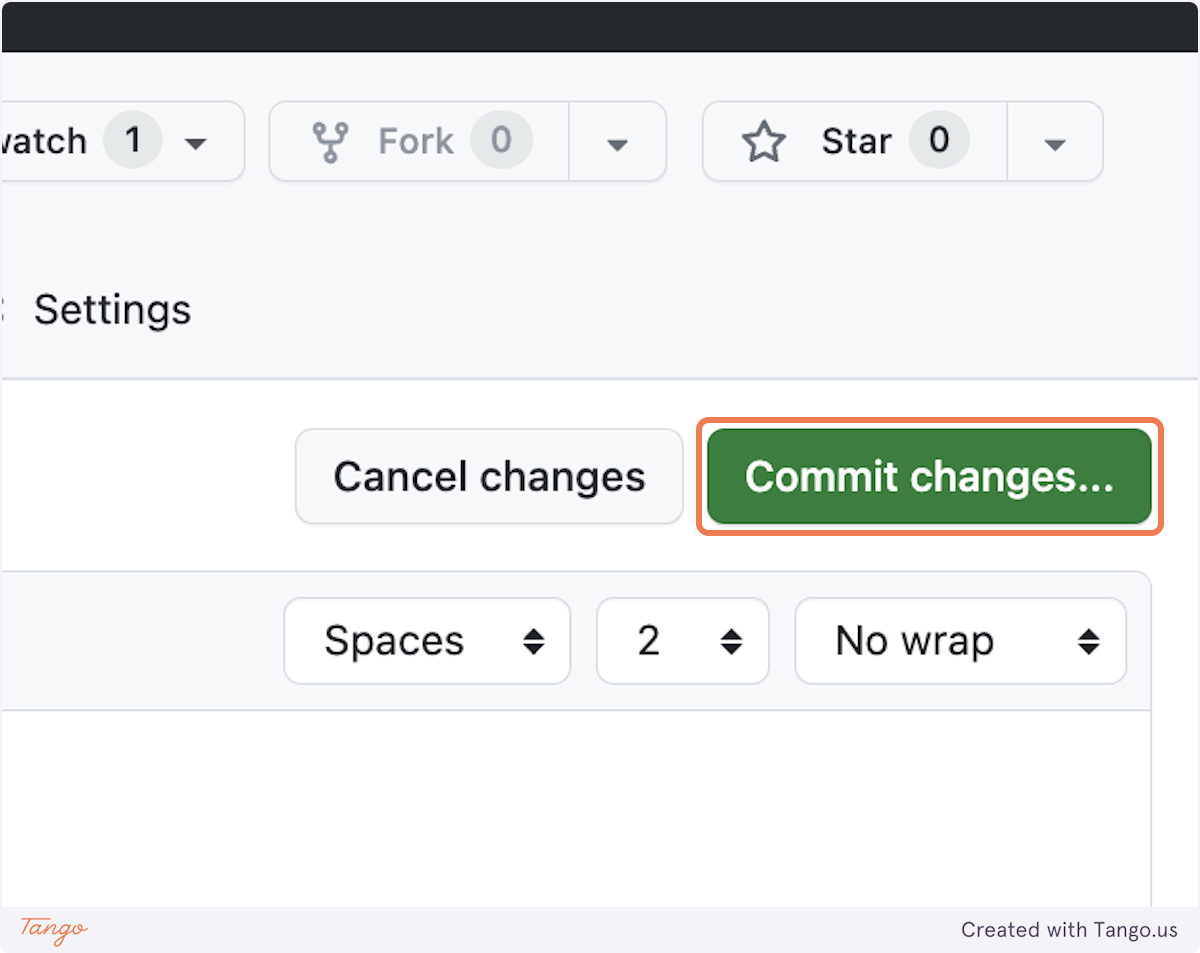
To see your changes live, you need to "commit" them. Click on "Commit changes..." buttom in the top-tight corner.
|
||
|
||
|
||
|
||
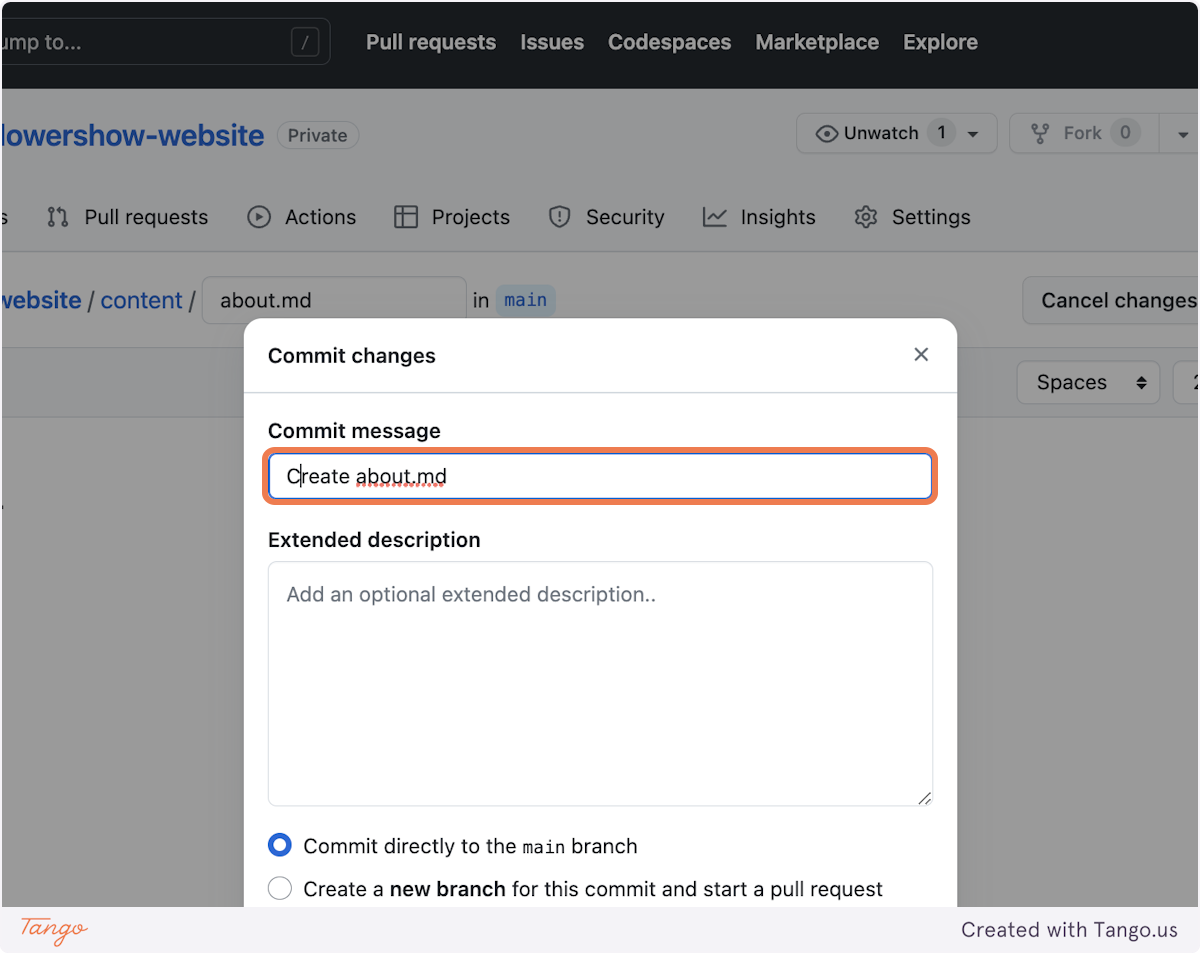
In the "Commit message" field add a concise description of your changes. Optionally, if the commit message is not enough, you can add more info in the "Extended description" field.
|
||
|
||
|
||
|
||
Leave "Commit directly to `main` branch" selected and click on "Commit changes". Doing that will trigger rebuilding of your site on Vercel.
|
||
|
||

|
||
|
||
### 6. Preview your site after changes
|
||
|
||
As you already know, Vercel will now start rebuilding your website. When it's done, you can navigate to `/about` url on your website to see the new file we've just added.
|
||
|
||
## What's next?
|
||
|
||
While editing on GitHub UI is acceptable, it has its limitations – it doesn't support working offline, adding multiple files simultaneously, or previewing many markdown syntax elements supported by Flowershow-based websites. We'll delve into these issues and solutions to overcome them in our next tutorial. Stay tuned!
|